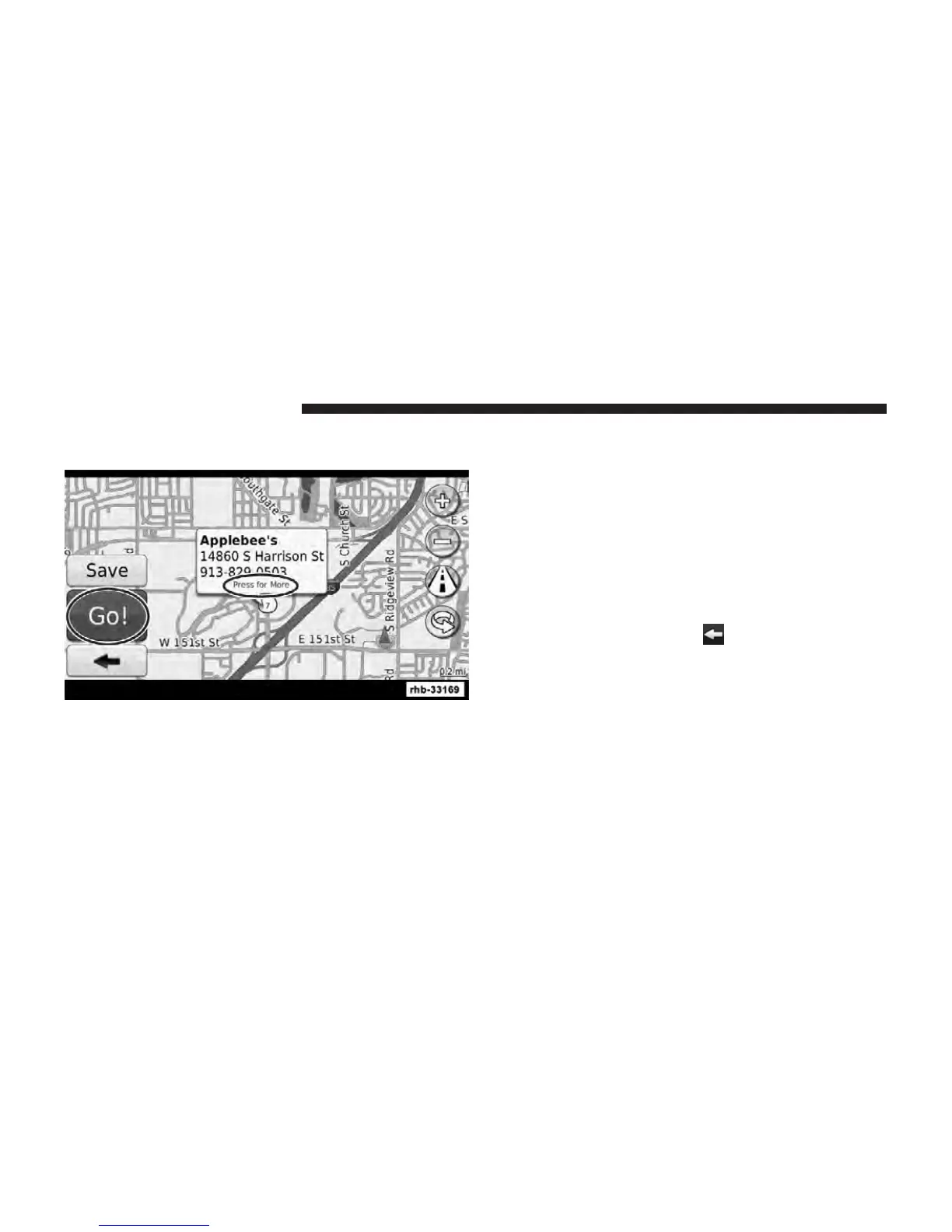
6. Touch Go! , or touch Press for More to see the Review
page.
Following Your Route
Your route is marked with a magenta line. As you travel,
your navigation system guides you to your destination
with voice prompts, arrows on the map, and directions at
the top of the map. A checkered flag marks your desti-
nation. The upper-left corner indicates the distance to
your next maneuver. If you depart from the original
route, your navigation system recalculates the route and
provides new directions.
Adding a Via Point
You can add a stop (Via Point) to your route. The
navigation system gives you directions to the stop and to
your final destination.
1. With a route active, touch
(back icon) and then
touch Where To?.
2. Search for the extra stop.
NOTE: Perform Finding a Point of Interest procedure to
find an extra stop.
3. Touch Go!.
76 Uconnect Touch™ 8.4 SYSTEM



 To Next Page