Chapter 3
Advanced Configuration
7
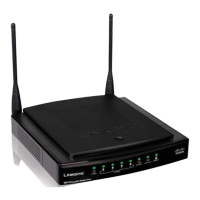
Wireless-N Gigabit Router
apter 3:
dvanced Configuration
ter setting up the Router with the Setup Wizard (located
on the CD-ROM), the Router will be ready
or use. However,
f you’d like to change its advanced settings, use the
Router’s we
-
ase
uti
it
. T
is c
apter
escri
es eac
web page o
the utility and each page’s key
unctions. You
can access the utility via a web browser on a computer
connecte
to t
e Router
he web-based utility has these main tabs: Setup,
ireless, Security, Access Restrictions, Applications &
Gaming, A
ministration, an
Status. A
itiona
ta
s wi
e available a
ter you click one o
the main tabs
NOTE: When first installing the Router, you
s
ou
use t
e Setup Wizar
on t
e Setup
CD-ROM. I
ou want to con
igure advanced
settin
s, use this chapter to learn about the
we
-
ase
uti
it
How to Access t
e We
-Base
Uti
it
o access the web-based utility, launch the web browser on
our computer, and enter the Router’s default IP address,
192
1
1
in the A
r
ield. Then, press
n
r
lo
in screen will appear. (Non-Windows XP users will
see a simi
ar screen.
Leave t
e
ser name field blank. The
irst time
ou open the Web-based utilit
, use the de
ault
assword
mi
(You can set a new
assword from the
ministration ta
’s
o
n
n
o
in
creen
etu
> Basic Setu
he first screen that a
ears is the
asic Setu
screen. This
ows
ou to c
ange t
e Router’s genera
settings.
etu
> Basic
etu
Internet Setu
he Internet Setup section configures the Router to your
Internet connection. Most o
this in
ormation can be
obtained through your ISP
nternet Connection T
p
elect the t
pe of Internet connection
our ISP provides
rom the drop-down menu. These are the available t
pes
utomatic Confi
uration - DHC
tatic IP
PPPo
e
stra Ca
Automatic Con
iguration - DHC
B
de
ault, the Router’s Internet Connection T
pe is set
utomatic Confi
uration - DHC
, which should be
kept onl
if
our ISP supports DHCP or
ou are connecting
t
roug
a
namic IP a
ress. (T
is option usua
app
ies
to cable connections.
nternet Connection Type > Automatic Configuration - DHC



 To Next Page
 Loading...