2-4
Installation and Upgrade Guide for Cisco Unified Videoconferencing 3515 MCU12 and MCU24 Release 5.1
OL-11897-01
Chapter 2 Setting Up Your Cisco Unified Videoconferencing 3515 MCU
Mounting the Cisco Unified Videoconferencing 3515 MCU Unit in a 19-inch Rack
Mounting the Cisco Unified Videoconferencing 3515 MCU Unit
in a 19-inch Rack
You can optionally mount the Cisco Unified Videoconferencing 3515 MCU unit in a standard 19-inch
rack. Two mounting brackets and a set of screws are included in the Cisco Unified
Videoconferencing 3515 MCU unit shipping box.
Procedure
Step 1 Disconnect all cables including the power cables.
Step 2 Place the Cisco Unified Videoconferencing 3515 MCU unit right-side up on a hard flat surface, with the
front panel facing you.
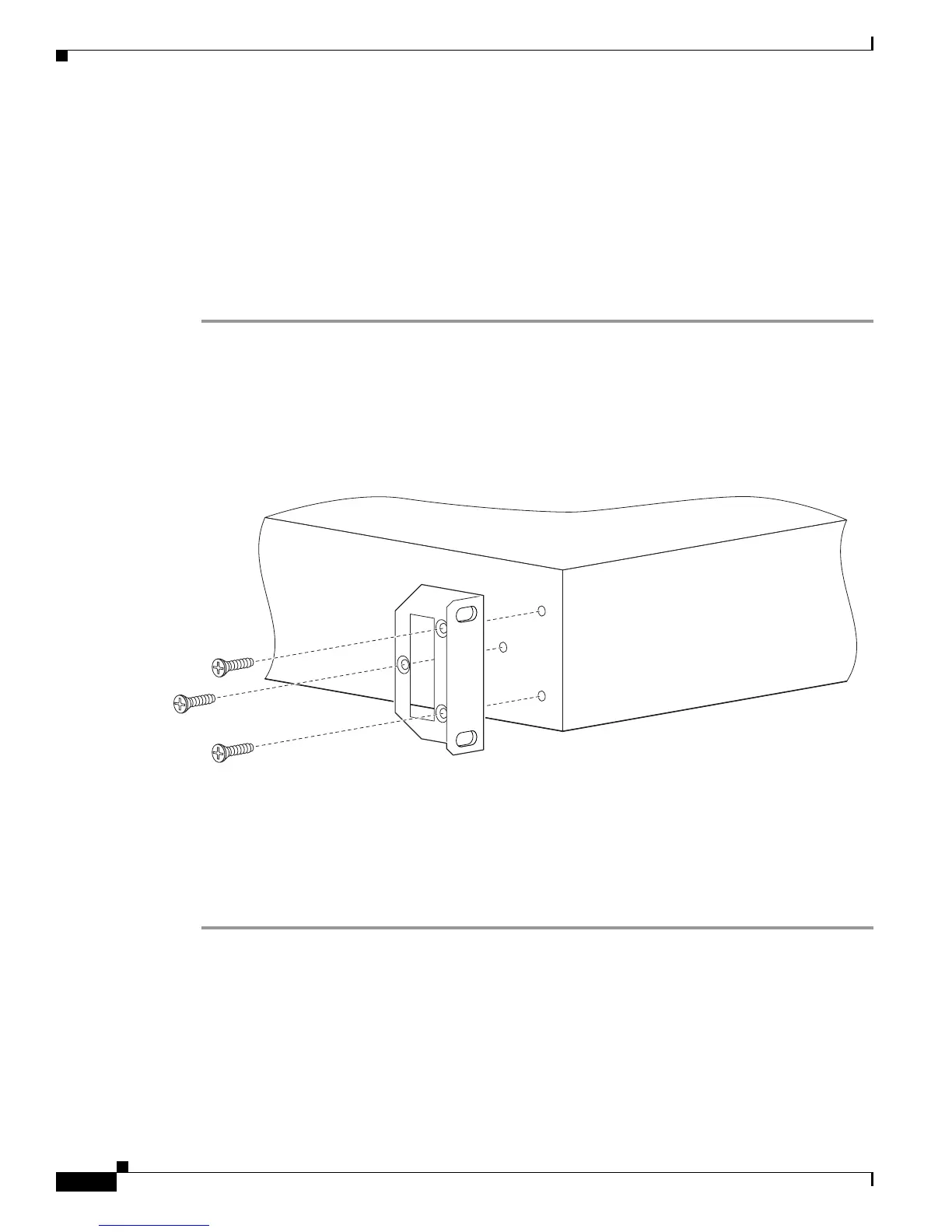
Step 3 Position a mounting bracket over the mounting holes on each side of the Cisco Unified
Videoconferencing 3515 MCU unit, as shown in Figure 2-2.
Figure 2-2 Fitting a Bracket for Rack Mounting
Step 4
Pass the screws through the brackets and tighten them into the screw holes on each side of the
Cisco Unified Videoconferencing 3515 MCU unit using a suitable screwdriver.
Step 5 Insert the Cisco Unified Videoconferencing 3515 MCU unit into the 19-inch rack.
Step 6 Fasten the brackets to the side rails of the rack.
Step 7 Make sure that the air vents at the sides of the Cisco Unified Videoconferencing 3515 MCU unit are not
blocked.
157263





 To Next Page