In-Room Control on Touch10
for Cisco TelePresence
MX200 G2, MX300 G2,
MX700, MX800,
SX10, SX20, SX80
Collaboration Endpoint
software version CE8.2
D15358.02 - JULY 2016
www.cisco.com
© 2016 Cisco Systems, Inc.
All rights reserved.
18
Commands and Statuses
The
SetValue
command, which sets the value of a widget, is
essential when working with in-room controls:
xCommand UserInterface Extensions Widget SetValue Value: Value
WidgetId:
WidgetId
When the video system receives a
SetValue
command, the video
system's status and the Touch 10 in-room control panel are updated
accordingly.
It is important that the control system sends
SetValue
commands in
the following situations, so that the Touch 10 in-room control panel
truly reflects the status of the room:
• When the control system initially connects to the video system.
• When the video system restarts.
• When the control system restarts.
• When a new in-room control panel is exported to the video
system from the in-room control editor (as response to the
LayoutUpdated event).
• When someone physically changes something in the room, for
example turns on the lights using a wall control.
• As a response to an event, for example when someone has
tapped the Lights On button on the Touch 10 in-room control
panel.
The control system must also do all that is necessary in the room
to reflect the action on the Touch 10 in-room control panel, for
example switch on the light.
Consult the Widgets chapter for more details about which commands
apply to the different widgets (user interface elements).
Examples
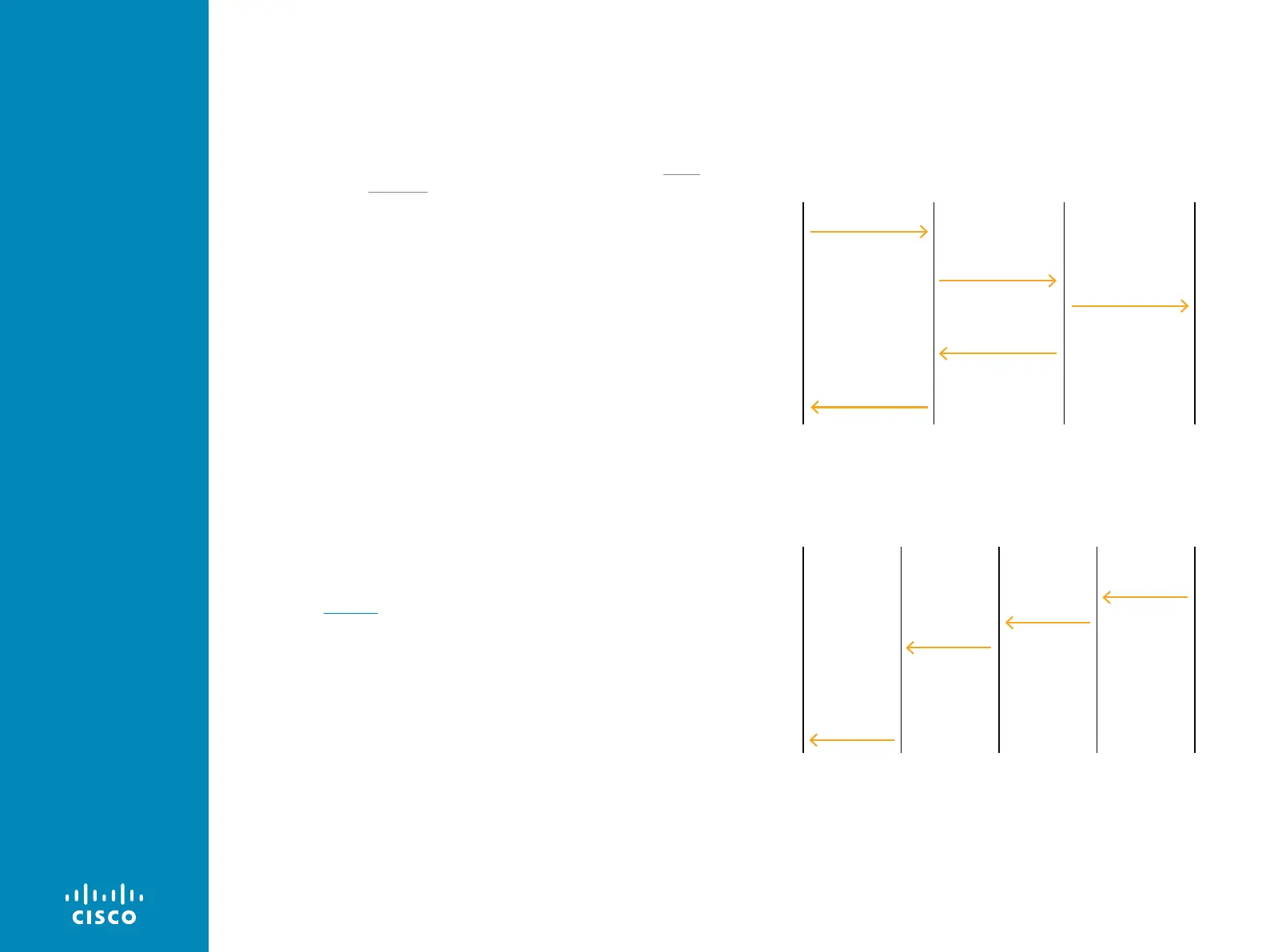
User
Control
system Lights
Video system
with Touch 10
Tap Lights On
Pressed and
Released events
for Lights On
widget
Turn lights on
Set the value of
the Lights On
widget to active
The appearance
of the light widget
has changed to
match what the
user can see in
the room
Message flow—turn on the lights using the controls on Touch 10
User
Control
system Lights
Video system
with Touch 10
Set the value
of the Lights
On widget to
active
The
appearance
of the light
widget has
changed to
match what
the user can
see in the
room
User
Turn lights
on with wall
control
Signal that
lights are on
Message flow—turn on the lights using the wall control





 To Next Page