In-Room Control on Touch10
for Cisco TelePresence
MX200 G2, MX300 G2,
MX700, MX800,
SX10, SX20, SX80
Collaboration Endpoint
software version CE8.2
D15358.02 - JULY 2016
www.cisco.com
© 2016 Cisco Systems, Inc.
All rights reserved.
26
Events
Pressed Triggered when one of the buttons is pressed
Value: The GroupID of the button (within the group) that
was pressed
Released Triggered when one of the buttons is released
Value: The GroupID of the button (within the group) that
was released
Commands
The visual appearance of the button changes immediately when you
tap it. However, the control system must always send a
SetValue
command to the video system when one of the buttons are tapped.
This ensures that the status is updated accordingly.
Use the
UnSetValue
command to release all buttons in the group so
that no button is highlighted.
Example: There are four buttons in the group with WidgetId =
"groupbutton". Press the button with GroupID = "two".
Terminal mode
*e UserInterface Extensions Event Pressed Signal: "groupbutton:two"
** end
*e UserInterface Extensions Event Released Signal: "groupbutton:two"
** end
XML mode
.
.
.
<Event>
<UserInterface item="1">
<Extensions item="1">
<Widget ite m ="1">
<Action ite m="1">
<WidgetId item="1">groupbutton</WidgetId>
<Value item="1">two</Value>
<Type item="1">released</Type>
</Action>
</Widget>
</Extensions>
</UserInterface>
</Event>
Example: Select (highlight) the button with GroupID = "one" in the
group with WidgetId = "groupbutton". Then, release all buttons (no
buttons are highlighted).
xCommand UserInterface Extensions Widget SetValue
WidgetId: "groupbutton" Value: "one"
xCommand UserInterface Extensions Widget UnsetValue
WidgetId: "groupbutton"
Group button
Example of use: Room presets that are
mutually excluding, like room presets
where you can choose between Dark,
Cool, and Bright. Remember to deselect
(release) the preset, if it is no longer valid
(for instance when changing the lights
with a wall control, or a Touch 10 slider.
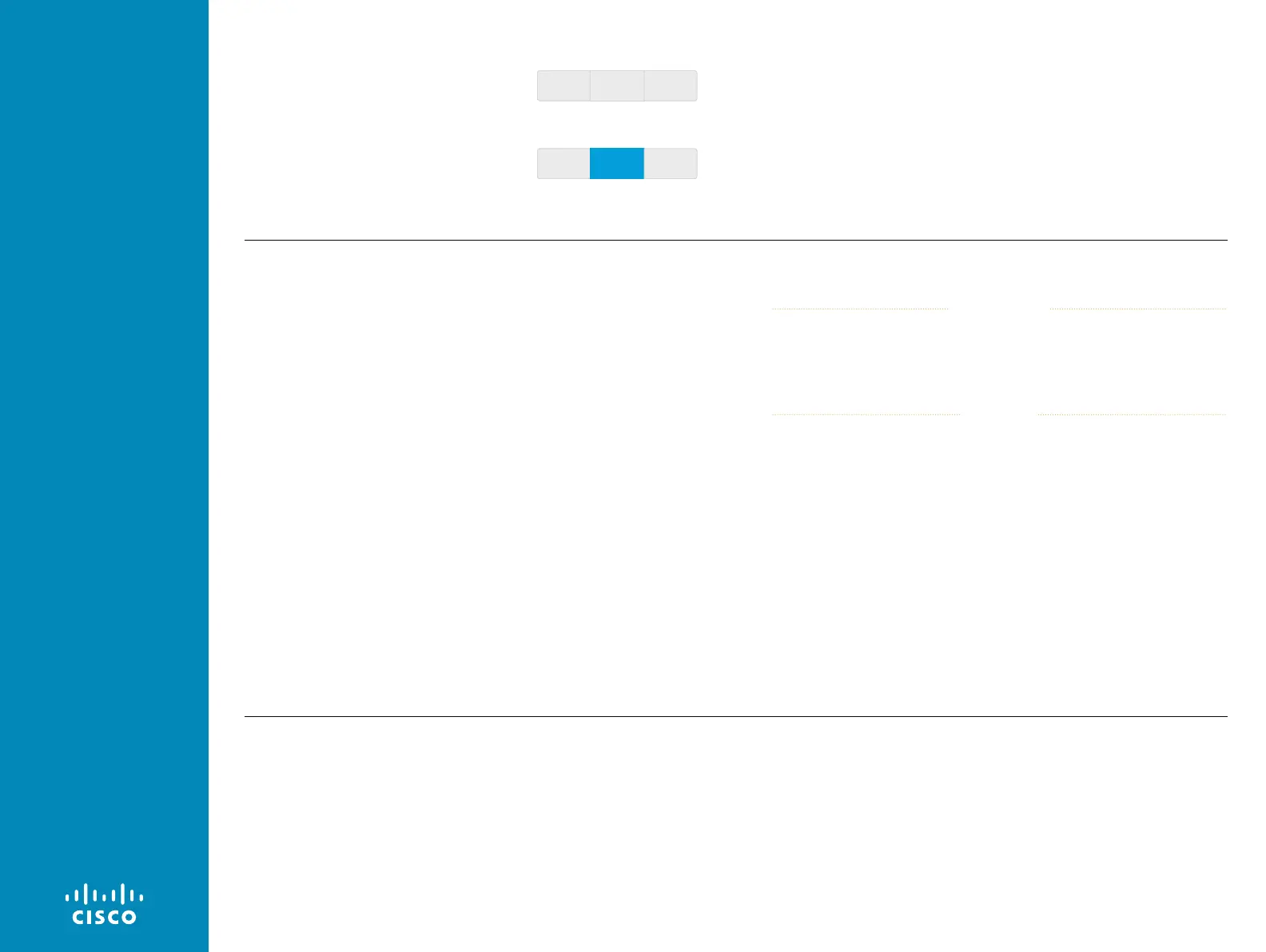
Groups of either two, three or four buttons with custom text are
available. The buttons within a group are linked so that only one can
be selected at a time (also known as radio buttons).
The size of the button determines the maximum number of
characters you can add. Text does not wrap to a new line. You
cannot use the
SetValue
command to change the text dynamically.
Text Text Text
No button selected
Text Text Text
One button selected








 To Next Page