46 – ENGLISH
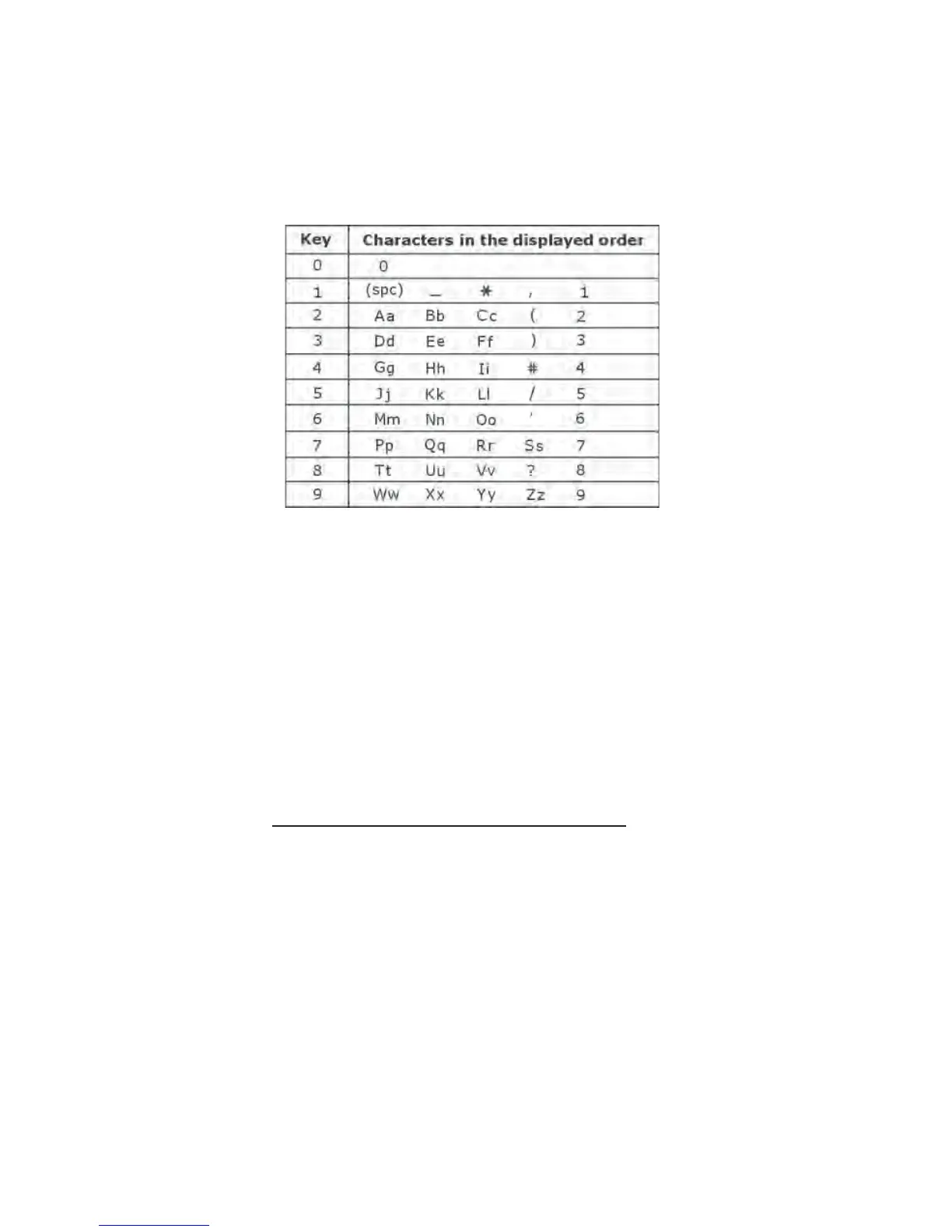
Character Map
To enter a specific alphanumeric character, press the relevant
key one or more times for the required character according to
the following table: once for the first character, twice for the
second and so on.
Clarification:
• If you want to shift the case between upper and lower,
between entering letters, press the * key.
• When entering the same letter twice or a different letter
with same key, wait for a few seconds for the cursor to
move automatically and then select the next letter.
█ Adding the Phonebook Entries
Method 1: By using the Phonebook Menu
1. Press the PhoneBk soft key to enter the phonebook.
2. Press the Select soft key to choose (add New Name).
3. The display shows “Name:”. Enter the name you want
to use and then press the Save soft key to confirm. The
display shows “Enter Phone number now” and then
“Number”. Enter the desired number (up to 24 digits)
and then press the Save soft key.


 To Next Page