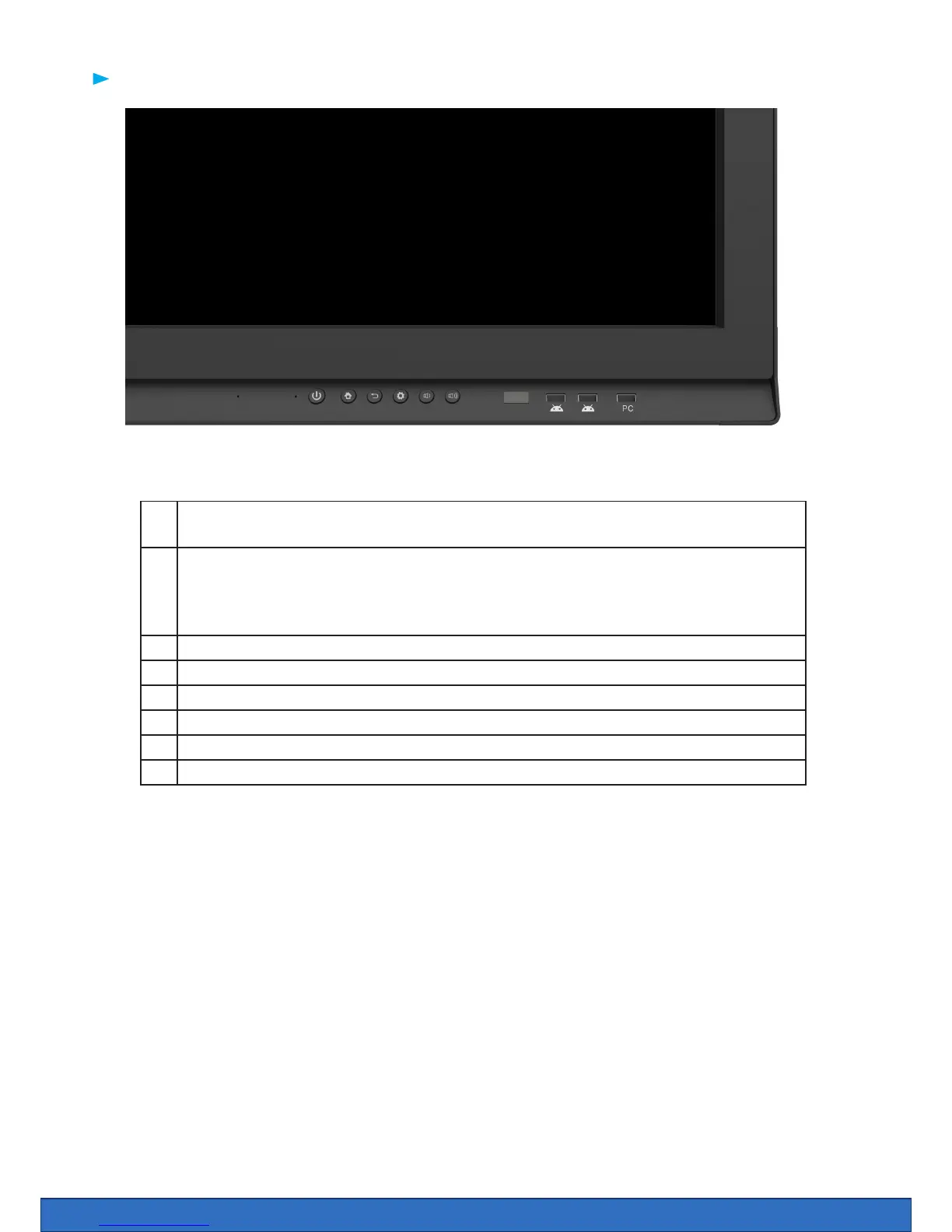
1 Turn on and turn o the screen. Hold for 4 seconds for standby mode and 1 second
for power save mode
2 HOME button. Your screen will remember the last input channel (example HDMI 1),
if you would prefer to begin on the Android you can simply press the home button
when the screen comes on. Alternatively, go to settings, start up and shut down and
set the default start up channel to Android
3 Back - back to previous step / menu
4 Menu - select an input source, change the picture or sound settings
5 Volume button - lower the volume
6 Volume button - volume up
7 USB ports for the Android system. view images, video, documents and save les.
8 USB port for the inbuilt PC option.
1
2
7
54
3
6
7
8
Physical buttons on the Clevertouch


 To Next Page