13
Menu Operation
Channel Setup
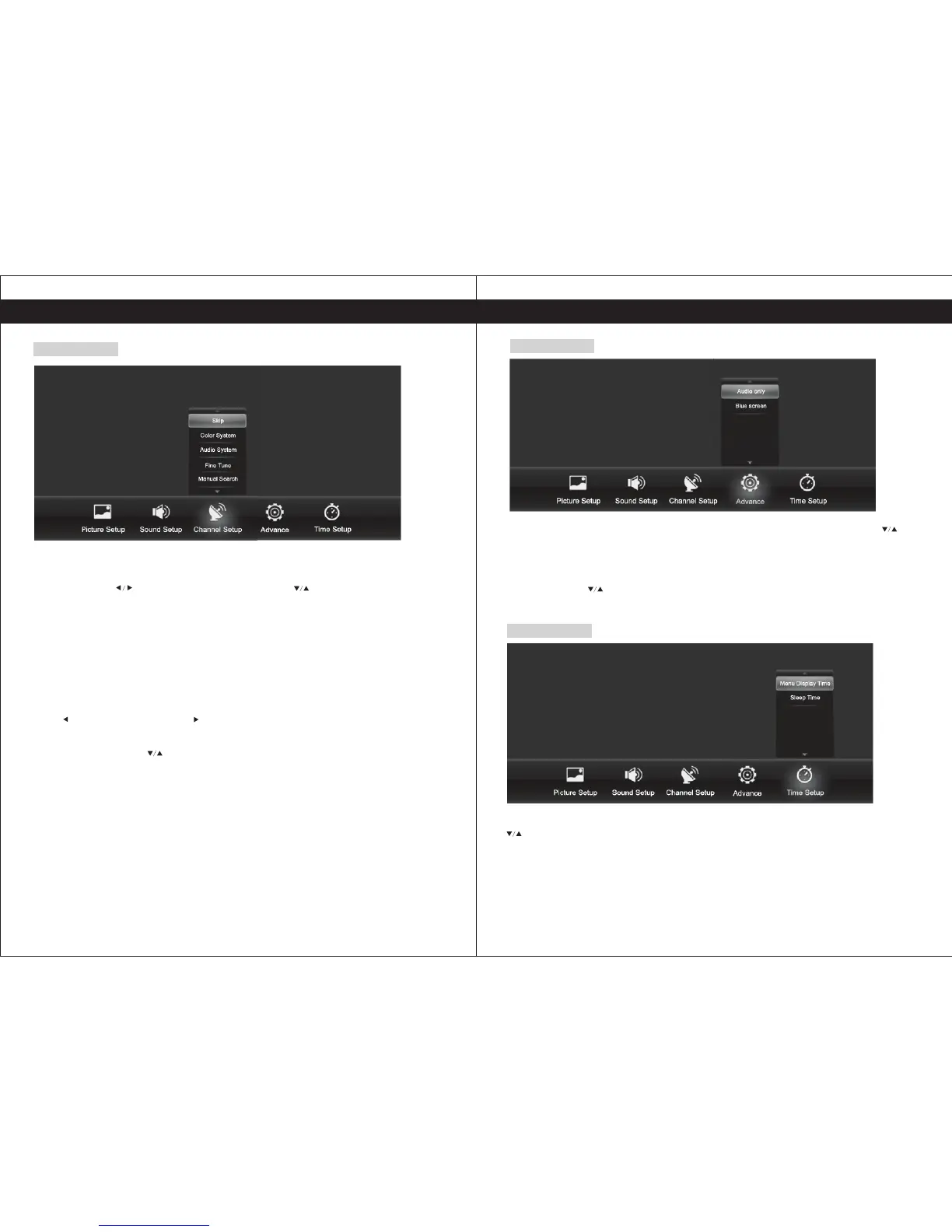
Channel setting is only displayed in the analog TV channels. Press <Menu> to display the main
menu, then press to select the Channel setup, press to select the corresponding
sub-menu, press <Menu> to return or press <Exit> to exit the menu.
Skip: You can mark channel as the “skip-channel” from the channel list, and this channel will not
be displayed when switching channels if the skip function is ON.
Color system: To select the TV signal scanning system, including PAL and NTSC two systems.
Audio System: To select television signal audio system, including the I, BG, M and DK four
systems.
Fine Tune: Based on the current channel, make a small adjustment by upward or downward.
Manual search: Searching for an effective program channels automatically. If you want to stop the
search. press <ENTER> key during the search process.
AUTO search: Based on the current channel, search program channels by upward or downward.
Press searching downward, press key searching upward. If you want to stop the search,
press <return> during the search process.
Channel Edit: These four buttons (red, green, the yellow and the blue button) are shortcut keys to
edit the program. Press the to select the channel you want to operate, then you could delete,
move, skip and rename the selected channel.
14
Menu Operation
Advance
Press <Menu> to display the main menu, then press to select the Advance, press
to select the corresponding sub-menu, press <Menu> to return or press <Exit> to exit the
menu.
Audio only: When you turn on the listen alone function, you could only listen the sounds from the
TV while the screen is closed.
Blue screen: Press buttons to select the On/Off.
▲
▲
/
Time Setup
Press <Menu> to display the main menu, then press to select the Time Setup,, press
to select the corresponding sub-menu, press <Menu> to return or press <Exit> to exit
the menu.
Menu display time: includes 10s, 15s, 20s, 25s, 30s and off.
Sleep time: System Sleep Time can be adjusted.
It includes 10m, 30m, 45m, 60m, 90m, 120m, 240m and off.
▲
▲
/



 To Next Page