Operating
Cleaning Plan
Caution: A. Once turning off the power switch, all the cleaning plans will be erased.
How to plan a cleaning session?
Set on the screen
Set on the remoter
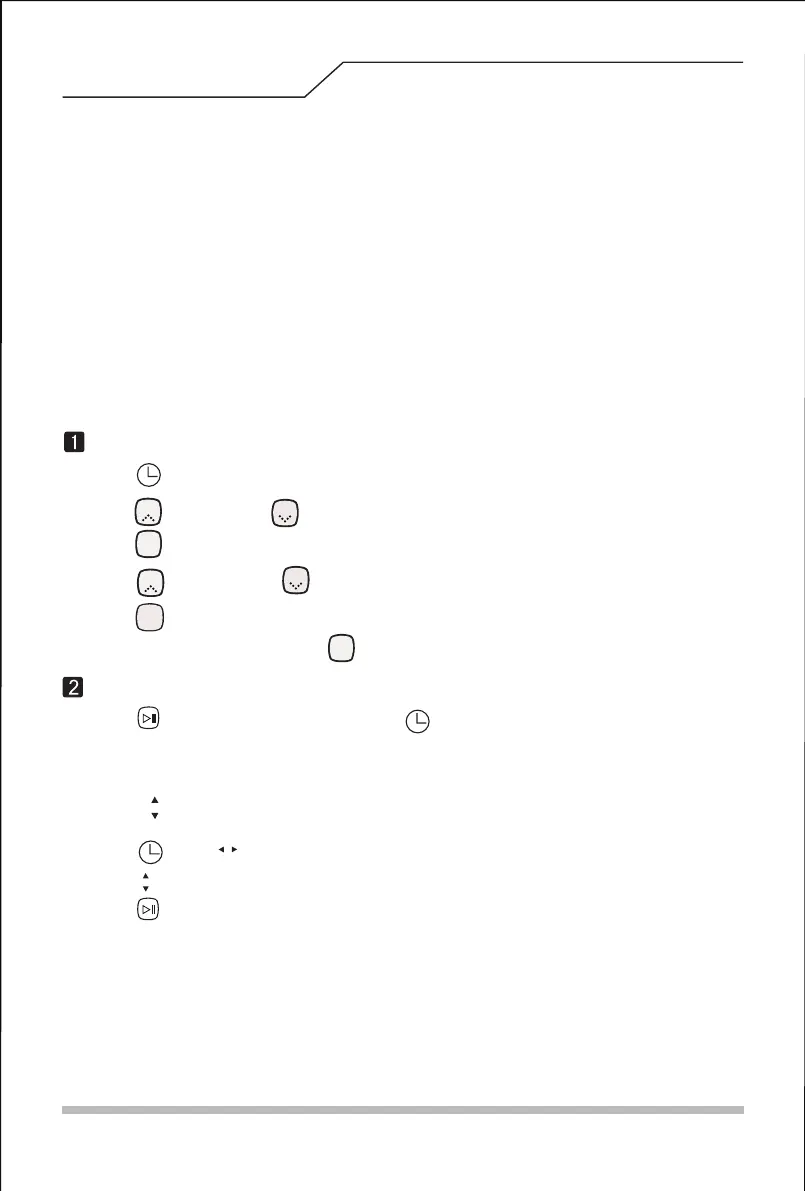
G. Press“ ” to awaken the robot, then press “ ” button, and the left part of "88:88", “88”
will start flickering;
H. Press“ ”button to button to add or subtract hours;
I. Press “ ” or“ ” button to switch from hours to minutes;
J. Press “ ”button to button to add or subtract minutes;
K. Press“ ” button to save.
L. For cancellation, adjust the number to "00:00" under cleaning plan mode.
Caution: All operations under cleaning plan mode shall be confirmed through voice prompts.
A.Press “ ”button to enter cleaning plan mode and the left part of "88:88", “88” will start flickering;
B. Press“ ” ” button and“ ” ”button to add or subtract the number;
C. Press“ ””button to switch from hours to minutes;;
D. Press“ ” ”button and “ ” ”button to add or subtract minutes;
E. Press “ ” ”button to save.
F. For cancellation, please press on the “ ””button for 3 seconds under cleaning plan mode.
Spot
Home
Plan
Spot
Home
Clean
Plan
You can order the robot to start cleaning at a specific time.
Cleaning plan of this product indicates delayed start (maximum delayed time is 23 hours
and 45 minutes). For example, if you plan delayed time of 6:30 at the 9 o’clock, the
robot will start working after 6 hours and 30 minutes, i.e. the robot will start working at
3:30 pm, and it will start working at 3:30 pm every day until its power switch is turned off.
B. Once a cleaning session planned, the robot will work at exactly the planned time every day.
11


 To Next Page