2 3
2 3 4 5
6 7 8 9
1
* For compatibility information and devices visit www.Cochlear.com/compatibility and resound.com/compatibility
** For a list of compatible ReSound hearing aids visit www.Cochlear.com/nucleus/compatibility
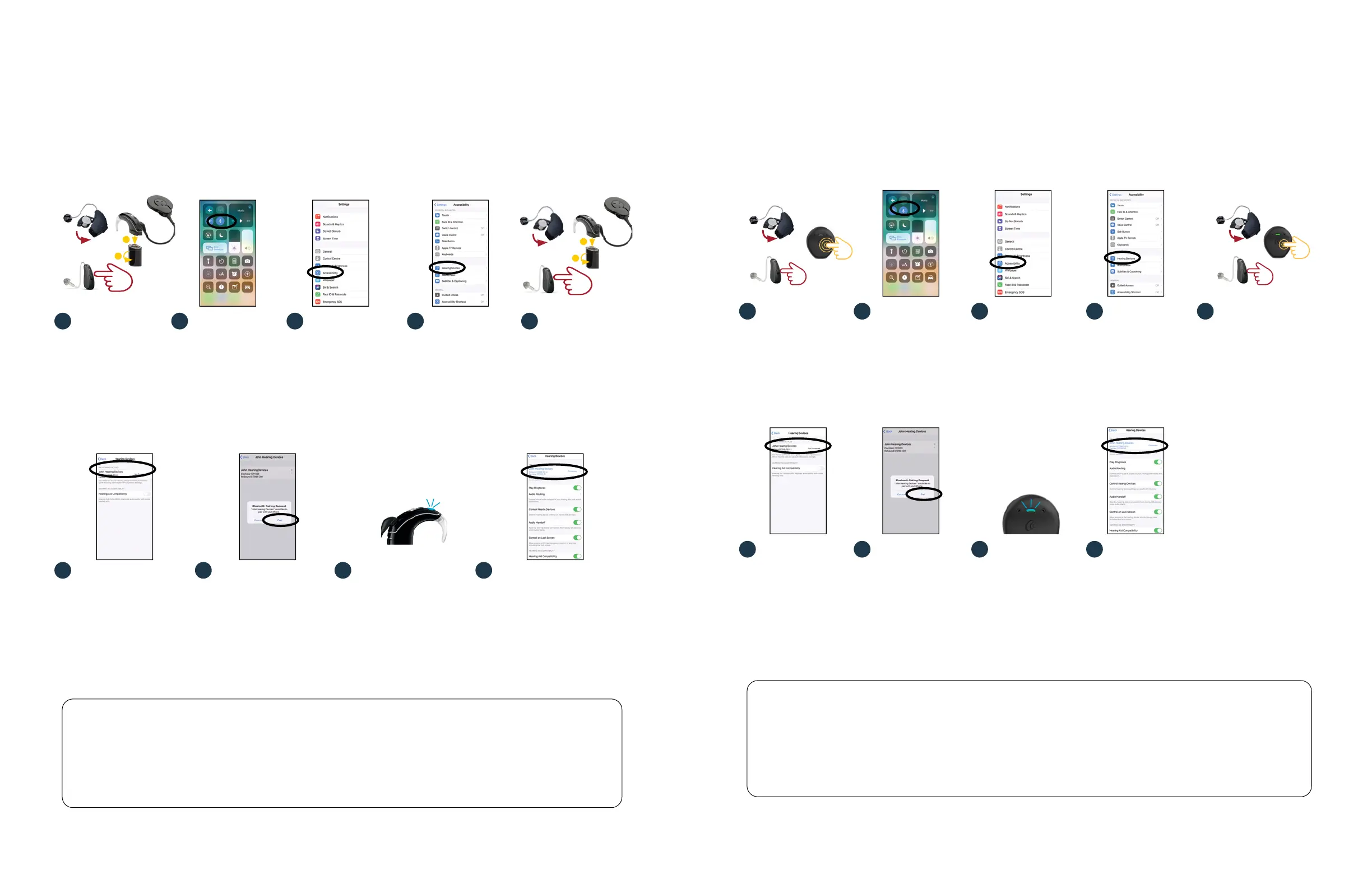
Smart bimodal pairing with an Apple
®
device and Nucleus
®
7 Sound Processor
You can stream sound simultaneously to your Nucleus
®
7 Sound Processor and compatible ReSound hearing
aid
**
from a compatible Apple device
*
.
Important: your clinician must link your hearing devices and assign your hearing aid to the correct ear before
you can pair to your Apple device.
Pairing your sound processor and hearing aid to your compatible Apple device
1
2
5 sec
Rechargeable
Non-rechargeable
1
2
5 sec
Rechargeable
Non-rechargeable
Pairing to more than one iPhone, iPad or iPod touch
You can pair your sound processor and hearing aid with up to five compatible Apple devices, but you can
only control them from one Apple device at a time. To manually change connection between devices you
have previously paired to, turn off Bluetooth on the connected device, and turn on Bluetooth on the device
you want to connect to. Your hearing devices will then automatically connect to the second device.
Turn off ReSound
hearing aid and
Nucleus 7 Sound
Processor.
Select your name when
it displays on the screen.
To pair your sound
processor and
hearing aid with
your compatible
Apple device,
ensure Bluetooth®
is enabled.
Then, open the
‘Settings’ menu.
Select ‘Pair’ to confirm
pairing. You will see this
message twice.
Select
‘Accessibility’.
When pairing starts:
• blue flash for 4 seconds
• 6 beeps.
Pairing may take up to
2 minutes.
When pairing is finished:
• blue flash for 4 seconds
• ripple tone.
Note: Don’t start to stream
audio until pairing is fi nished.
Scroll down and
select ‘Hearing
Devices’.
Your sound processor
and hearing aid will both be
listed under ‘your hearing
device name’ and you should
now be able to stream sound
directly to both.
Turn on your hearing
aid and then turn
on your sound
processor.
Your Apple device
will then search for
your hearing devices
and display them in
the ‘Devices’ section.
2 3 4 5
6 7 8 9
1
* For compatibility information and devices visit cochlear.com/compatibility and resound.com/compatibility
Pairing to more than one iPhone, iPad or iPod touch
You can pair your sound processor and hearing aid with up to five compatible iOS devices, but you can only
control them from one iOS device at a time. To manually change connection between devices you have
previously paired to, turn off Bluetooth on the connected device, and turn on Bluetooth on the device you
want to connect to. Your hearing devices will then automatically connect to the second device.
Smart bimodal pairing with an Apple device and Kanso
®
2 Sound Processor
You can stream sound simultaneously to your Kanso
®
2 Sound Processor and compatible ReSound hearing aid
from a compatible Apple device
*
.
Important: your clinician must link your hearing devices and assign your hearing aid to the correct ear before
you can pair to your iOS device.
Pairing your sound processor and hearing aid to your compatible iOS device
5
sec
3
tap
Rechargeable
Non-rechargeable
5
sec
2
tap
Rechargeable
Non-rechargeable
Turn off the
ReSound hearing
aid and
Kanso 2 Sound
Processor.
Select your name
when it displays
on the screen.
To pair your sound
processor and hearing
aid with your
compatible iOS
device, ensure
Bluetooth
®
is enabled.
Then, open the
‘Settings’ menu.
Select ‘Pair’ to
confirm pairing.
You will see this
message twice.
Select
‘Accessibility’.
During the pairing
process you will see
a blue flash for
4 seconds, followed
by 6 beeps.
Note: Don’t start to
stream audio until
pairing is finished.
Scroll down and
select ‘Hearing
Devices’.
Your sound processor
and hearing aid will
both be listed under
‘your hearing device
name’ and you
should now be able to
stream sound directly
to both.
Turn on your hearing
aid and then turn on
your sound processor.
Your iOS device will
then search for your
hearing devices and
display them in the
‘Devices’ section.


 To Next Page
 Loading...