4 5
* For compatibility information and devices visit cochlear.com/compatibility and resound.com/compatibility
Smart bimodal pairing with an Android
™
device for Kanso
®
2 Sound Processor
You can stream sound simultaneously to your Kanso
®
2 Sound Processor and compatible ReSound hearing aid
from a compatible Android device
*
. Each hearing device should be individually paired for Android streaming.
Important: your clinician must link your hearing devices and assign your ReSound hearing aid to the correct ear
before you can pair to your Android device.
2
2
7
3
3 4
8
41
1
65
ReSound hearing aid
To pair with a compatible Android device you will need the ReSound Smart 3D
™
app version 1.8.0 or higher
and ReSound firmware version 10042.4200 or later. You can find your firmware version in the Smart 3D app
by selecting My ReSound, then Hearing aid software updates.
New users of the ReSound Smart 3D app
Existing users of the ReSound Smart 3D app v. 1.8.0
If you are already using ReSound Smart 3D v. 1.8.0 with a paired Android device when your phone manufacturer
enables the enables the Audio Streaming for Hearing Aids (ASHA) functionality, follow these steps.
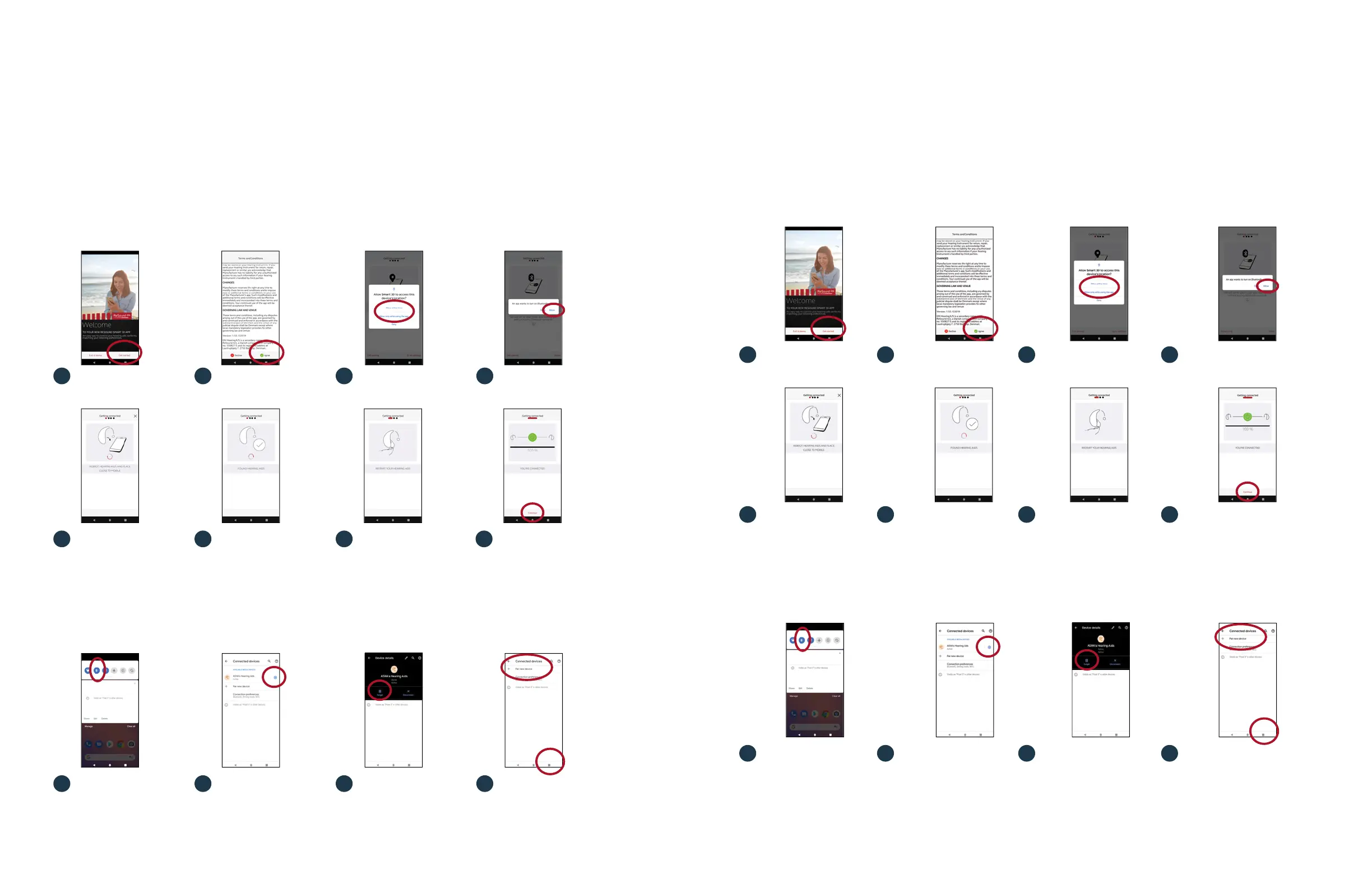
Open the app and select
‘Get Started’.
Open the app and select
‘Get Started’.
Turn hearing aid ‘OFF’
and ‘ON’.
Swipe down from the top
on the screen to open the
Settings menu, then hold
the Bluetooth icon for
2 seconds.
Turn hearing aid ‘OFF’
and ‘ON’.
Swipe down from the top
on the screen to open the
Settings menu, then hold
the Bluetooth icon for
2 seconds.
Review and agree to the
Terms and Conditions.
Review and agree to the
Terms and Conditions.
The app will identify your
hearing aid.
Hold the settings icon for
‘ASHA’s Hearing Aids’ for
2 seconds.
The app will identify your
hearing aid.
Hold the settings icon for
‘ASHA’s Hearing Aids’ for
2 seconds.
Enable location services.
Enable location services.
Restart your hearing aid
(if rechargeable press
button for 5 seconds).
Select ‘Forget’.
Restart your hearing aid
(if rechargeable press
button for 5 seconds).
Select ‘Forget’.
Enable Bluetooth.
Enable Bluetooth.
Tap ‘Continue’. Your hearing
aid is now paired and ready
to stream.
Open the ‘More’ menu and select
‘Pair new hearing aids’, then go to
step 5 in the instructions above
for New users of the ReSound
Smart 3D app.
Tap ‘Continue’.
Your hearing aid is now paired
and ready to stream.
Open the ‘More’ menu
and select ‘Pair new hearing
aids’, then go to step 5 in the
instructions above for New
users of the ReSound Smart
3D app.
Smart bimodal pairing with an Android
™
device for Nucleus
®
7
You can stream sound simultaneously to your Nucleus
®
7 Sound Processor and compatible ReSound hearing aid
**
from a compatible Android
™
device
*
. Each hearing device should be individually paired for Android streaming.
2
2
7
3
3 4
8
41
1
65
ReSound hearing aid
To pair with a compatible Android device you will need the ReSound Smart 3D
™
app version 1.8.0 or higher
and ReSound firmware version 10042.4200 or later. You can find your firmware version in the Smart 3D app by
selecting My ReSound, then Hearing aid software updates.
New users of the ReSound Smart 3D app
Existing users of the ReSound Smart 3D app v. 1.8.0
If you are already using ReSound Smart 3D v. 1.8.0 with a paired Android device when your phone manufacturer
enables the enables the Audio Streaming for Hearing Aids (ASHA) functionality, follow these steps.
* For compatibility information and devices visit www.Cochlear.com/compatibility and resound.com/compatibility
** For a list of compatible ReSound hearing aids visit www.Cochlear.com/nucleus/compatibility


 To Next Page
 Loading...