WWW.COLLECTIVEMINDS.CA
4
GETTING STARTED
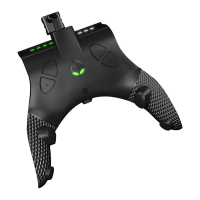
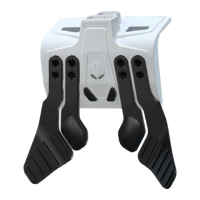
STRIKEPACK™ Dominator Setup
1. We highly recommend updating to the latest STRIKEPACK™ rmware before use. You can download
the Universal Updater Tool for Windows PC or Mac at
www.collectiveminds.ca
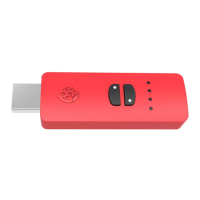
. Plug the supplied
USB cable’s Type-C end into the USB guide on the STRIKEPACK™. Ensure that you plug it in fully to
make proper contact with the Type-C connection port. Now plug the full-size USB end into a USB port
on your computer and use a rear USB port if possible.
2. Run the Updater Tool, follow the instructions and update to the latest version available.
3. Remove the battery cover from your Xbox Series X|S® controller and store it some place safe as
it will not be needed.
4. If there are batteries, remove both AA batteries.
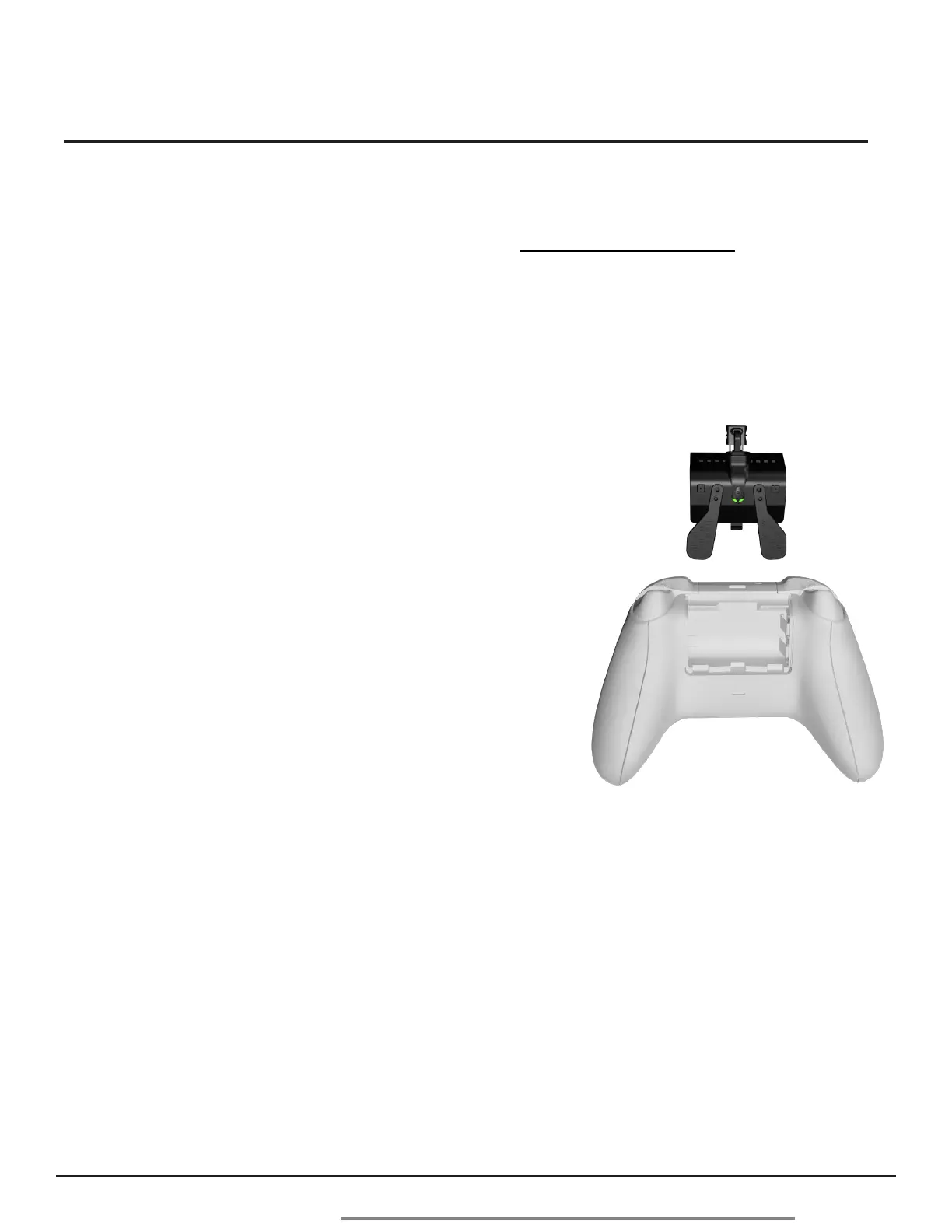
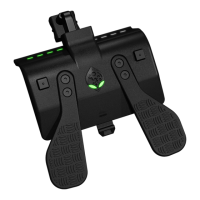
5. Align the plastic tabs on the STRIKEPACK™ device with
the battery compartment. You should now be able to slide
and securely snap it into place.
6. Plug the USB Type-C connector on the STRIKEPACK™
into the charging port on your controller.
7. Plug the supplied USB cable’s Type-C end into the USB
guide on the STRIKEPACK™. Ensure that you plug it in
fully to make proper contact with the STRIKEPACK™’s
Type-C connection port.
8. Connect the full-size USB end into a USB port on your
Xbox® console. It is recommended to use one of your console’s rear USB ports if possible. Please
wait for the home button to illuminate before usage. Some controllers may take 3-5 seconds to de-
tect. If the home button does not illuminate after 5 seconds, check that both connection points for the
controller and STRIKEPACK™ are securely plugged in. You may have to unplug and plug back in.
9. Once the home button is illuminated, the STRIKEPACK™ device is successfully paired and ready to
game with!


 To Next Page