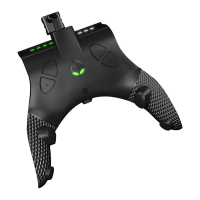
OPTIONAL BUTTON SWAP:
You can globally swap all 4 face buttons to follow the familiar button geography of
Xbox
TM
/PlayStation
TM
and you can see exactly how to do it in the table below. If you are
accustomed to an Xbox
TM
controller, this ensures an in game A button prompt will be the
A button on the controller, etc. Swap is also helpful for PlayStation
TM
and Switch
TM
controllers, when you are used to your back menu button being geographically the east
face button.
Some games are more playable with swap than others; it depends on what the original
buttons for the various in game actions are.
IMPORTANT NOTE:
REMEMBER THAT THIS IS A GLOBAL BUTTON SWAP.
EVERYTHING WILL BE SWAPPED - ALL CONTROLLER TYPES, SWITCH UP
TM
MODES
AND MODS WILL BE SWAPPED AS A RESULT! EVEN IF YOU UNPLUG AND PLUG IN
THE SWITCH
TM
IT WILL REMAIN SWAPPED UNTIL YOU CHANGE THE SWAP MODE
BACK.
While using Switch
TM
Joy-Con
TM
/Switch
TM
Pro/Wii U
TM
Pro
controllers: A-B X-Y can be swapped once you connect
your controller to the Switch Up
TM
. To SWAP to A=B B=A
X=Y Y=X, HOLD PLUS & B button for at least 3 seconds.
To RESET to DEFAULT A=A B=B X=X Y=Y, HOLD PLUS &
A button for at least 3 seconds.
While using Xbox
TM
controllers: A-B X-Y can be swapped
once you connect your controller to the Switch Up
TM
. To
SWAP to A=A B=B X=X Y=Y, HOLD MENU & A button for
at least 3 seconds. To RESET to DEFAULT A=B B=A X=Y
Y=X, HOLD MENU & B button for at least 3 seconds.
While using PlayStation
TM
controllers: A-B X-Y can be
swapped once you connect your controller to the Switch
Up
TM
. To SWAP to ✖=A ⬤=B ⬛=X ▲=Y, HOLD
OPTIONS & CROSS button for at least 3 seconds. To


 To Next Page
 Loading...