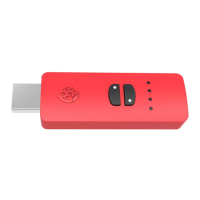
4. Now press the Bluetooth pairing button on the Switch Up
TM
device. The LED will
flash BLUE to show Bluetooth pairing has begun.
5. Within 30 seconds the LED will be WHITE on the Switch Up
TM
device and the
Xbox One
TM
Wireless Bluetooth Controller will vibrate indicating that pairing is
complete.
6. You are now connected to the Switch Up
TM
device and ready to use your Xbox
One
TM
Bluetooth Controller wirelessly.
7. If your controller is not connected, remove the batteries then re-insert them and
repeat the process above.
Xbox One
TM
Wireless Controller Pairing
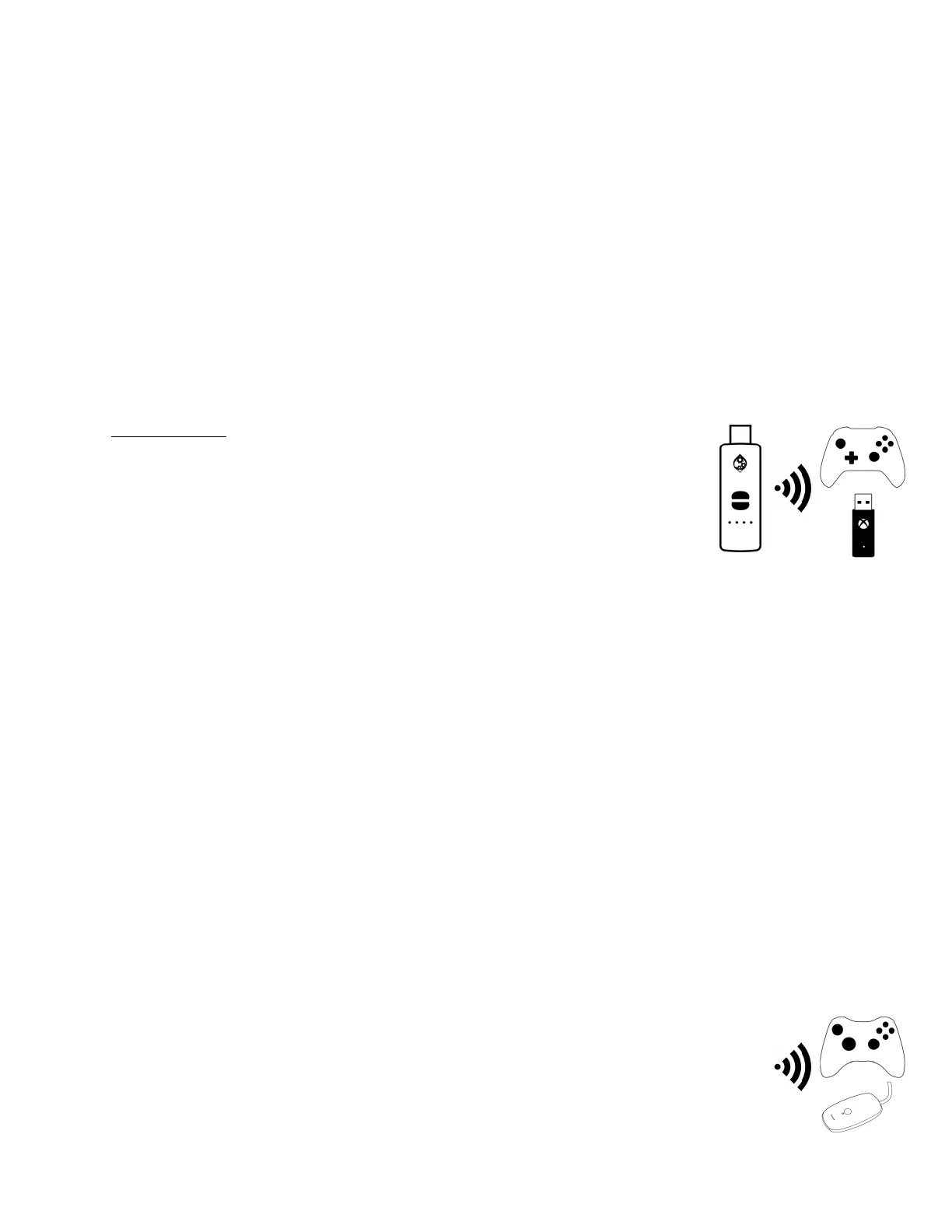
- To connect a
non-bluetooth Xbox One
TM
controller you must use an Xbox
One
TM
Wireless Adapter (sold separately). Connect the Xbox
One
TM
controller via a wired connection first. Then remove the
wired connection and plug the Xbox One
TM
Wireless Adapter
into your Switch Up
TM
device. Step by Step Instructions below.
1. Ensure your Switch Up
TM
device is plugged into the
Switch Dock.
2. Plug your Xbox One
TM
controller into your Switch Up
TM
device. It will vibrate to
indicate it is paired to your Switch Up
TM
device.
3. Now remove the wired connection, and your Xbox One
TM
controller HOME button
will begin to flash.
4. Insert the Xbox One
TM
Wireless Adapter.
5. Within a few seconds the Xbox One
TM
Wireless Adapter LED will go WHITE and
your Xbox One
TM
Wireless Controller HOME button will stay solid indicating that
pairing is complete.
6. You are now connected to the Switch Up
TM
device and ready to use your Xbox
One
TM
controller wirelessly.
7. If your controller is not connected, remove the batteries then re-insert them and
repeat the process above.
Xbox 360
TM
Wireless Controller Pairing
- To connect a Xbox 360
TM
Wireless
Controller you must use an Xbox 360
TM
Wireless Gaming Receiver (sold
separately). Connect the Xbox 360
TM
Wireless Gaming Receiver to the Switch


 To Next Page
 Loading...