ON-SCREEN PROGRAM GUIDE
If you like choice, convenience and control, then grab your remote control. Because that’s precisely what
Comcast Digital Cable has to offer you. The following section has simple instructions about how to use the
on-screen program guide, review TV Listings by time or channel, and how to instantly determine what kind of
program a show is by its color coding. Included you’ll find detailed information about how to use our Main and
Quick menus, access TV Listings, high-definition channels, instant entertainment with On Demand, and how
to browse by category, search, saving your favorite shows and parental control features.
Navigation
Yellow is always the highlight color in the on-screen program guide, and highlighting will always tell you
where you are in the on-screen guide. There are a few key buttons on your remote control that you’ll use
frequently to both move around within the guide and to make selections:
• Usethe
to navigate around the on-screen program guide.
• Press
to select the option you currently have highlighted.
• Pressthe
button to leave the guide and return to watching television.
• Returntothepreviousscreenatanytimebypressingthe
button.
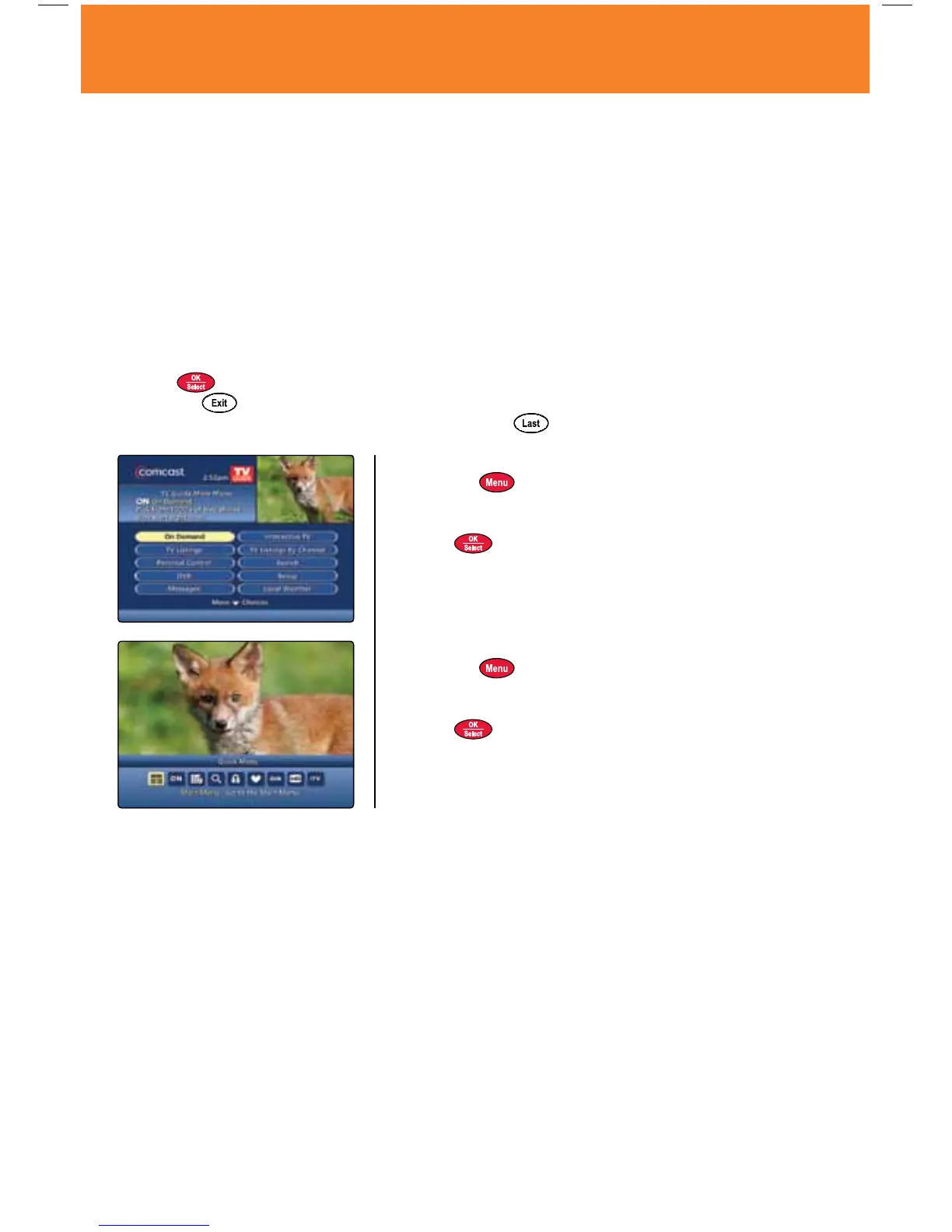
Main Menu
1. Press the
button on your remote twice to access the
Main Menu.
2. Use the
buttons to navigate through the selections.
3. Press
to make your selection.
Quick Menu
1. Press the
button on your remote once to display the
Quick Menu.
2. Use the
buttons to see a description of each feature.
3. Press
to make your selection.
6 Using Your On-Screen Program Guide
MO A28 VOD_10.indd 6 10/14/09 4:34 PM



 To Next Page