4. I can’t access the Internet from the Cable Gateway.
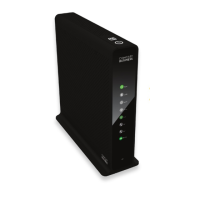
• Check if both ends of the network cable and power adapter are properly
connected. Check if the status LEDs on the front panel are functioning
properly.
• If using Windows 98 or Me, check the TCP/IP setup on the client side.
Run winipcfg by clicking on the Start button, selecting Run, and typing
winipcfg in the Run field. Press Enter. The PC should have an IP address
of 192.168.0.xxx (“xxx” is from 2 to 254.). The Subnet Mask is
255.255.255.0; the default gateway IP should be the Cable Gateway’s IP
Address, and check that the DNS is correct.
• Check the same setup values on the Comcast Cable Gateway’s
Summary/Network page on the web-based user interface.
5. When I enter a URL or IP address, I get a time out error.
• Check to see if your other PCs work. If they do, verify that your PC’s IP
settings are correct (IP address, Subnet Mask, Default Gateway, and
DNS)
• If the PCs are configured correctly, but still not working, check the Cable
Gateway. Make sure that it is connected and ON. Connect to it and check
its settings. (If you cannot connect to it, check the LAN and power con-
nections.)
• If the Cable Gateway is configured correctly, check your Internet connec-
tion to see that it is working correctly.
• Manually configure the TCP/IP with a DNS address provided by
Comcast.
What is the maximum number of IP addresses that the Cable Gateway will sup-
port? Comcast Home Networking supports up to five IP addresses.
Does the Cable Gateway support IPSec Pass-Through? Yes, it is a feature built
into the Cable Gateway.
Does the Cable Gateway support IPX or AppleTalk? No. TCP/IP is the only proto-
col standard for the Internet and has become the global standard for commu-
nications. IPX, a NetWare communications protocol used only to route mes-
sages from one node to another, and AppleTalk, a communications protocol
used on Apple and Macintosh networks, can be used for LAN to LAN con-
nections, but those protocols cannot connect from WAN to LAN.
2928
Frequently Asked Questions
Appendix A: Troubleshooting
This section provides possible solutions to problems regarding the Cable
Gateway’s installation and operation. If your situation is described here, the
problem should be solved by applying the corresponding solution. For more
information, refer to the Comcast Home Networking page at
http://www.homenetworking.comcast.net.
1. The Cable Gateway is not working.
• Verify that the Power cord and other network cables are plugged in.
• Check the Ethernet and Cable LEDs on the Cable Gateway’s front and
verify that they are lit appropriately.
• Verify that Comcast has been given the correct MAC Address for the
cable modem function.
2. I can’t connect to the Cable Gateway.
• Verify that the Cable Gateway is properly installed; LAN connections are
OK, and it is powered ON.
• Make sure that your PC and the Cable Gateway are on the same network
segment. If you are not sure, initiate the DHCP function, and let the PC
get the IP address automatically.
• Make sure that your PC is using an IP address within the default range of
192.168.0.2 to 192.168.0.254 and thus compatible with the Cable
Gateway default IP Address of 192.168.0.1
• Also, the Subnet Mask should be set to 255.255.255.0 to match the Cable
Gateway. For the Cable Gateway, you can check these settings by using
Control Panel-Network to check the Properties for the TCP/IP protocol.
3. The Cable LED will not go solid.
• Verify that the coaxial cable is firmly plugged into the Cable Gateway’s
cable port, with the other end plugged directly into the Cable wall jack.
• Verify that your Cable account is active.
• Verify that Comcast has been given the correct MAC Address for the
cable modem function.
Common Problems and Solutions



 To Next Page