34
XFINITY Communities Handbook
How to change the language on X1
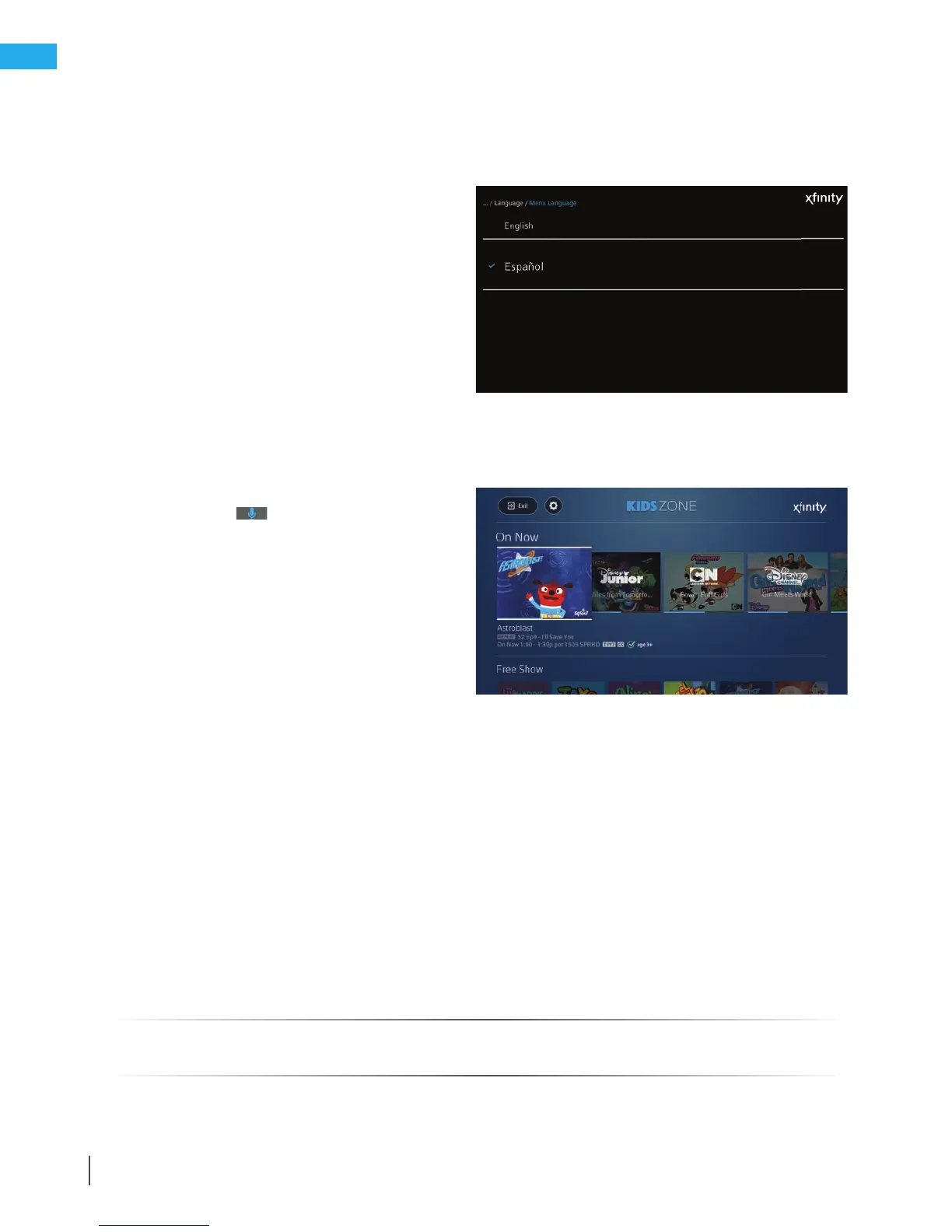
The XFINITY system’s language default is English but can be changed to Spanish at any time.
1. Press the xnity button on your
remote control.
2. Select the gear icon on the main
XFINITY navigation bar.
3. Select Language > Menu Language.
The available language options will appear.
4. Select Español, and a conrmation request will
appear. The main menu will reset to Spanish
after a few seconds.
5. To set the menu back to English, repeat the
same steps and select English.
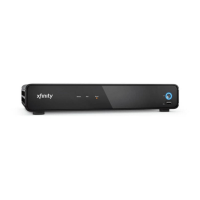
How to access Kids Zone
There are 3 ways to access Kids Zone: Press
the Microphone
on your remote and say
“Kids Zone”; use the keypad to type in Kids Zone;
or follow the steps below:
1. Navigate to the On Demand menu and
press OK on your remote.
2. Highlight the Kids tab and press OK.
3. Highlight the Kids Zone tile and press OK.
To leave Kids Zone, highlight Exit on the top-left corner
of your screen and press OK.
Kids Zone settings
To access and change your preferences, go to the Kids Zone settings menu (the gear icon at the top left of the Kids
Zone guide). Use the Up Arrow or Down Arrow button on your remote to highlight the settings you’d like to activate
or deactivate. Then press OK.
From this menu you can:
1. Restrict content by age range.
2. Turn o recordings so kids don’t clutter the DVR.
3. Allow episodes to play back to back with auto-play or disable to limit how much your kids watch.
4. View Common Sense Media ratings and reviews.
Quick Reference Tips – X1
For more information on Kids Zone, visit xnity.com/Help and search Kids Zone.


 To Next Page