This document serves as a user guide for XFINITY® TV, outlining its functions, usage features, and maintenance tips to enhance the entertainment experience provided by Comcast.
Function Description
XFINITY® TV offers a comprehensive entertainment system that allows users to watch TV content anytime and anywhere. It provides access to a vast collection of On Demand shows and movies, including new releases and full seasons of favorite programs. The service integrates TV viewing with online and mobile access through xfinitytv.com and the XFINITY™ TV app for iPad®, iPhone®, and iPod touch®. Key functionalities include:
- On Demand Content: Access to a wide array of shows and movies, with many available the same day as DVD release or significantly earlier than other streaming services.
- AnyRoom® On Demand: This feature allows users to start watching a program in one room and seamlessly continue watching it in another room within their home, providing flexibility and convenience.
- Mobile App Integration: The XFINITY TV app transforms mobile devices into additional TV screens, enabling users to watch On Demand content on the go.
- DVR Service: A Digital Video Recorder (DVR) allows users to record their favorite shows and watch them at their convenience. This includes options for recording single programs or entire series.
- On-Screen Guide: A detailed interactive guide provides information about current and upcoming programs, facilitating content discovery and scheduling.
- Search Functionality: Powerful search tools enable users to find programs by title, person, genre, or category across both live TV and On Demand content.
- Parental Controls: Robust parental control features allow users to restrict access to certain content based on ratings, channels, or specific titles, ensuring a family-friendly viewing environment.
- Reminders: Users can set reminders for programs they don't want to miss, with alerts appearing on the TV screen before the program begins.
- Favorites: The ability to create and manage multiple lists of favorite channels for quick access to preferred content.
- Pay-Per-View Events: Access to special events and shows available for purchase.
- Universal Caller ID: Integration with XFINITY® Voice, TV, and Internet services to display incoming call notifications on the TV screen.
- Advanced Features Guide: Provides detailed information on customizing the guide, managing recordings, and controlling playback.
- Quick Start Guide: Offers a concise overview of essential remote control functions and key features for immediate use.
Usage Features
The XFINITY® TV system is designed for intuitive navigation and control, primarily through the remote control and the on-screen guide.
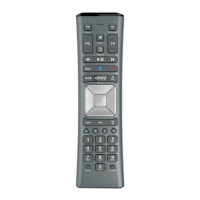
- Remote Control: The remote control is the primary interface for interacting with the XFINITY® TV system. It includes dedicated buttons for power, volume, channel selection, playback controls (Rewind, Play/Pause, Fast-forward, Exit/Stop), menu access (XFINITY Menu, Guide, Info), navigation (Arrows, OK, Page Up/Down), recording (Rec), and shortcuts (A, B, C, D buttons for Filter, Sort, Search, Help, and Favorites). The remote can also be programmed to control the TV's volume.
- Main Menu: Accessed by pressing the XFINITY button, the Main Menu provides a central hub for all guide features, including My TV, TV Listings, On Demand, DVR, and Help & Settings.
- TV Listings: Users can access TV Listings by pressing the Guide button. Multiple viewing options are available, such as Standard Guide (with video window), Channel Guide (by time for a specific channel), Max Guide (full-screen), and Mini-Guide (partial-screen over video). Listings can be filtered by HD channels, movies, sports, and kids' programming. Users can navigate through listings page by page or jump forward/backward in 24-hour increments.
- Program Information (Info Button): Pressing the Info button while browsing TV Listings or watching live TV displays detailed program information. From this screen, users can choose to watch, record, set reminders, add to favorites, or access parental locks.
- SmartBar: While watching live TV, pressing Info displays the SmartBar, which offers a brief program description and shortcuts to options like Watch in HD and Parental Controls. The SmartBar can be moved to the top or bottom of the screen to avoid interference with program provider "tickers."
- High Definition (HD) Programming: For users with HD televisions and set-top boxes, the guide allows viewing of HD programs by selecting the HD guide or filtering listings to show only HD content. If an SD program is being watched and an HD version is available, a "Watch In HD" icon will appear on the SmartBar, allowing direct tuning to the HD channel.
- Search Functionality: The search feature, accessible via the Main Menu or a dedicated button, allows users to find programs by entering titles, names, or genres using an on-screen keyboard. Search results are organized into folders, and users can filter or sort results. Saved Searches can be run later without re-entering the search term.
- DVR Playback and Control: Recorded programs can be accessed from the My Recordings list within My TV. Playback controls include play, pause, stop, skip ahead/back, rewind, and fast-forward. Users can also jump a specific number of minutes forward or backward.
- On Demand Playback and Control: On Demand content can be played, paused, stopped, rewound, and fast-forwarded. Users can also skip ahead or back to the next segment or jump a specific number of minutes.
- Parental Control Setup: Parental controls can be configured through the Help & Settings menu. This involves creating a Locks PIN and setting restrictions based on movie ratings, TV ratings, channels, or specific titles. Users can also choose to hide titles of mature audience programs.
- My Guide Customization: Users can personalize their guide view by adjusting layout, font size, channel filters, and more through the My Guide Settings menu.
- Quick Confirm: Overlay screens in the guide allow for quick confirmation of selections by pressing Page Down, streamlining the interaction process.
- Go Back in Time: In TV Listings, users can scroll back in time to view missed programs and set reminders or recordings for them.
Maintenance Features
While the document does not explicitly detail "maintenance" in the traditional sense of device upkeep, it provides features that help users manage and optimize their XFINITY® TV experience, which can be considered a form of user-level maintenance.
- DVR Management:
- Scheduling Recordings: Users can schedule single program or series recordings directly from the Program Information screen or TV Listings.
- Recording in HD: When scheduling an SD program that is also available in HD, users are prompted to record the HD version.
- Deleting Recordings: Recordings can be deleted from the My Recordings list.
- Resolving Conflicts: The system helps resolve recording conflicts by presenting a list of conflicting programs, allowing users to choose which programs to record.
- DVR Manager (Online/Mobile): Users can schedule DVR recordings from any computer or mobile device via xfinity.com/mydvr, providing remote management capabilities.
- On Demand Saved Programs: When a program is stopped, most shows are saved for up to 48 hours, allowing users to resume watching later. These saved programs are accessible from My TV.
- Parental Control PIN Reset: If a Locks PIN or Purchase PIN is forgotten, users can contact Comcast customer service for a reset, which is a crucial security maintenance feature.
- Settings Management: The Help & Settings menu allows users to adjust various system settings, including:
- General Settings: Change guide language, SmartBar position, screen saver settings.
- Video Settings: Select TV format and resolution to match TV capabilities.
- Audio Settings: Adjust audio language and output settings (e.g., digital audio format).
- Closed Captioning: Activate and customize closed captioning experience.
- DVR Settings: Turn on/off features like Live program notification, Clipping, DVR folders, and Overshoot protection.
- Troubleshooting and Support: The guide directs users to call Comcast customer service at 1-800-XFINITY or visit comcast.com/welcome for assistance if the on-screen guide or features differ from those described, or for other support needs. It also provides links to comcast.com/remote for remote control details and comcast.com/parentalcontrols for more information on parental controls.
These features collectively ensure that users can effectively manage their content, personalize their viewing environment, and address any issues that may arise, contributing to a smooth and enjoyable XFINITY® TV experience.

 Need help?
 General

 To Next Page