XFINITY On Demand
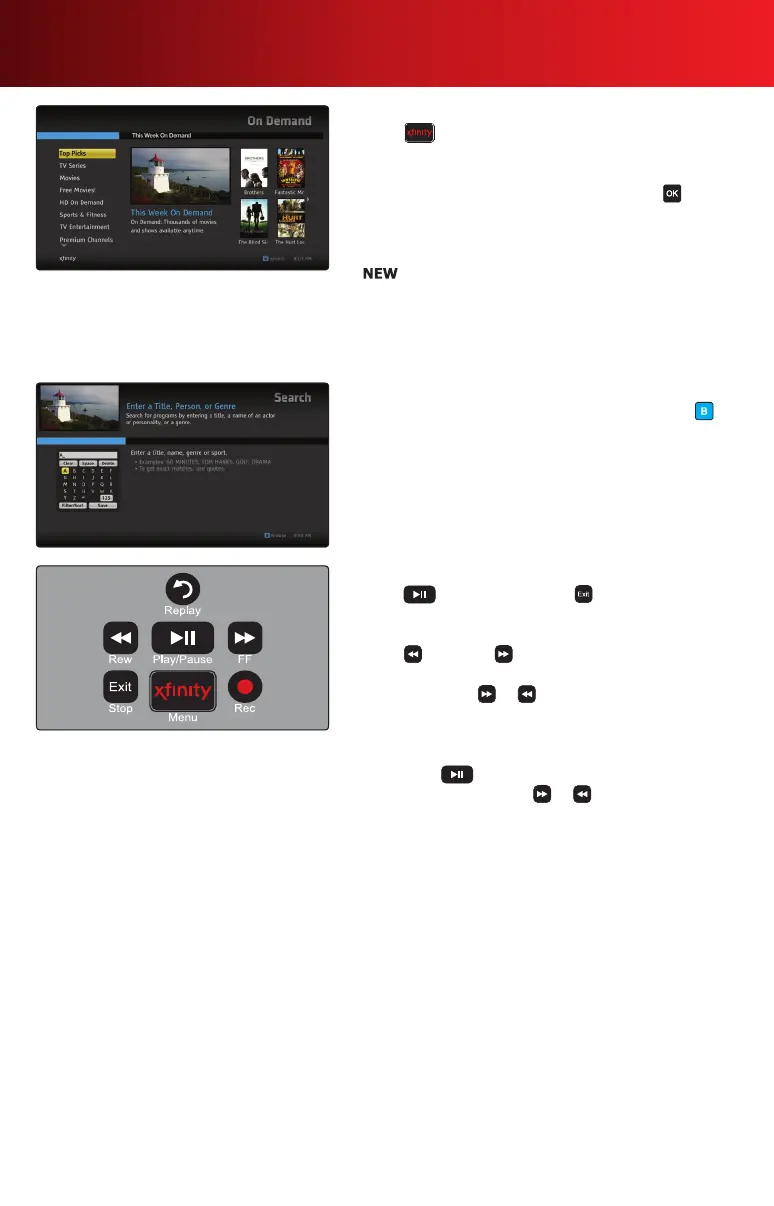
1. Press , then select On Demand or tune to Channel 1.
2. Use
to select a category, or select Top Picks to
browsemoviepostersforthelatestnewreleasemovies.
3. Highlight a movie or program listing and press . Select
movie posters to access a Quick Look menu that provides
several options such as Preview, Rent and Get more info.
Programs added in the last seven days will display as
. Programs in their last seven days will display an
enddate.Tondoutexactlyhowlongaprogramwillbe
available,pressInfo to view the program information.
4.SelectWatchorRent.Towatchafreepreviewbeforeyou
purchase the program, select Preview.
On Demand Search
YoucaneasilyndOnDemandprogramsbypressing on
your remote and entering a search term using the on-screen
keyboard.
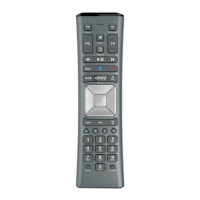
Controlling On Demand
• Press to play or pause and to stop.
• Skipaheadorskipbacktothenextsegmentinthe
programbypressingPg
, Pg
.
• Press to rewind, to fast-forward; press up to 4
timestoincreasethespeed(notavailableinallareas).
• Alternativelyhold or down to quickly move ahead
orbackinaprogram.Releasewhenthelineonthestatus
barreachesyourdesiredlocation.
• Jumpaheadorjumpbackaspecicnumberofminutes
bypressing andthenenteringanumberusingyour
keypad and then pressing or .
XFINITY On Demand programming and services not available in all areas. Programming subject to change. On Demand selections subject to
charge indicated at time of purchase. Some Help & Services programs may show a minimal transaction charge that is immediately credited
back to your account. Program availability subject to service level. Monthly fees and subscription service fees may apply. Certain services
are available separately or as part of other levels of service. Basic service is required to receive other levels of service.
8 Using Your On-Screen Guide



 To Next Page