My Guide
You can create your own personalized view of the guide and
choose your preferred layout, font size, channel filters and
more.
1. Select Help & Settings from the Main Menu, Settings and
then My Guide Settings.
2. Highlight and select My Guide to turn On.
3. Select each My Guide option to change from the default
settings.
YourMyGuidewillbetherstviewyouseewhenyoupress
the Guidebutton,followedbytheotherfourviewingoptions.
Program Information
Press Info whilebrowsingTVListingstoreviewinformation
abouttheprogramandrecord,watch,savetoyourfavorites
and more.
SmartBar
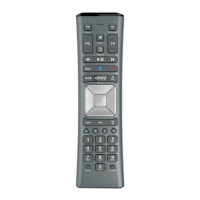
Press Info on your remote while watching live TV to display
theSmartBar,whichprovidesabriefprogramdescription
and shortcuts to helpful options like Watch in HD, Parental
Controls and more.
• PressPg
to quickly move the SmartBar to the top of
the screen to avoid interference with program provider
“tickers”onthebottomofyourscreen.PressPg
to
movetheSmartBarbacktothebottom.
High Definition
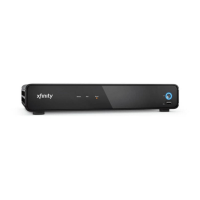
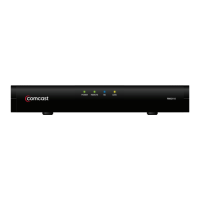
Ifyouhaveahigh-denition(HD)television,youcanenjoy
HDprogrammingwithanHD-capableset-topbox.
• FromtheTVListingsmenu,viewHDprogramsby
selecting the HD guide.
• Select on your remote to filter the listings menu to only
show HD programs.
• Ifyouarewatchingaprograminstandard-denition(SD),
and the same program is airing in HD on another channel,
a Watch In HD icon will display on the SmartBar. By
pressing you can tune directly to that HD channel.
HD programming is limited to the programming provided to Comcast in HD format by the programming provider. Monthly HD equipment
charge applies. Certain services are available separately or as a part of other levels of service. Basic service is required to receive other
levels of service.
5Using Your On-Screen Guide



 To Next Page