Remote Buttons — Quickly filter, sort, or search.
• The and buttonsonyourremoteactashandyshortcuts,givingyouoptionstolter
or sort listings or search for programs.
• Lookatthebottomofeachguidescreentolearnwhat and optionsareavailablefora
particular feature.
Guide Views — Multiple ways to view TV Listings.
• PressGuide to toggle through four different views of TV Listings.
• WhileviewingTVListings,press to change the day making it easy to schedule future
recordingsorremindersforprogramsyoudon’twanttomiss.
• CustomizethelookandfeelofyourguideviewusingtheMyGuidefeaturelistedunder
Help & Settings.
My TV — One central location for all your favorite shows and channels.
• Press and select My TV to quickly access all your DVR recorded programs, favorite
channels, reminders, On Demand saved programs and searches all within one central location.
Search — Find shows on TV or On Demand.
• Press andselectSearchtobrowsecategoriesorsearchbytitle,personalityorgenre.
• Press to sort or filter search results.
• Resultsareorganizedintofolderswhenthereismorethanoneresultforasearchterm.
• SaveyoursearchandrunitagainlaterbygoingtoMyTVandselectingSavedSearches.
High-Definition — Search for HD programming.
• PresstheGuidebuttononyourremoteandlterthelistingsbypressingthe buttonand
selecting “only HD.”
• SelecttheWatchinHDbuttonontheSmartBartowatchtheHDversionofaprogram.
• FiltersearchresultsorMyRecordingsbypressingthe buttononyourremoteand
selecting “only HD.”
• Whenschedulingarecordingforastandard-denitionprogram,you’llbegiventheoptionto
recordtheHDversionifavailable.
DVR — Record your favorite shows and watch them from any room.
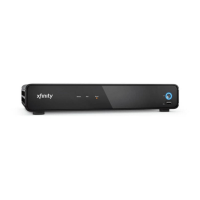
• WithAnyRoomDVRservice,viewDVRrecordingsfromanyset-topboxinyourhome.
• Gotoxnity.com/mydvrtoscheduleDVRrecordingsfromanycomputerormobiledevice.
• Deletemultiplerecordingsfromyourrecordingslistbysimplyselectingthecheckboxnext
to the recordings you want to delete.
• Pauseanyliveprogramforupto30minutes.
• Easilyresolverecordingconictsanddecidewhatyouwanttorecordbychoosingfromalist
ofallconictingprograms.
DVR and On Demand — Control how you view your programs.
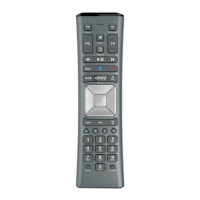
• Press to play or pause and to stop.
• SkipaheadorskipbacktothenextsegmentintheprogrambypressingPg
, Pg
.
• Alternativelyhold or downtoquicklymoveaheadorbackinaprogram.Release
whenthelineonthestatusbarreachesyourdesiredlocation.
• Jumpaheadorjumpbackaspecicnumberofminutesbypressing and then entering
anumberusingyourkeypadandthenpressing or .
• Press to rewind, to fast-forward; press up to 4 times to increase the speed (not
availableinallareas).
Please refer to xfinity.com for products available in your area. Comcast installation services are subject to Comcast’s
applicable charges. Comcast continues to bring you a variety of ways to enhance your entertainment experience.
Go to comcast.com/support for more information. Certain services are available as part of other levels of service.
© 2012 Comcast. All rights reserved.
16 Quick Start Guide
XF BAR1.1 0412



 To Previous Page