Pay-Per-View Events
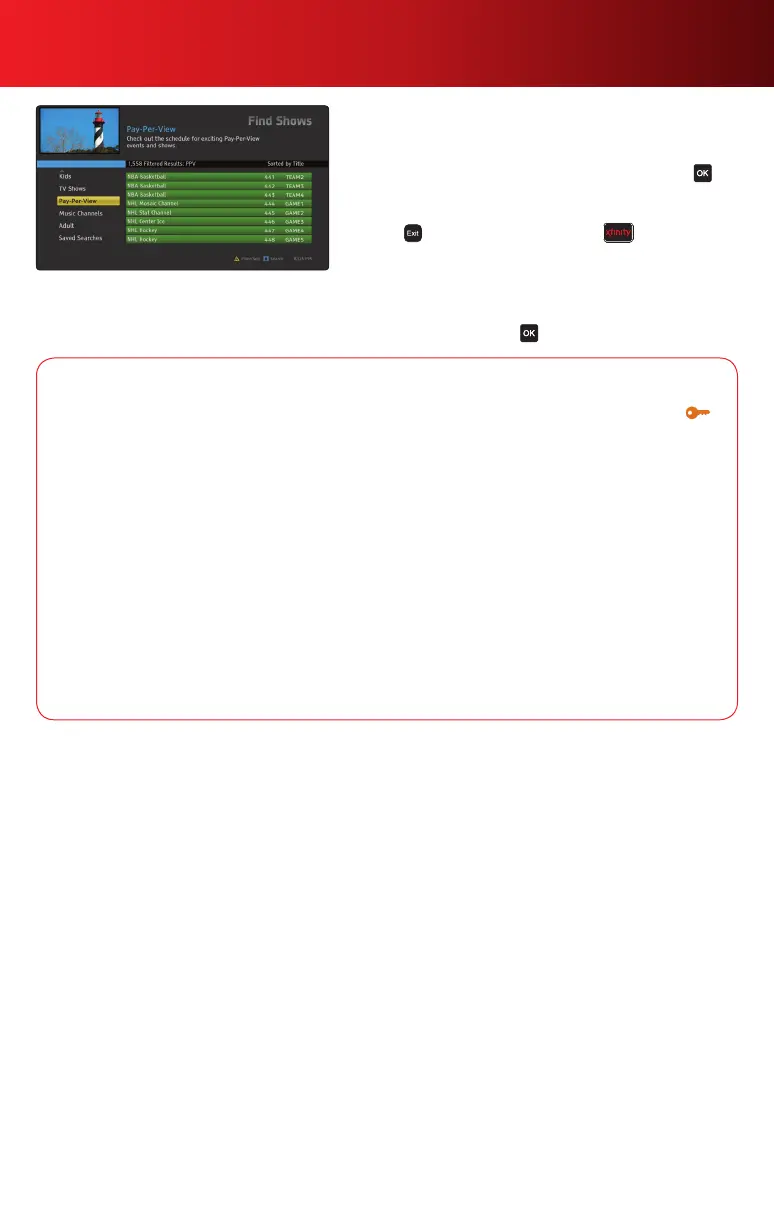
1. From the Main Menu, select Search and then scroll to
select Pay-Per-View.
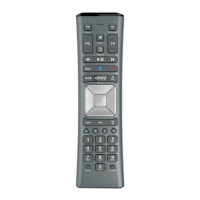
2. Highlight the program you wish to watch and press .
Then select Buy and then Order from the confirmation
screen.
3. Press to return to watching TV or to return to
the Main Menu. A reminder is automatically set when a
program is ordered.
4. To cancel a Pay-Per-View order, select Search from the
Main Menu and then Pay-Per-View Events. Highlight
Cancel Order and press .
XFINITY On Demand Options
Upgrade Your Service — Upgrade to an On Demand package right on your TV screen. The
indicatesOnDemandprogramsthatarepartofapackagetowhichyoucurrentlydonotsubscribe.
Simply follow the on-screen prompts to upgrade your XFINITY service and get immediate access to
subscriptionOnDemandcontent.
Prevent Unauthorized Orders—ParentalControlscanbeusedwithOnDemand.Torestrict
viewing of certain content, refer to the Parental Controls section or visit comcast.com/parentalcontrols
for more information.
On Demand Saved Programs — When you stop a program, most shows are saved for up to
48 hours, however most programs under 20 minutes are not saved. To access a saved program, go to
My TV and select Saved Programs, highlight the program and view the program information to make
your selection.
AnyRoom
®
On Demand—EverythingwithinSavedProgramsisavailableonALLtheset-top
boxesinyourhome.Youcanstartwatchingaprograminoneroom,stop,andresumewatchingin
another.
Pay-Per-View programming not available in all areas and is subject to charge indicated at time of purchase.
9Using Your On-Screen Guide



 To Next Page