Parental Controls
Comcast provides tools so you can prevent your kids from
seeingprogramsyoudon’twantthemtowatch.Youcan
blockspecicchannels,titlesorshows;hideadulttitles;
and prevent your children from purchasing programs without
your consent. For more information, visit comcast.com/
parentalcontrols or call 1-866-781-1888.
1. From the Help & Settings menu, select Parental Controls
toaccesstheParentalControlsDashboardandseeall
availableoptions.
2.Settinglocksforthersttime,youwillbepromptedto
createaLocksPersonalIdenticationNumber(Locks
PIN).
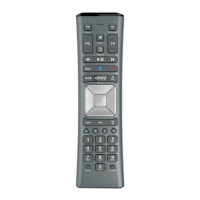
3. Use the
to choose your selections — including
locksbyMovieRating,TVRatingorChannel—andpress
. A Lock icon will appear next to the ratings you
locked, as well as the ratings that are more restrictive.
4. Set Parental Controls while watching a program or
channelyouwishtolockbypressingInfo and selecting
Parental Locks.
Tip
To set Parental Controls quickly, set Movie Rating and TV
RatingLocks.TheselocksblockbothOnDemandandTV
programming — they are perhaps the most comprehensive
locksavailableintheguide.IfyouforgetyourPurchase
PIN or Locks PIN, call Comcast customer service at
1-800-XFINITY to reset.
Parental Control Options
PIN Manager — The Locks PIN and Purchase PIN allow you to restrict unauthorized orders of
On Demand programs and Pay-Per-View Events. The Locks PIN allows you to lock programming.
Master Locks — Remove all locks or temporarily deactivate locks.
Movie Rating Locks — Restrict access to TV and On Demand movies with specific ratings.
TV Rating Locks — Restrict access to shows with specific TV ratings.
Channel Locks — Block the access to specific channels within the on-screen guide.
Hide Titles — Replace the program titles of mature audience programs rated Adult or TV-MA within
the on-screen guide with the words “Adult Programming” or “TV-MA Programming.”
Title Locks — Restrict access to specific programs regardless of the channel the program is on.
10 Using Your On-Screen Guide



 To Next Page