23
• HDMI compatibility alerts: Show prompt to change HDMI compatibility mode when you switch
inputs
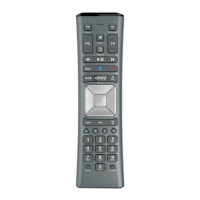
Remote
Adjust your remote’s settings, including:
• Overview: See your remote’s battery level, model, operating mode, and firmware version
• Pair your remote to your TV: Pair a new remote to your TV, or re-pair an existing remote
• Voice search language: Choose which language your TV will recognize for voice commands
• Pair your remote and sound system: Select your sound system brand to control it with your
remote. Not necessary if using HDMI-eARC/ARC
• Xumo TV app: Pair a mobile device so that you can control your TV without your remote
• Set remote shortcut: Set a remote shortcut for closed captions, audio description or voice
guidance – once you’re done, you can turn that feature on or off by pressing the settings button
twice on your remote
Screen Saver
Manage your screen saver settings, including:
• Preview screen saver: See what your selected screen saver will look like before choosing it
• Start after: Choose how long your TV should be inactive before your screen saver starts
• Sleep timer: Set a timer for your TV to turn off
Help
Help troubleshoot common issues, including:
• Hardware support: Visit our hardware partner website for help and support including FAQ’s,
digital manuals, tutorials, and more
Apps and Subscriptions
Manage all apps and subscriptions set up on your TV. You can also manage your subscriptions by visiting
xumo.com/account.
• Manage Xumo TV subscriptions: View and updated all active subscriptions for supported apps
purchases on this TV.
• Lock apps: Require a PIN to use apps.
• Close all recent apps: Closing apps may improve performance by clearing short-term memory.
Your app data and login will not be affected.



 To Next Page