Esee User Manual
1. Connect DVR with network, make sure network working fine
2. For remote view in computer, go to www.dvrskype.com or www.e-seenet.com
Do the following setup before you log in Esee on computer
Note: Internet Explorer setting. If use it for the first time and the software can't load, then
need to make the following setting: Internet options Safety-Internet Custom options
pick Active X and plugin all for opening, click ok.
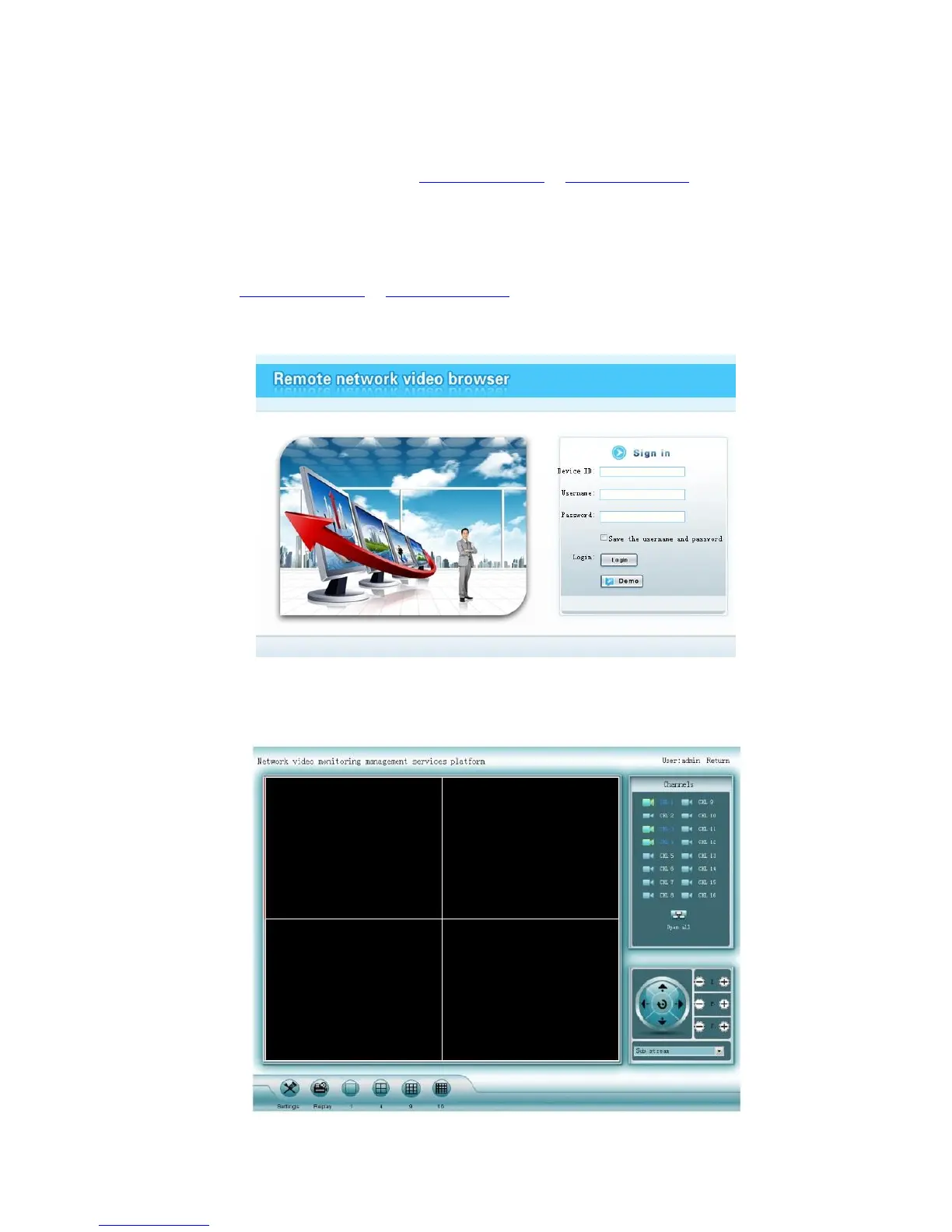
1. Go to www.dvrskype.com or www.e-seenet.com,input Esee ID, user name and password, this
user name and password is same with DVR user name and password
Note: the default user name is admin, no password
Video monitoring homepage:
Monitoring homepage including: preview window, PTZ control, preview, stream selection, channel
opening, setting, playback, user logout, as below:



 To Next Page