EN
15
BUTTONS IMAGE
This section can be used to load up to 50 images or logos for association with the call buttons
Buttons 01-10
Buttons 11-20
Buttons 21-30
Buttons 31-40
Buttons 41-50
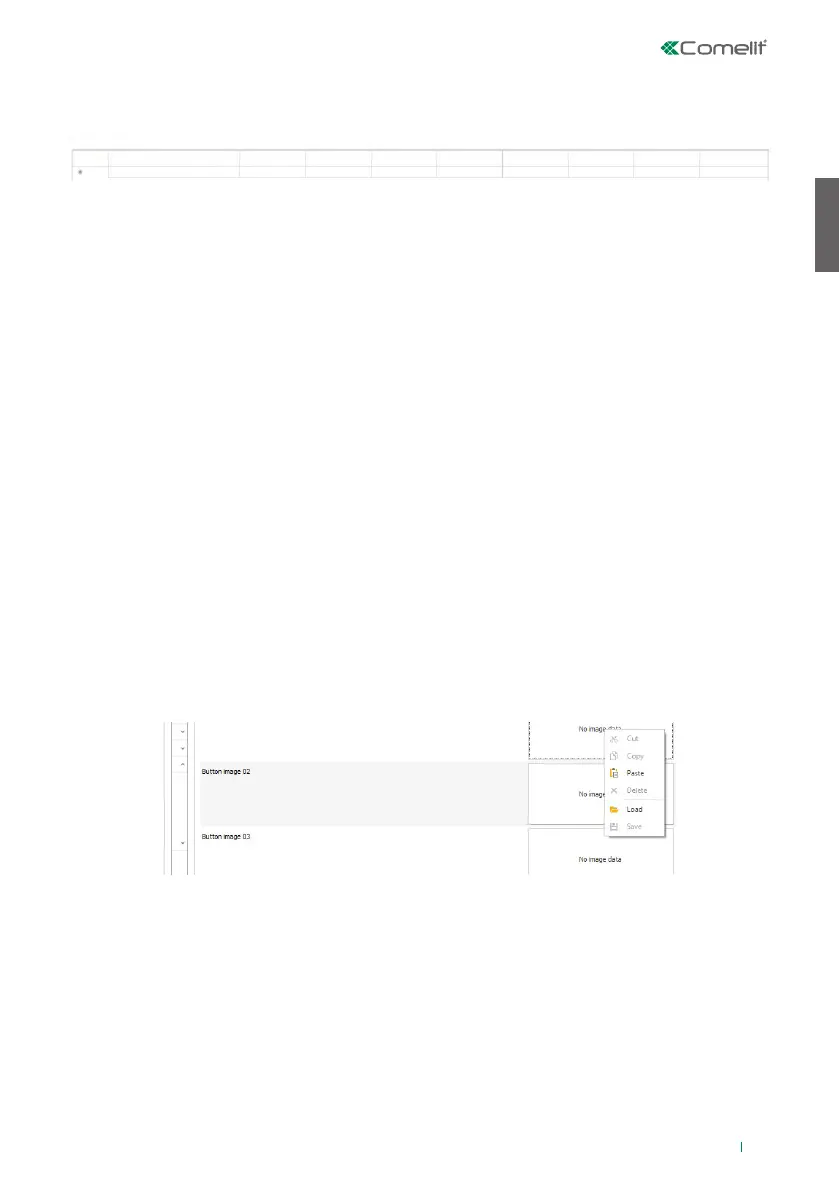
To load an image or a custom logo, right-click in one of the boxes on the right and select the “Load” menu;
select the desired image using the window shown.
Note
• Compatible formats are .jpg, .jpeg, .png.
Compatible dimensions are as follows:
◊ Button with “Normal” dimensions and “Bell” icon enabled: 280 x 135 pixel
◊ Button with “Large” dimensions and “Bell” icon enabled: 280 x 214 pixel
◊ Button with “Normal” dimensions and “Bell” icon disabled: 405 x 135 pixel
◊ Button with “Large” dimensions and “Bell” icon disabled: 405 x 214 pixel
DIRECTORIES
NAME DIRECTORIES
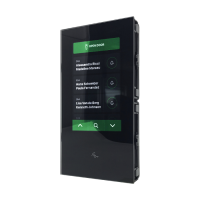
• Call address: enter the call code associated with the Name field
• Name: enter the user name that will be shown on the first line of the call button
• Second name: enter the user name that will be shown on the second line of the call button
• Description: enter the text that will be displayed, in a smaller size, above the first line of the call button
• Access code: enter the code to be associated with the user that allows them to activate the set output
• RFID key code: enter the code printed on the RFID token that allows it to activate the set output when
passed in front of the enabled RFID reader
• Output to activate: select the output to activate by entering the “Access code” or by passing the RFID
token in front of the reader
◊ Lock release: send a lock-release command (default). This setting can be changed on the audio or
audio/video module
◊ Module SE output: activates the SE output for the audio or audio/video module paired with the Touch
module
◊ Module relay output: activates the relay for the audio or audio/video module paired with the Touch
module
• Visible: used to make the button you are programming visible or not (Visible, Not visible, default: Visible)
• Button image: used to associate each call button with an image or a logo, see “Buttons image” menu
(None, from Image 1 to Image 50, default: None)
Call address
Call address
Name Second name Description Access code RFID key code Output to activate Visible Button Image


 To Next Page