EasyManua.ls Logo

Commodore 16 - Page 19

Commodore 16
84 pages
Print Icon
To Next Page IconTo Next Page
To Previous Page IconTo Previous Page
Loading...
SETTING
UP
YOUR
COMPUTER
Finally
...
Now
it's
time
to
turn
on
your
computer.
Turn
on
the
POWER
switch
on
the
right
side
of
your
computer.
If
all
went
well,
the
red
POWER
light
will
go
on,
and
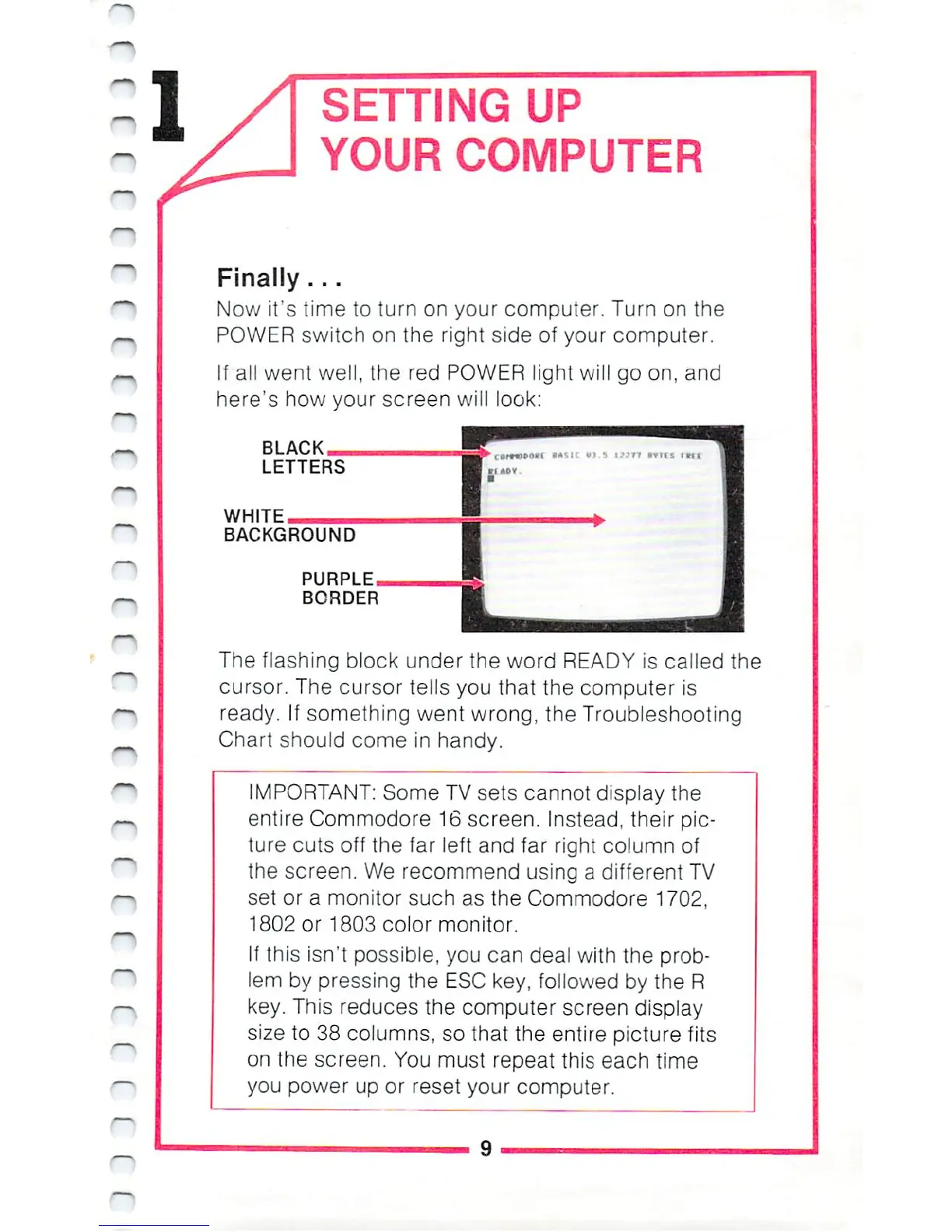
here's
how
your
screen
will
look:
BLACK
LETTERS
WHITE
BACKGROUND
PURPLE
BORDER
The
flashing
block
under
the
word
READY
is
called
the
cursor.
The
cursor
tells
you
that
the
computer
is
ready.
If
something
went
wrong,
the
Troubleshooting
Chart
should
come
in
handy.
IMPORTANT:
Some
TV
sets
cannot
display the
entire
Commodore
16
screen.
Instead,
their
pic
ture
cuts
off
the
far
left
and
far
right
column
of
the
screen.
We
recommend
using
a
different
TV
set
or
a monitor
such
as
the
Commodore
1702,
1802
or
1803
color
monitor.
If
this
isn't
possible,
you
can
deal
with
the
prob
lem
by
pressing
the
ESC
key,
followed
by
the
R
key.
This
reduces
the
computer
screen
display
size
to
38
columns, so
that
the
entire
picture
fits
on
the
screen.
You
must
repeat
this
each
time
you
power
up
or
reset
your
computer.

Other manuals for Commodore 16

Related product manuals