CLEARING
THE SCREEN
There will
be times when
your screen is
loo crowded,
or you wanl to
reorganize what
you've
lyped, or you're
|ust plain unhappy with
what's
on the screen and
want
to
banish
it to wherever It
is that print
goes
once
't leaves the monitor
screen.
There are
a
few
ways to accomplish
this, leaving
the programs in
your
compter's memory intact
or dealing
the memory
as well
as
the
screen
One
way
to
clear
the screen is
lo hold the
space bab down, until it
dears the
1000
spaces on the screen
(tor a couple
minutes or
so)
It
you've read
this tar tnto
the User's Manual,
chances
are that you have
the patience
lo clear the
screen like this,
but
also
the intelligence
to
realise
that there has
to be
a belter way. Here are
some belter
ways:
1. Hod the DOWN
CURSOR
key
f
until
everything
on
the
screen
scrolls
oH the top of
the screen.
2.
Press
the
aan and
CU/HOMK keys
together This
clears the
screen
and repositions
the cursor
at
the
lop left-hand
corner, (the
'home position')
3. Type
SCNCLR
and press
return
This Is
a
BASIC
language
commanc that your
computer
Interprets
as
instruction
lo clear
the screen.
4.
Press
the RESET
BUTTON.
This resets the
machine, bringing
Pack
the starling screen
and clearing
all programs
out ot your
computer's
memory.
if
you want
lo dear the
computer's memory
but.
not
the
screen, lype:
NEW and press
returh
This is
a BASIC language
command that tells the
computer
to empty Us
memory.
The 1
6
in the
Commodore
1 6 refers to the
amount of
space
(I6K) that your
computer
has to store programs,
Known
as the memory.
When
you
clear
the screen with
any ot the
first three methods,
you
clear
the characters
on the screen,
but whatever
Is
in
your computer's
memory
stays there
This
means
you
have
less space for
new
programs
The last
two methods
erase what Is held
In
your computer's
memory,
so that
you again have
the lull amount of
space available
lor
new
programs.
50
I
I
SCREEN
WINDOWS
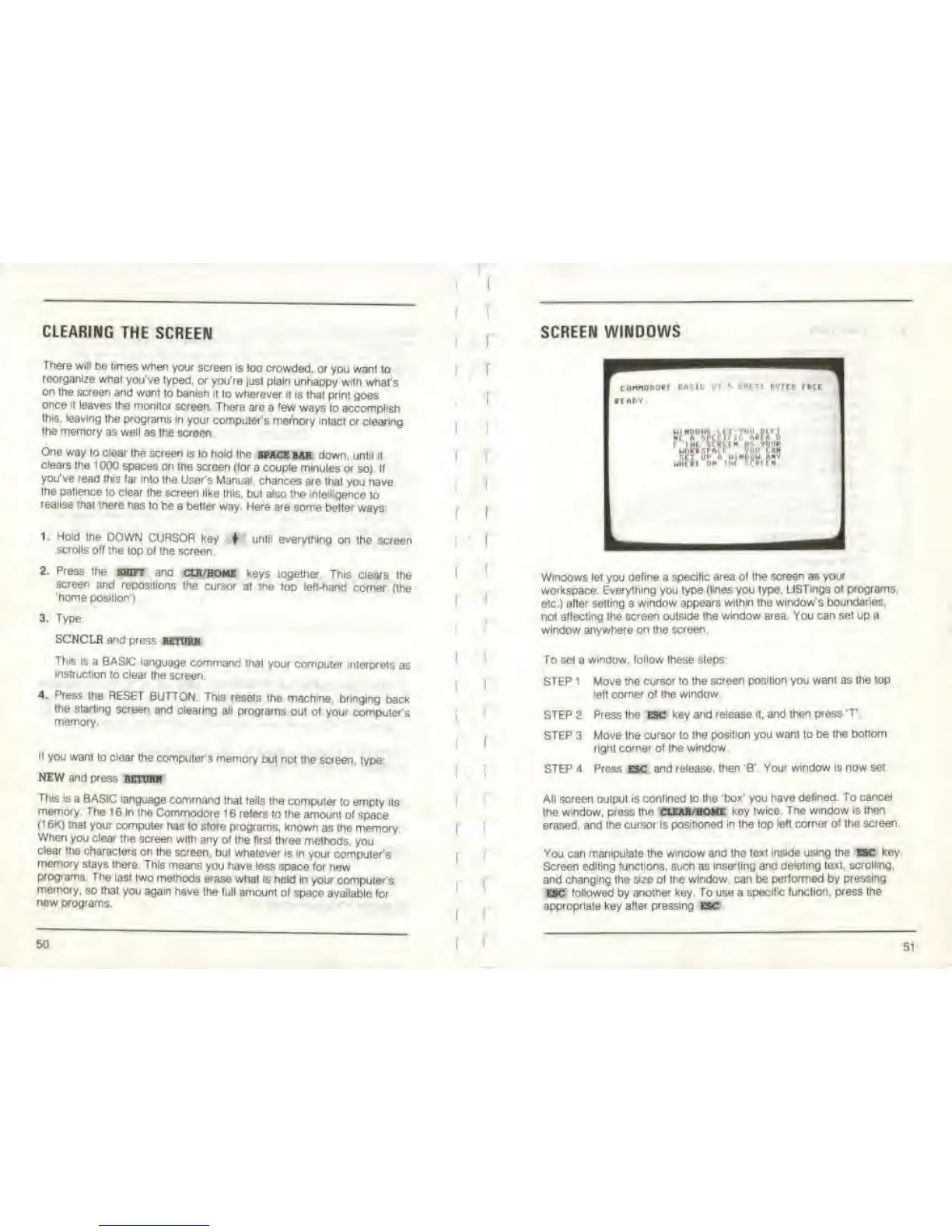
Windows let you
aefine
a specific
area of the screen as
your
workspace.
Everything
you type
(lines you type. USTmgs
of programs,
etc.)
after setting
a
window appears
within
the
window's boundaries,
not
attecting Ihe screen outside
the window area. You can set up a
window anywhere on the screen.
To set a
wmoow, follow these
steps
STEP
1 Move Vie
cursor
to ihe
screen position you want as the top
left comer
ot the window
STEP 2 Press the ESC key and
release
tt.
and then
press
T.
STEP 3 Move the
cursor
to
the position you want to be
the bottom
right comer ot the window
STEP
4 Press
EK
and
release, then 'B'
Your
window Is now
set.
All screen output is confined lo Ihe
'box'
you
have
defined To cancel
the window, press the CLEAR/HOME
key twice.
The window is
then
erased, and
the cursor is positioned
in
the top
let! corner of Ihe screen.
You can
manipulate Ihe window and the text
inside using the
BC
key.
Screen editing functions,
such
as
Inserting ana deleting text,
scrolling,
and changing the size of the
window, can be performed by pressing
esc
followed
by
another key.
To
use a specific
function,
press
the
appropriate
key
after pressing
51



 To Next Page