Using
characters like the ball (SHIFT
O), you can play video games on
the
screen.
To move a
bail,
just erase ihe ball ana replace
it at a new
position,
as
In
th<s
program
10 PRINT
"
SHIFT
a*
"
20 PRINT " space shift
O
30 FOR L=l
TO 50: NEXT L
40
GOTO 20
Left
cursor arrow
When
you RUN the program, remember
to
press
the MB/stc* Key
when
you
want
to stop
moving
the ball.
CONTROLLING
COLOURS
Separate colours can
be
put Inlo
each pan
at
the
screen
The
border
can be
one colour,
the background
a
different
one, and each character
can
have Its own
colour
You already know how to
set
the character
colours using
the
keyboard. Vou can
change the
colours
ol Ihe other
scroen areas using the
BASIC language
command
COLOR
For example,
you can turn Ihe border
of
your screen
'ea by
typing
the
command
COLOR 4,3 and
pressing
the MlUM key. The number 4 in
the command stands lor the border area, and colour number
3 is red
(the same number as on the key marked
RED).
Try typing COLOR
0,
7 and hitting
betum
The
screen background
now
turns blue. The number stands for
the
background, while
the 7 is
blue
{also
the same
as
the keyboard)
The
first number after
the
word
COLOR
specifies
Ihe area on the
screen
you
want
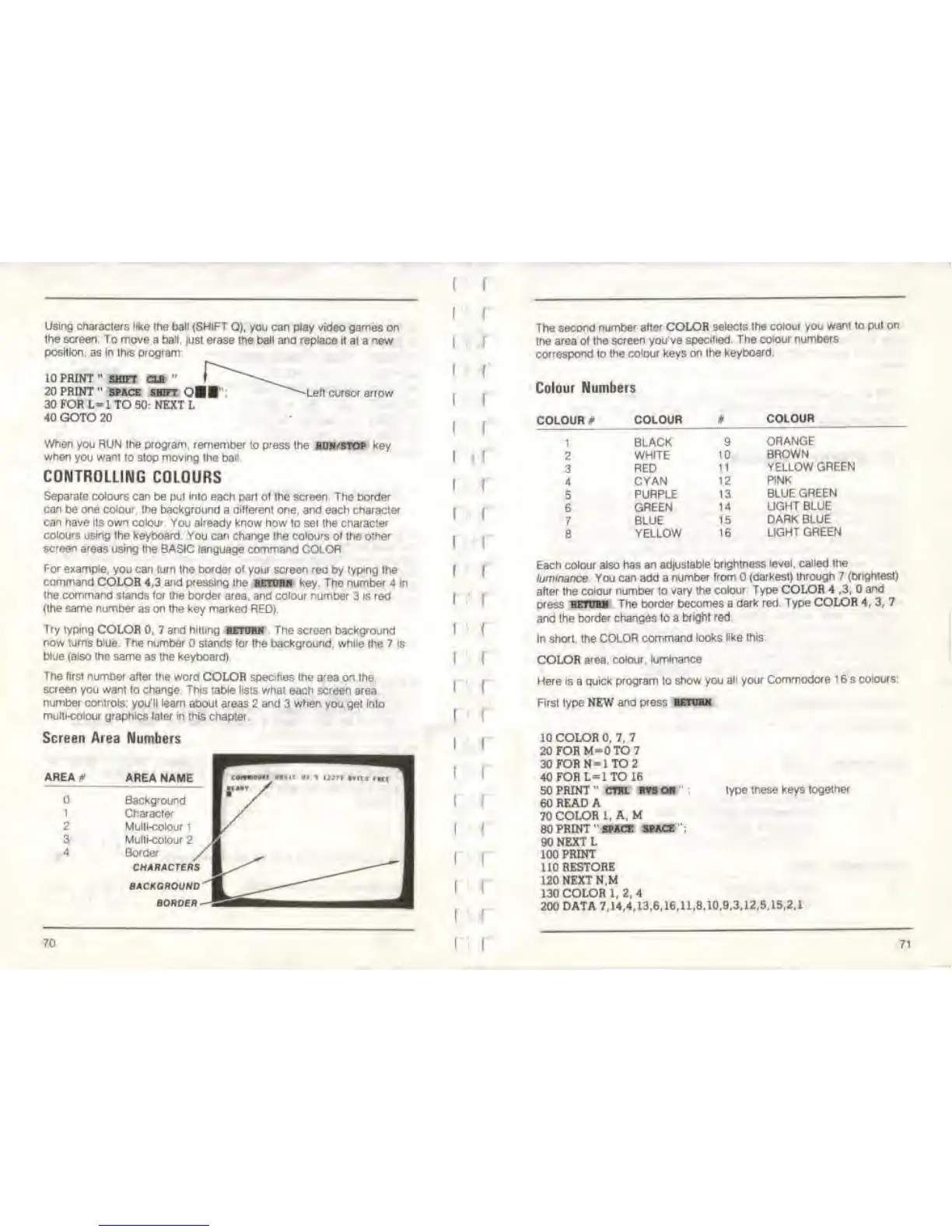
to change This table lists
what each screen area
number
controls;
you'll learn
about
areas
2
and
3
when vou
get inlo
multi-colour graphics later
m this chapter
Screen Area Numbers
AREA* AREA
NAME
1
2
3
4
Background
Character
Multi-colour
1
Multi-colour
2
Border
CHARACTERS
BACKGROUND
BORDER
70
f
I
I
I
I
M
i
i
i
i
f
f
(
!
(
!
I
I
I
I
1
I
The
second number after COLOR
setecls the colour you
want to put
on
the area
of the
screen
you've
specified. The
colour numbers
conespond 1o the
colour keys on Ihe keyboard.
Colour
Numbers
COLOUR
*
1
2
3
4
5
6
7
8
COLOUR
COLOUR
BLACK 9
ORANGE
WHITE
1 BROWN
RED
11 YELLOW
GREEN
CYAN 12
PINK
PURPLE 13 BLUE
GREEN
GREEN
14 LIGHT BLUE
BLUE
15
DARK
BLUE
YELLOW
16
LIGHT GREEN
Each colour also has an
adjustable brightness
level, called the
luminance You can add a
number from
(darkest) through 7 (brighies!)
after the
colour number
to
vary the
colour Type COLOR 4
,3,
and
press
KTOlK The border
becomes
a
dark red. Type COLOR 4, 3,
7
and the border changes 10 a
bright red
In
short,
the
COLOR command
looks like this
COLOR
area, colour, luminance
Here is a quick program to
show you
all your Commodore 1 6's colours.
First type NEW
and press hetubm
10 COLOR 0, 7, 7
20FORM-0TO7
30FORN-1TO2
40 FOR L=l TO 16
50 PRINT
" cm. wn oh
"
;
60 READ A
70
COLOR I. A. M
80 PRINT
'
'
SPACE SPACE
' •
;
90 NEXT
L
100 PRINT
110
RESTORE
120 NEXT N.M
130COLOR1,2,
4
200 DATA 7,14,4,13,6,16,11,8,10.9.3,12,5,15,2,1
type these keys
together
71



 To Next Page