Copyright
®
2009 by Conceptronic – All rights reserved
www.conceptronic.net
Page 3 of 6
C. Upgrade procedure from a USB stick or memory card
1. Copying the firmware file to a USB stick or a memory card
1.1 Connect the USB stick or memory card to your computer.
1.2 Copy the file ‘TVBOXROM.BIN’ from the folder ‘Firmware’ to the USB stick or memory card (for
example: ‘F:\TVBOXROM.BIN’ where F:\ is your USB stick or memory card).
Note: Do NOT put the firmware file in a folder on your USB stick or memory card. The CM3PVRD must
‘see’ the firmware file directly on the USB stick or memory card.
For example: ‘F:\TVBOXROM.BIN’.
1.3 Remove the USB stick or memory card from your computer. It is recommended to use the safe
remove/eject/unmount option of your operating system.
1.4 Disconnect the USB stick or memory card from your computer.
2. Upgrading the ‘TVBOXROM.BIN’ firmware
2.1 Connect the CM3PVRD to your TV and turn it on with the switch on the back.
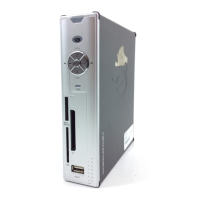
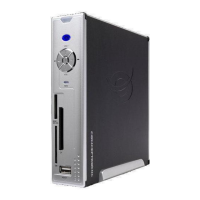
2.2 Open the latch on the front of the CM3PVRD.
2.3 Connect the USB stick to the USB host port of the CM3PVRD or slide the memory card in the
memory card slot of the CM3PVRD.
2.4 Select the option ‘Movies’ in the main menu of the CM3PVRD.
The CM3PVRD will show the Movie Browser on your screen, with the ‘RECORDS’ folder opened.
2.5 Press the ‘STORAGE’ button on the remote control to switch to ‘USB MODE’ or ‘CARD MODE’
(depending on what you have inserted, a USB Stick or a memory card).
2.6 Select the file ‘TVBOXROM.BIN’ and press the ‘ENTER’ button on the remote control.
2.7 The CM3PVRD will show a ‘Smart Upgrade’ pop-up on your screen. Select ‘OK’ and press the
‘ENTER’ button on the remote control to start the firmware upgrade of your CM3PVRD.
Note: If the message ‘Invalid Firmware’ is shown, this means you have got a firmware version which
is not compatible with the CM3PVRD.
Note: The CM3PVRD must NOT be turned off during the upgrade process. Doing so will result in an
unusable product. The same applies for removing the USB stick or memory card.
As soon as the upgrade process is completed, the CM3PVRD will reboot and return to the main menu.
Continue to chapter ‘E. Checking the firmware version of the CM3PVRD’.


 To Next Page
 Loading...