ENGLISH
31
You can stop viewing the photo by press PAUSE button once (music is still playing). Press PAUSE
again, the music will stop. Press the
/ ENTER button to resume playing. You can set the
interval display time between two photos by pressing the DELAY button. Default interval time is
set via SETUP MENU->PREFERENCES->DELAY. Press the TRANS button to change a transition.
Press the REPEAT button to play back photos repeatedly.
Direct access button to your photo folder
You can create 1 Photo folder, which can be directly accessed by pressing the PHOTO-button on
the remote control. Create a folder called “PHOTO ***” (Where *** can be changed to whatever
you want) on the root of the hard disk and place photo’s in this folder.
When the media player is started and you press the PHOTO-button, the media player will
automatically open the folder.
NOTE:
If you create more than 1 folder beginning with “PHOTO ***”, the device will only open the first
folder.
6.4 Operations in file library
• Use / button to select a file or folder; / (PREV/NEXT) button to page up/page down.
If a photo or a video is selected, its preview and information will be shown on the right hand
side of the TV screen. If a music file is selected, music will start playing while showing its
information on the right of the screen.
• You can press TOP button to move cursor straight to the top of file list and change to another
folder easily.
• Press the / ENTER button to enter full screen mode (if playing music files, MUSIC
EQUALIZER screen will appear). Press the
/ STOP button to escape full screen mode.
• Press REPEAT button to select a repeat mode: RANDOM/SHUFFLE/SINGLE/FOLDER/REP-
ONE/FOLDER REPEAT.
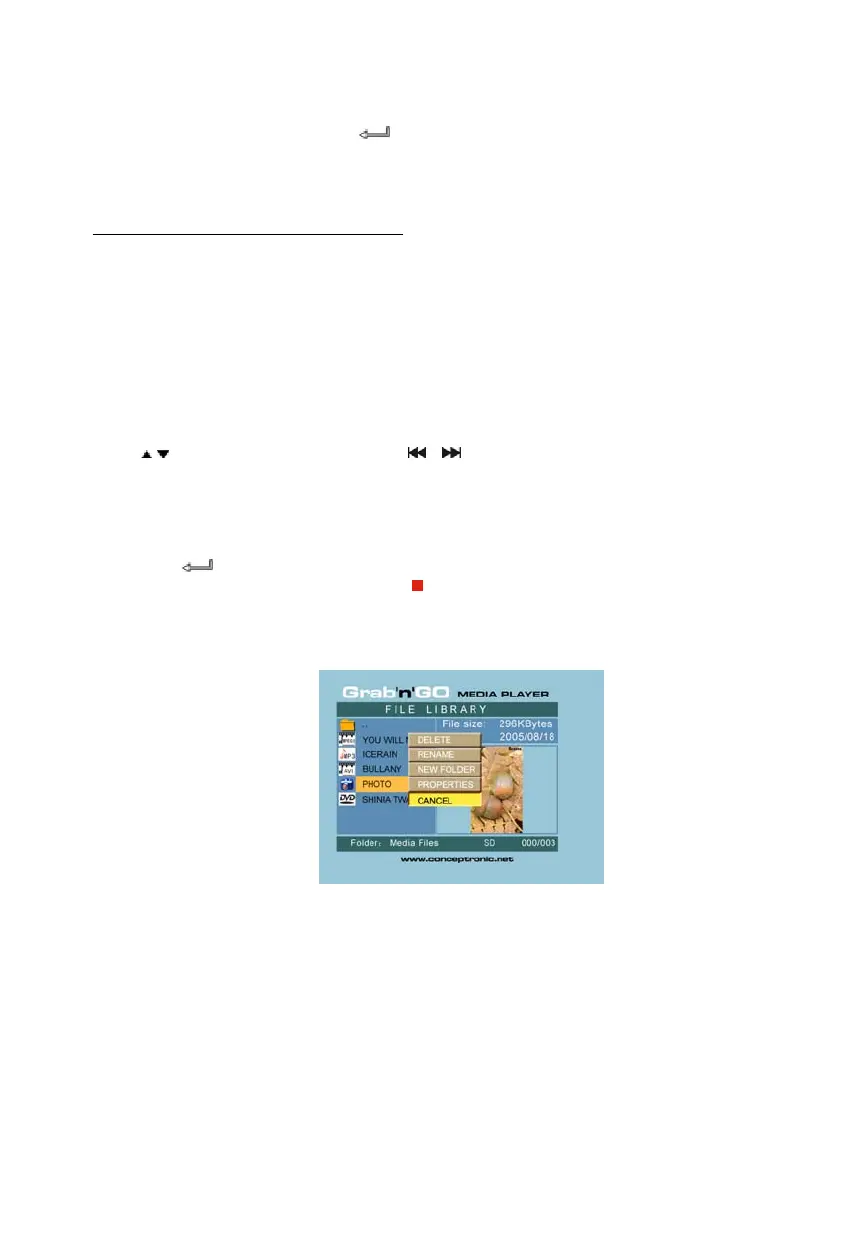
• In STOP state, press the FUNC button to show or close a floating menu of the file operation.
DELETE: directly delete a selected file or folder.
RENAME: rename a selected file or folder.
NEW FOLDER: create a new folder.
PROPERTIES: show/close file information such as size, date, and format.



 To Next Page