ENGLISH
11
4. One Touch Backup
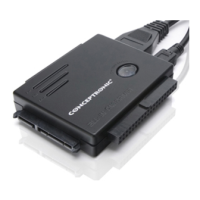
The CSATAi23U has a “One Touch Backup” button on top of the device. With this button you can
automatically make a backup of your documents, pictures, music, etc.
4.1 Installation of the backup software
A. Insert the CD-ROM in the optical drive of your computer. The AutoPlay option will be shown
automatically. Click on “Run Autorun.exe” to start the autorun menu.
Note: If the AutoPlay option is not shown, you can start the autorun menu by browsing to
“Computer” and double clicking on your optical drive.
B. Select the option ‘Install Backup Software’ from the autorun menu.
Note: You might get a ‘User Account Control’ warning message, which you will need to accept by
clicking on ‘Yes’.
C. The installation wizard will appear. Select ‘Next’ to proceed.
D. Click on ‘Install’ to install the backup software on your computer.
E. When the installation is finished, click on ‘Finish’ to close the installation wizard.
When the installation wizard is closed, the software is started automatically. The software will also start
automatically when you restart your computer.


 To Next Page