Using the Touch Screen as a Portabie Device
Usethe7”PortableTouchScreendockasthe
dockingstationfortheTouchScreen(seeFigure6).
NOTE:YoumustsetupforWiFiiftheTouch
Screenwillbeusedasaportabledevice.See
“ConguretheNetworkSettings.”
1 Placethe7”PortableTouchScreendockonaat
surface.
2 Power.Thisdevicecanbepoweredusingeither
anEthernetconnectororaPoEconnector.
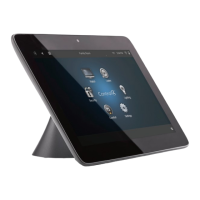
a Insertthepowercableintothepowerjack
slotonthebackofthedevice(seeFigure6).
b Plugthepowercordintoawalloutlet.
c TouseEthernet,plugtheRJ-45connector
intothePoEconnectorandthenintothe
EthernetjackonthebackoftheTouch
Screendock(seeFigure6).
NOTE:IfyouuseEthernetandundockthe
TouchScreen,youwillloseconnectivity.
Figure6.BackViewwithPowerConnections
NOTE:Thepowercordanglestotherightand
isheldbytheretainingclip.Whenyouinsert
thepowercord,italsosnapsintotheretaining
clip.
3 InserttheTouchScreenintoitsdock.
4 WakeuptheTouchScreenbyeithertouchingthe
screenorbypressinganybutton.
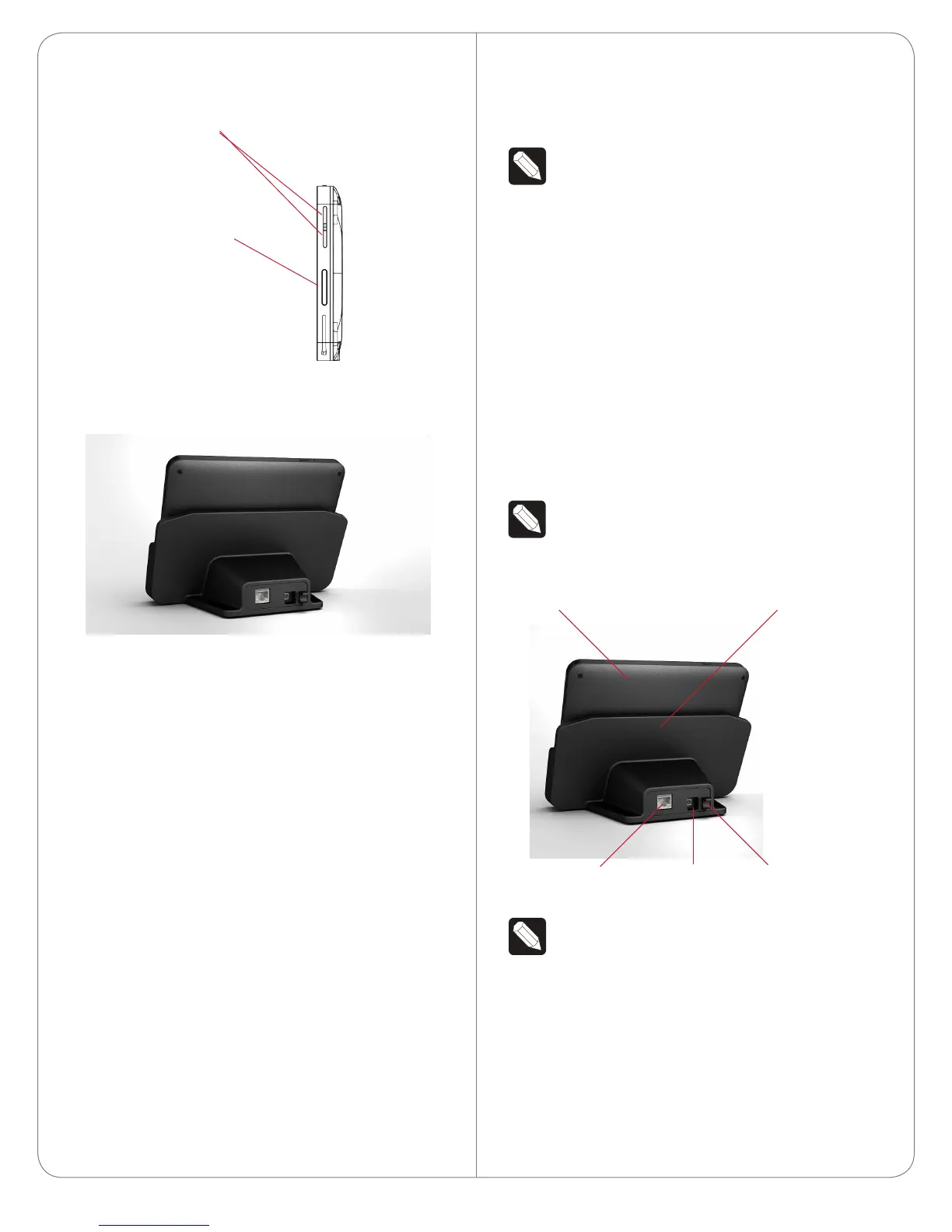
Figure4.RightView
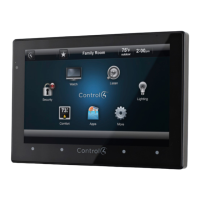
Figure5.BackViewwithDockandConnectors
Portable or Tabletop Installation
Options
Youcanusethe7”PortableTouchScreenwith
Cameraasaportabledevicethatyoucarrywithyou
asyoumovearoundthehouse,oryoucanscrewthe
TouchScreenintothedock.
• IfyouintendtousethedeviceONLYasa
tabletop,youcanuseeitheranEthernetoraWiFi
connection.
• IfyouintendtousetheTouchScreenasa
portabledeviceandremovetheTouchScreen
fromitsdock,youmustuseaWiFiconnection.
TousetheTouchScreenasaportabledevice,follow
theinstructionsnext.
TousetheTouchScreenasatabletopdevice(using
thetwo(2)screwsprovided)followtheinstructions
in“UsingtheTouchScreenasaTabletopDevice.”
Ethernet, PoE Power Jack
Retaining Clip
Touch Screen
Touch Screen Dock
Programmable
Buttons
(on right and left sides)
Speaker
3


 To Next Page