4
Using your Control4 Intercom
Here are a few common ways to use your Control4 Intercom:
• Answer a call from the door station
• One-to-one calls (supported on all Intercom-enabled devices)
• Call a group of devices
• Monitor your child's room
• Change Intercom device settings
• Add, edit, or delete Intercom groups
Answering a door station call
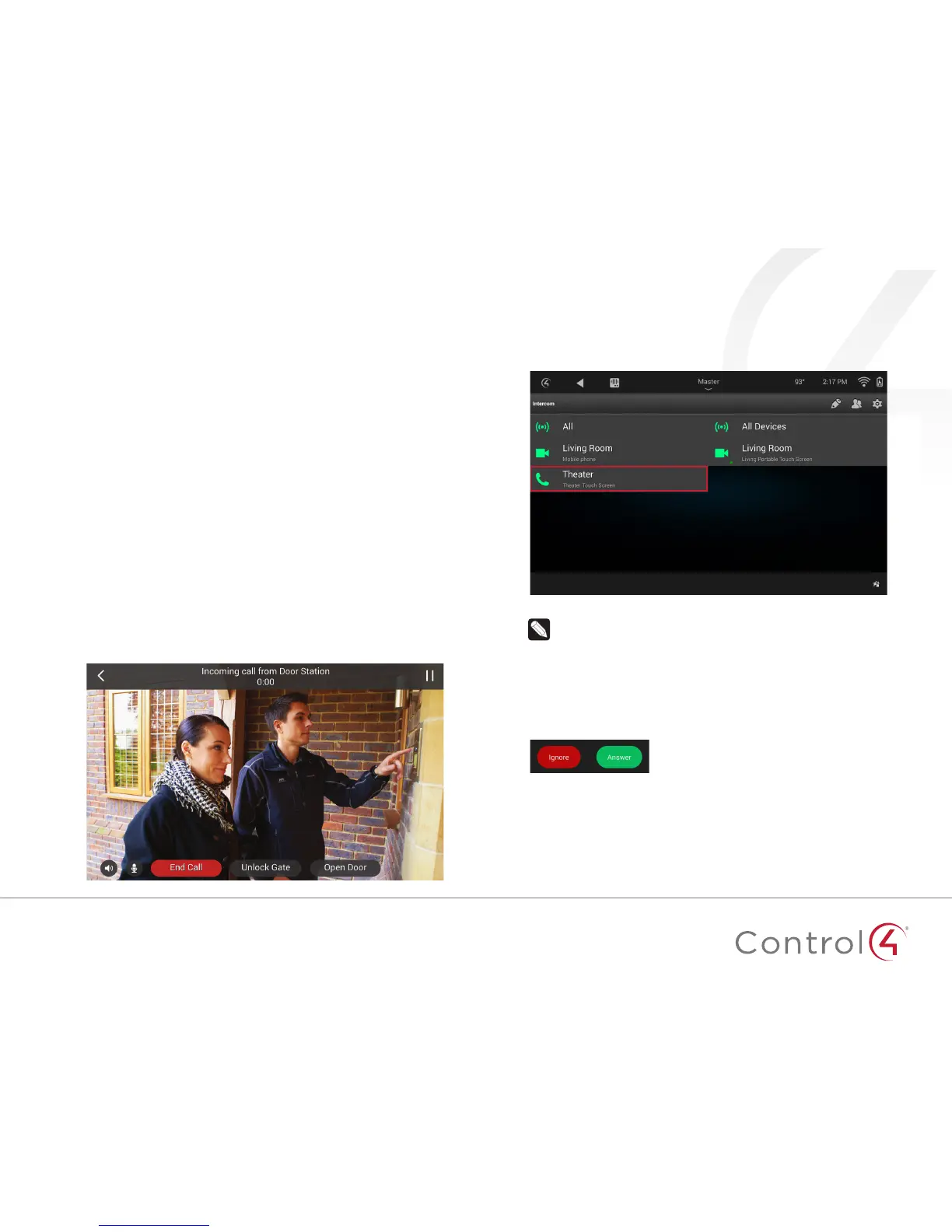
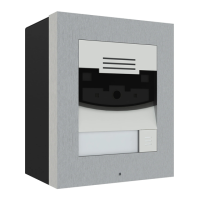
When someone rings the doorbell on your Control4 Door Station, you can see
and hear who is calling before you answer the door. Your dealer can configure
which devices, mobile phones, and touch screens are automatically called
when the doorbell is pressed. An alternate camera view can be configured to
display the image from a dierent camera when the door bell is pressed.
1 When the doorbell rings, you can see the video from the door station or
camera. Tap Answer or Ignore.
2 If you tapped Answer, speak into the touch screen. If your dealer set up
the door station’s custom buttons, you can use those to unlock the door or
trigger any other programming.
Making a one-to-one call
One-to-one calls allow one Intercom-enabled touch screen to call another.
1 From the Intercom menu, simply tap another device to start a one-to-one
call.
Note: If the Intercom device is busy, a "Station Busy" message
appears.
Answering an Intercom call
When someone is calling the touch screen in your room, the touch screen rings
and displays Answer and Ignore buttons.
1 Simply tap Answer to answer the call or Ignore to dismiss it.
If Auto Answer is enabled, these buttons will not display on the touch
screen. Instead, the call will automatically answer, and an End Call button
will show on the screen.


 To Next Page