7
Changing Intercom device settings
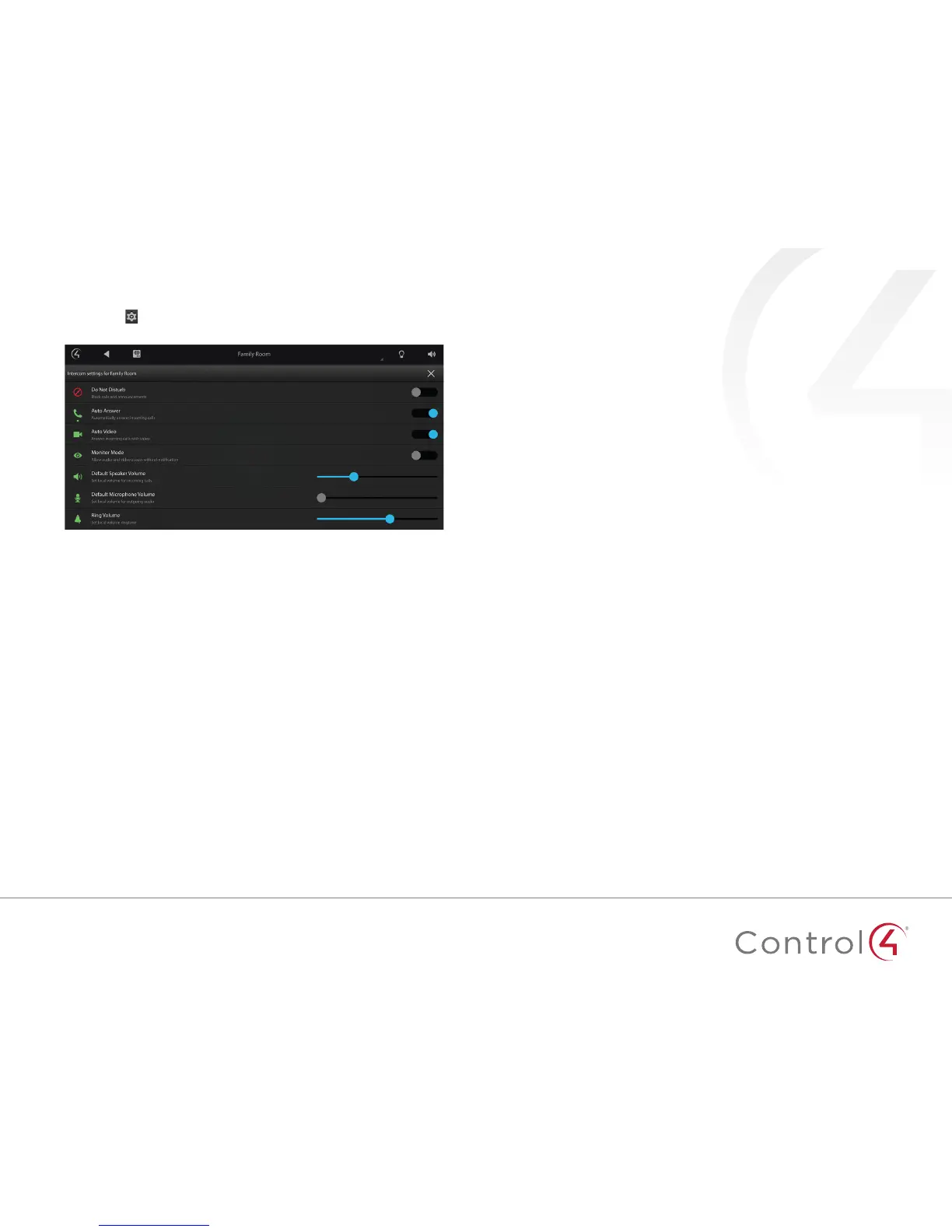
Tap settings on the Intercom home page to configure Intercom for that
touch screen. These settings can also be modified by your dealer.
Do Not Disturb—If enabled, your touch screen will not ring when the
doorbell is pressed or a group call is started. The touch screen will also not
show as available for a one-to-one call.
Auto Answer—If enabled, your touch screen will automatically answer an
incoming call from another touch screen.
Auto Video—If enabled, your touch screen will automatically send video
when a call is made or answered.
Monitor Mode—Configures your touch screen to allow the room to be
monitored. See "Monitoring your child's room" on page 6.
Default Speaker Volume—Adjust the slider to set the speaker volume for
an Intercom call. The speaker volume can also be adjusted during a call.
Default Microphone Volume—Adjust the slider to set the microphone
volume for an Intercom call. The microphone volume can also be adjusted
during a call.
Ring Volume—Adjust the slider to set the ring volume for the touch screen.


 To Next Page