3
3. System Requirements
For Windows® Users
PC
• Compatible with Microsoft® Windows® 98SE, Me, 2000 or XP
• Pentium
®
II 333MHz or Pentium® compatible processor
• 128MB RAM or higher
• USB Port
• 200MB free disk space
• CD-ROM drive
• Color monitor with high color (16-bit) graphic capability or higher
• Standard mouse and keyboard
For Macintosh® Users
MAC
• PowerPC® Processor
• Mac™ OS version 8.6 ~ 9.2
• USB port
• 128MB RAM
• 150MB Free disk space
• Color monitor with high color (16-bit) graphic capability or higher
• CD-ROM drive
• Standard mouse and keyboard
4. Package Contents
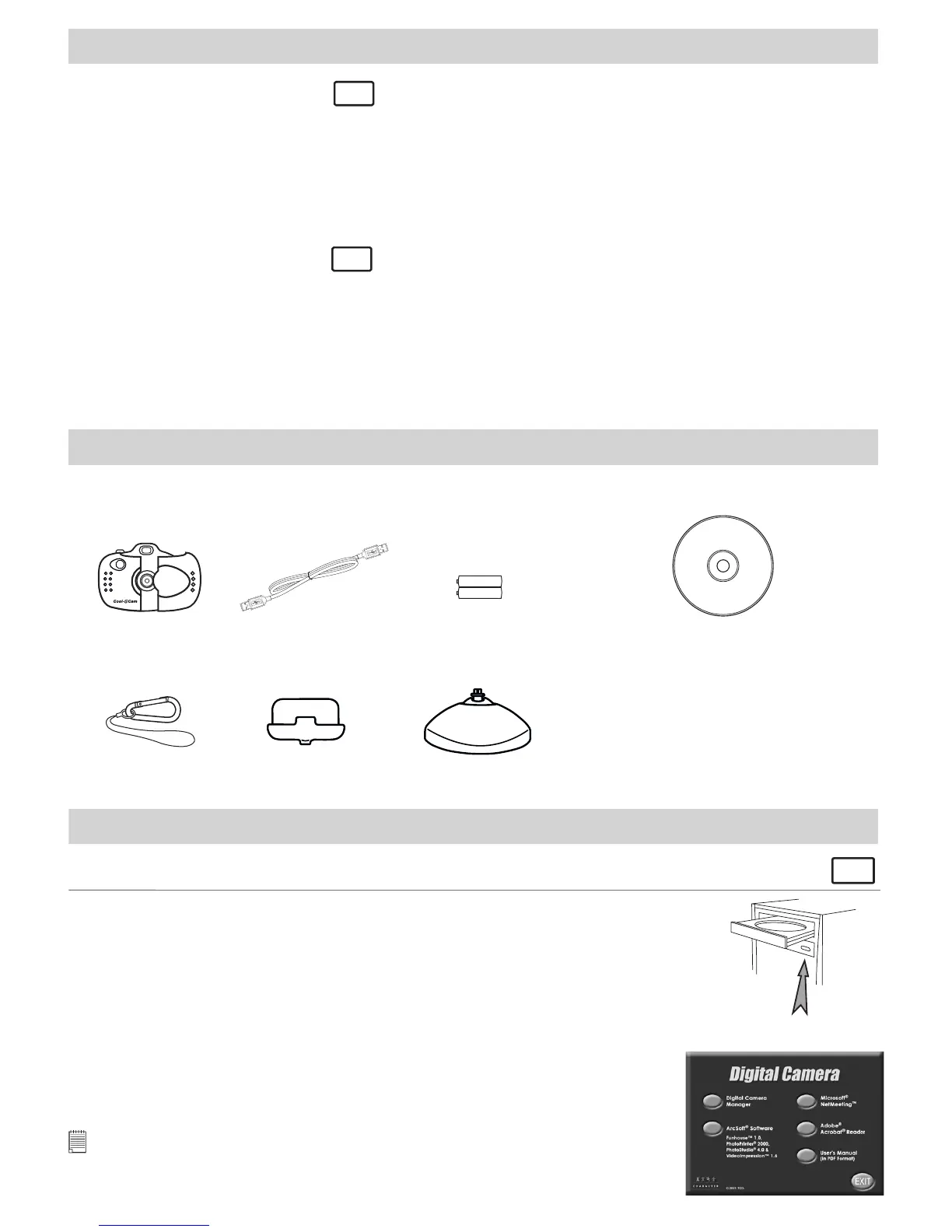
Micro C@m Stand
Micro C@m Software CD-ROM
(includes Digital Camera Manager (PC),
Digital Camera Installer (Mac),
PhotoStudio
®
4.0 (PC & Mac),
ArcSoft Funhouse™ 1.0 (PC & Mac),
ArcSoft PhotoPrinter
®
2000 (PC & Mac),
ArcSoft VideoImpression™ 1.6 (PC & Mac),
Microsoft
®
NetMeeting™ (PC), Cu-SeeMe™ (Mac),
Adobe
®
Acrobat
®
Reader (PC & Mac))
User’s Manual.
Micro C@m
Hanging Hook
USB Cable
Micro C@m Cradle
C
o
o
l
-
i
C
a
m
D
I
G
I
T
A
L
C
A
M
E
R
A
2 x AAA
(UM-4) Batteries
5. Software Installation
For Windows® Users:
PC
5.1 How to Install Digital Camera Software
Open & Close
5.1.1 How to Install Digital Camera Manager
“Digital Camera Manager” should be installed rst.
1. Insert the CD-ROM disc into the CD-ROM drive and close the CD-ROM drawer.
2. An installation wizard will automatically launch.
3. Click “Digital Camera Manager” icon.
4. Follow the instructions presented on the screen to complete the installation.
5. Click “OK” to restart your computer and wait for your PC to restart automatically.
Notes:
If the setup screen doesn’t appear after loading the CD, then you can manually start it by
double-clicking the “My Computer” icon on your desktop, then double-clicking the icon for
the CD-ROM drive. When the CD-ROM window opens, double-click the “INSTALL-E.EXE”
le.


 To Next Page