Connecting Devices To Your Hotspot
1. Turn on the Wi-Fi of the device you want to connect to your hotspot.
1.1. Your device will provide a list of available Wi-Fi networks.
2. Select the Wi-Fi network that matches the SSID from Step 1 of the First-Time
Setup section of this document.
2.1. The SSID is located on the inside of the battery cover and is typically in
the following format: CoolpadSurf_####
3. When prompted for a password, enter the password from Step 1 of the
First-Time Setup section of this document.
3.1. The password is located on the inside of the battery cover and is typically
8 digits long.
3.2. NOTE: To connect more devices to the hotspot, repeat Steps 1-3.
Resetting Your Hotspot
1. Ensure that your hotspot is on.
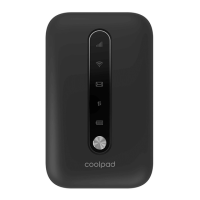
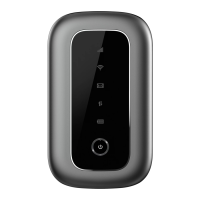
2. Press and hold the Power and WPS keys for 13 seconds.
3. Once all LED indicators have flashed blue four times, then the reset is complete.
Hotspot Usage Tips
● Location: The hotspot needs to be able to connect to Sprint’s cell tower for data
service. In order to have the strongest/fastest connection possible, please place
your hotspot near a window or outward facing door.
● Range: The device connected to the hotspot needs to be as close to it as
possible. For the strongest connection, please limit the distance between the
hotspot and your device.
● Devices: The amount of devices connected to the hotspot impacts internet
speeds. To achieve the fastest speeds possible, it’s recommended that you limit
the amount of devices connected to the hotspot at one time. Since streaming
Page 6


 To Next Page