EasyManua.ls Logo

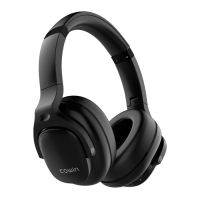
cowin E9 - User Manual

cowin E9
85 pages
Print Icon
To Next Page IconTo Next Page
Loading...
Owner’s Guide
Bedienungsanleitung
Guía del usuario
Notice d’utilisation
Manuale di istruzioni
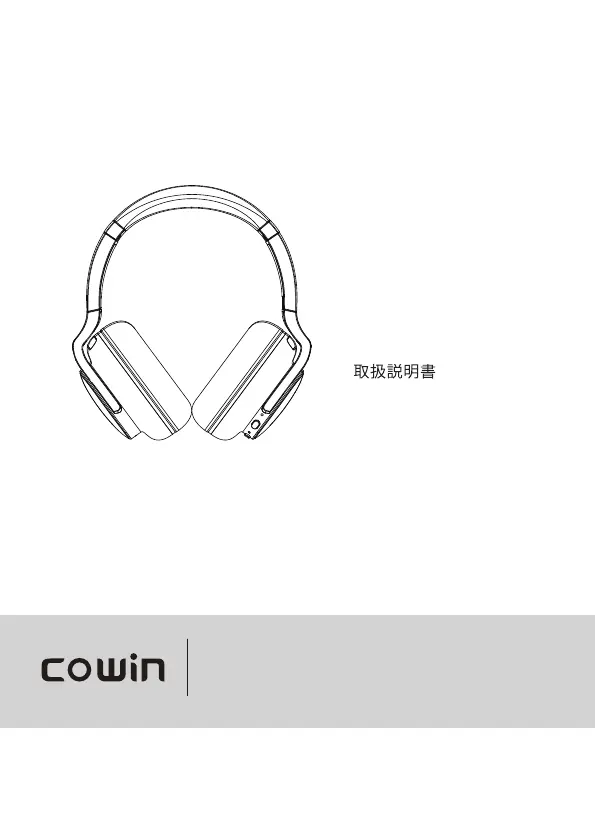
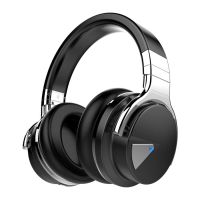
COWIN E9
ANC Wireless Headphones

Table of Contents

Questions and Answers

  • S
    Samuel NolanAug 15, 2025
    What to do if my cowin Wireless Headphones don't connect to my device?
    • J
      Jeffrey LeAug 15, 2025
      If your Cowin Wireless Headphones aren't connecting to your mobile device, verify the status indicators. Disconnect any back-up audio cables or USB charging cables. On your device, disable and re-enable Bluetooth, or delete your COWIN E9 from the Bluetooth list and reconnect. Move your device closer to the headphones, away from obstructions. Clear the headphone pairing list and try connecting again.
  • M
    Marie ShieldsAug 18, 2025
    Why do my cowin Wireless Headphones have a bad Bluetooth connection?
    • B
      Bryan JacksonAug 18, 2025
      A poor Bluetooth connection on your Cowin Wireless Headphones may occur if the Bluetooth signal is weak, out of range, or experiencing interference. To resolve this, move away from any obstructions. Additionally, ensure your headphones are adequately charged, as a low battery can impact connection quality. It is also possible that the compatibility between the headphone and the Bluetooth device is not good, so you can replace the device with a higher Bluetooth version. Check if the network signal is OK (whether the player is in buffer).
  • M
    Monica WilsonAug 22, 2025
    What to do if my cowin Wireless Headphones have no sound?
    • P
      Patty AllenAug 22, 2025
      If your Cowin Wireless Headphones have no sound, first, power them on and ensure the battery is charged. Check the status indicators. Increase the volume on your headphones, your mobile device, and the music source. Slide the Power/Bluetooth switch to the right. Move your mobile device closer to the headphones, away from obstructions. Try a different music source or connect another mobile device.
  • P
    Peter BakerAug 25, 2025
    What to do if I cannot hear on a call with cowin Wireless Headphones?
    • M
      Michelle LewisAug 26, 2025
      If you can't hear during calls with your Cowin Wireless Headphones, ensure both the headphones and your connected device are powered on. Increase the volume on your device if it's too low. Check the Bluetooth device's audio settings to ensure the sound is directed to the headphones during calls. Try re-establishing the Bluetooth connection. If listening to music, stop playback and press the button on the right or left unit to answer the call.
  • K
    Kristen OwenAug 28, 2025
    How to fix cowin Wireless Headphones when noise cancelling function doesn't work?
    • K
      Kristina PriceAug 28, 2025
      If the noise cancelling function on your Cowin Wireless Headphones isn't working, first ensure that the noise cancelling function is turned on. Adjust the earpad position to properly fit your ears, or reset the ear if the earmuffs are loose. Keep in mind that the noise cancelling function is most effective in low frequency ranges such as airplanes, trains, offices, near air-conditioning, and is less effective for higher frequencies, such as human voices.
  • E
    Emily SparksAug 31, 2025
    Why do my cowin Wireless Headphones make noise beeping?
    • G
      Gabriel AguilarAug 31, 2025
      Noise or beeping sounds from your Cowin Wireless Headphones can be caused by weak Bluetooth signals or external signal interference. To resolve this, move away from wireless routers or microwaves and move your headphone closer to the Bluetooth device. Avoid using the headphones for extended periods; if the sound becomes intermittent, allow them to rest before reusing.
  • B
    beckwilliamSep 4, 2025
    What to do if cowin Wireless Headphones battery won’t charge?
    • S
      Seth MillerSep 4, 2025
      If your Cowin Wireless Headphones battery won’t charge, ensure the USB charging cable is securely connected at both ends. Try using a different charging source. If the headphones have been exposed to extreme temperatures, allow them to return to room temperature before attempting to charge again.
  • S
    Stephanie OliverSep 7, 2025
    What to do if there is no sound from a device connected by the back-up audio cable in cowin Wireless Headphones?
    • T
      Tyler MitchellSep 7, 2025
      If you're not getting any sound from a device connected via the back-up audio cable on your Cowin Wireless Headphones, first ensure that the ends of the back-up audio cable are securely connected. Then, increase the volume on your headphones, your mobile device, and the music source. If the issue persists, try connecting another device.
  • C
    Cynthia MillerSep 10, 2025
    Why is the sound quality poor from a device connected by audio cable in cowin Wireless Headphones?
    • I
      iandersonSep 12, 2025
      If you experience poor sound quality when using an audio cable with your Cowin Wireless Headphones, make sure the ends of the back-up audio cable are securely connected. If the problem persists, try connecting a different device.

Summary

Important Safety Instructions

Warnings and Cautions

Key safety warnings and precautions for using the headphones, including volume, driving, and environmental hazards.

Regulatory Information

Low-power Radio-frequency Devices Management

Regulations concerning frequency changes, transmitting power, and device performance for low-power RF devices.

European Compliance

Specific technical requirements and compliance for European Union directives, including frequency bands and power limits.

Whats in the Carton

Headphone Controls

Power On and Off

Instructions for powering the headphones on and off, including associated pairing and power-off tones.

Media Playback and Call Functions

Detailed operations for controlling media playback, volume, and managing phone calls using headphone buttons.

Noise Cancellation

Noise Cancelling Modes

How to switch between noise reduction modes and the tones associated with each status.

Cowin Active Noise Cancelling

Explanation of how Active Noise Cancelling works and its effectiveness on different types of ambient sound.

Battery Charging

Charging the Headphones

Step-by-step guide on how to charge the headphones using a USB cable and wall charger.

Charging Time and Battery Life

Information on full charge duration and the expected battery life with and without noise cancelling.

Status Indicators

Bluetooth Connections

Connecting to a Mobile Device

Guide on how to connect the headphones to a mobile device using Bluetooth settings.

Managing Bluetooth Connections

Instructions for disconnecting, reconnecting, and connecting to multiple mobile devices.

Wired Connections

Connect the Audio Cable

How to use the provided 3.5 mm audio cable for wired connections to devices.

Care and Maintenance

Storing and Cleaning Headphones

Guidelines on proper storage and cleaning methods to maintain the headphones.

Warranty Information

Details about the product warranty, registration, and customer support contact information.

Troubleshooting

Common Solutions

General troubleshooting steps for common issues like power, connectivity, and sound quality.

Symptom-Based Solutions

Detailed solutions for specific symptoms such as bad Bluetooth connection, no sound, or noise beeping.

cowin E9 Specifications

General IconGeneral
TypeOver-Ear
Driver Size40mm
Frequency Response20Hz-20kHz
Battery Life30 hours
Bluetooth Version5.0
Active Noise CancellationYes
Impedance32Ω
Ear Cushion MaterialProtein Leather
Foldable DesignYes
ConnectivityBluetooth, 3.5mm audio cable
MicrophoneYes

Related product manuals