EasyManua.ls Logo

Cowon iAUDIO G3 256MB - User Manual

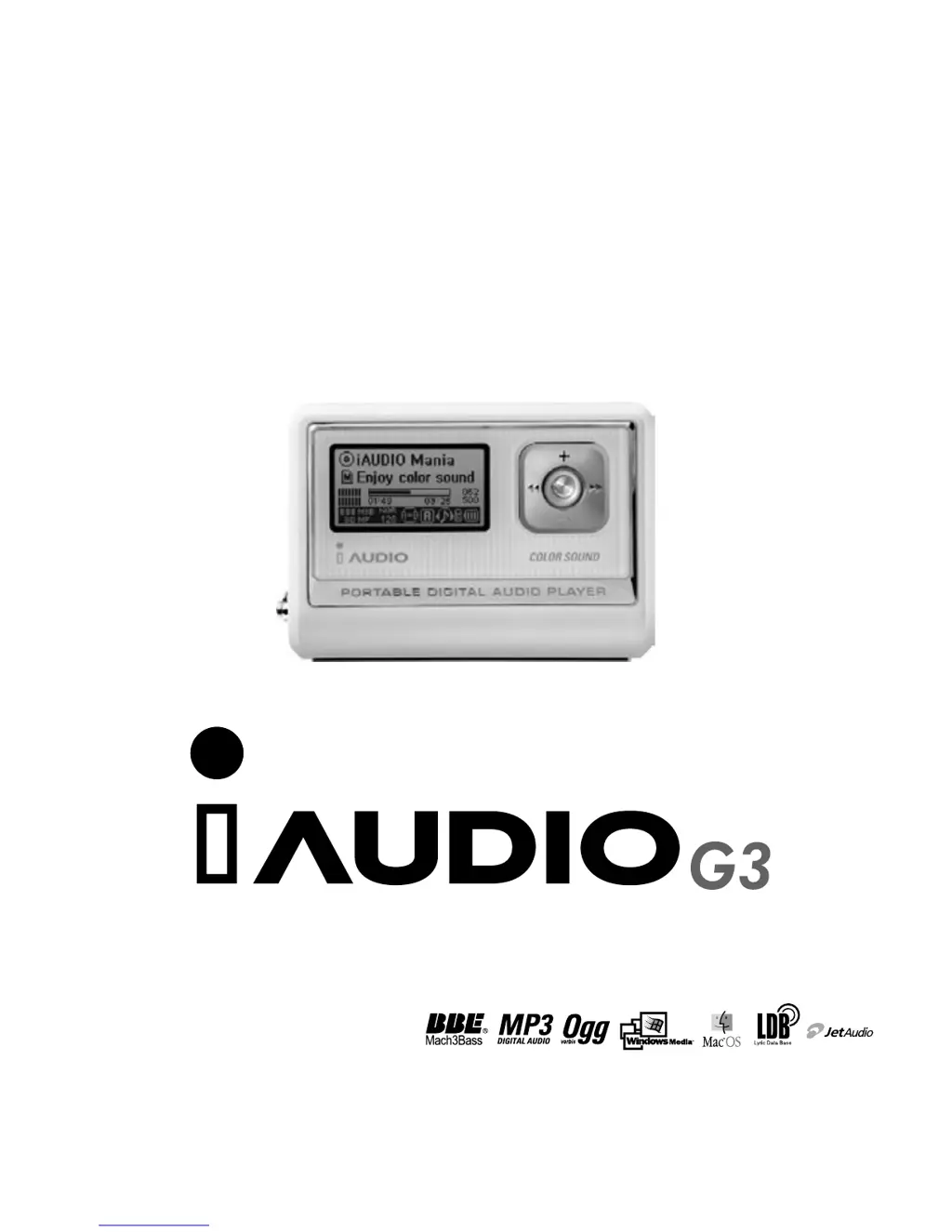
Cowon iAUDIO G3 256MB
37 pages
Print Icon
To Next Page IconTo Next Page
Loading...
USER GUIDE
ver. 1.2 E

Questions and Answers

  • D
    Daniel OlsonJul 30, 2025
    What to do if there is no sound on my Cowon iAUDIO G3 256MB?
    • A
      andrea76Jul 30, 2025
      If your Cowon MP3 Player isn't producing any sound, first ensure that there are MP3 files stored in the device's memory. Also, verify that the HOLD button is not in the locked position. If it is, switch the HOLD button to the OFF position.
  • A
    Alexandra ThompsonAug 3, 2025
    How to fix a Cowon MP3 Player that does not power on?
    • L
      Lisa Barber DDSAug 3, 2025
      If your Cowon MP3 Player won't turn on, try the following steps: * Ensure the HOLD button is not locked. Slide it to the OFF position and try again. * Check that the battery is inserted correctly. * Try replacing the battery with a new one. * Remove the battery and then re-insert it.
  • D
    Darrell StrongAug 9, 2025
    What to do if my Cowon MP3 Player malfunctions after filling memory?
    • B
      Benjamin RossAug 9, 2025
      If your Cowon MP3 Player malfunctions or doesn't play after filling its memory, it may be due to improperly saved, deleted, or damaged files during transfer. To resolve this, initialize your iAUDIO device and save the files again, ensuring you leave 1 to 2 MB of free memory space.
  • J
    James WardAug 13, 2025
    Why does my Cowon iAUDIO G3 256MB MP3 Player malfunction after saving many files in the root folder?
    • C
      Craig ChapmanAug 13, 2025
      If your Cowon MP3 Player malfunctions after saving many files in the root folder, it's due to FAT limitations. Create subfolders, especially for Windows 2000 and XP, to avoid this issue.
  • V
    Veronica BurchAug 25, 2025
    Why is the flash memory capacity on my Cowon iAUDIO G3 256MB MP3 Player less than expected?
    • A
      Andrew AndersonAug 25, 2025
      The displayed flash memory capacity on your Cowon MP3 Player may be less than the actual capacity because the iAUDIO Flash Memory shares some parts with the system memory. The system area required for the normal operation of iAUDIO reduces the available flash memory.
  • B
    bwashingtonSep 10, 2025
    How to fix distorted characters on Cowon MP3 Player LCD screen?
    • M
      Mr. Jose RobertsonSep 12, 2025
      If the characters on your Cowon MP3 Player's LCD are distorted, it might be due to the device being developed on Korean Windows, causing issues with special fonts or characters. To fix this, set the language of your iAUDIO to English and the ID3 tag to Filename, then retry.

Summary

Precautions for Using iAUDIO

Usage Restrictions and Safety

Covers general usage limits, no user-serviceable parts, and safety during operation.

Handling, Care, and Data Integrity

Addresses physical handling, moisture, volume, battery, and data transfer safety.

What is iAUDIO?

iAUDIO Product Design and Portability

General description of the device and its compact, stylish design for easy carrying.

Key iAUDIO Features and Capabilities

Highlights battery life, voice recording, FM radio, and direct encoding functions.

Advanced Sound and Software Integration

Details sound field effects, firmware upgrade capabilities, and included software.

Components in the Package

Included Physical Accessories

Lists the physical items provided in the package like the player, guide, earphones, and cables.

Bundled Software Components

Lists the software included with the device, such as JetShell and JetAudio.

Product Specifications

Supported File Formats and Memory

Covers supported file formats, memory capacity, and PC interface details.

Hardware and Performance Specifications

Details battery, display, SNR, output, frequency range, size, and weight.

Battery and USB Connection

Inserting iAUDIO Player Batteries

Step-by-step guide for replacing the player's battery with diagrams.

Connecting iAUDIO to a PC via USB

Instructions for connecting the device to a computer using the USB cable.

Basic Operations

Powering On;Off and USB Connectivity

Covers turning the device on/off and connecting it via USB for data transfer.

Navigating Device Modes and Menus

Explains how to switch between different device modes and access menu options.

Menu Navigation and Settings

Accessing and Navigating Menus

Covers opening menus and moving through options using the device buttons.

Adjusting Menu Item Values and Saving

Details how to change settings, apply them, and cancel modifications.

Navigator Functions

Navigating Files and Folders

Explains how to enter, move through, and select items in the file navigator.

Navigator Popup Options and Bookmarks

Covers navigator popup windows, bookmarking tracks, and file playback.

MP3 Player Mode Operations

Basic Playback Controls

Covers power, play, stop, and volume adjustment within the MP3 Player mode.

Advanced Playback Features

Details loop settings (A+B) and the HOLD function for playback control.

Device Mode Operations

FM Radio Listening and Recording

Describes how to listen to and record FM radio stations.

Voice Recorder Functionality

Explains how to record voice using the built-in microphone.

Names of Parts

Device Exterior Components

Identifies buttons, jacks, and display elements on the device exterior.

Line-in Recorder Mode

Direct Encoding Audio Input

Details how to record audio from external devices via the Line-In jack.

JetEffect Sound Enhancements

Equalizer and BBE Sound Settings

Describes the equalizer and BBE sound field effect adjustments.

Mach3 Bass, MP Enhance, and 3 D Surround

Details Mach3Bass, MP Enhance, and 3D Surround sound features.

Pan and Balance Control

Explains how to adjust the left/right audio balance using the Pan feature.

Playback and Display Settings

Play Mode Configuration

Covers setting playback range (Boundary), repeat, and shuffle (random play).

Display Customization Options

Covers display settings like View Watch, Lyrics, Play Time, and Song Title.

Display and Language Settings

Screen Display Customization

Covers scroll speed, page sliding, contrast, and backlight time settings.

Language and Lyrics Management

Explains language settings and the LDB Manager for lyrics input.

System Timer and Lyrics Management

Lyrics Management Tools

Covers deleting and refreshing lyrics using the LDB Manager.

Setting Alarms and Sleep Functions

Explains setting time, wake-up modes, and the sleep timer.

General Settings and Recording Options

General Player Configuration Settings

Covers skip length, scan speed, resume, auto play, and song order settings.

Recording Quality and Microphone Settings

Details bitrates for Line-in, Voice, FM Radio, and microphone volume.

Advanced Recording and FM Radio Settings

Voice Active, Line Volume, and Auto Sync

Covers advanced recording features like pausing and auto file separation.

FM Radio Configuration Options

Details stereo/mono selection, auto scan, and region settings for FM radio.

Device Information

Firmware Version and Memory Details

Displays firmware version and flash memory capacity information.

Troubleshooting Common Issues

Addresses player power, sound, FM radio, and display problems.

MP3 Player Troubleshooting

Memory Capacity and File Transfer Issues

Addresses full memory, file saving, and capacity display problems in MP3 mode.

Button Operations by Mode

FM Radio Mode Button Functions

Details button actions for FM radio playback and control.

Voice;Line-in Recorder Button Functions

Explains button usage for voice and line-in recording modes.

Navigator Button Functions

Navigator File and Folder Operations

Describes button actions for navigating files and folders within the navigator.

Introduction to JetShell

JetShell Software Features

Lists the various capabilities of the iAUDIO manager program, JetShell.

Connecting iAUDIO and Installing JetShell

Initial Connection and Driver Installation

Guides through connecting the device and installing necessary USB drivers.

Installing JetShell Software

Completing Software Installation

Covers specifying installation location and finishing the software setup.

JetShell Interface Overview

Main Sections of JetShell

Describes the Player, File Management, Flash Memory, and Download List sections.

JetShell System Requirements

Lists the minimum hardware and software requirements for running JetShell.

Flash Memory Management in JetShell

Managing Files and Folders

Details functions for managing files like Up, Properties, Refresh, Delete, Cut, Copy, Paste.

Sound Effects and Equalizers

Explains how to use various sound effects and equalizer settings within JetShell.

Downloading Music Files to iAUDIO

Transferring Files via JetShell

Covers simple file transfer and drag-and-drop methods using JetShell.

Using Download List and External Files

Details using the download list and transferring files from outside JetShell.

Converting Audio CDs to MP3 Files

Setting MP3 Encoder Options

Guides on selecting MP3 quality, bitrate, and other encoder settings.

Converting and Downloading Tracks

Explains the process of selecting audio tracks and saving them to iAUDIO.

Other Features

Ripping Enhanced CDs

Describes how to rip audio tracks from enhanced CDs.

Internet CD Database Access

Explains how to use the internet for acquiring CD information.

Advanced File Management

Editing MP3 ID3 Tags

Covers modifying metadata for MP3 files using the ID3 Tag editor.

Changing Bitrate and Downloading Logos

Details bitrate adjustments and downloading custom logos for the device.

Installing and Using JetAudio

JetAudio Player Installation

Guides on installing the multimedia player software, JetAudio.

Firmware Upgrade Information

Discusses firmware basics, legal notices, and conditions for upgrading.

Firmware Upgrade Process

Preparing for Firmware Upgrade

Covers downloading, decompressing, and running the firmware setup file.

License Agreement and Destination Folder

Details accepting the license agreement and choosing the installation path.

Completing Firmware Installation

Software Installation Steps

Covers specifying program folders and the file copying process.

Finalizing Installation and Device Connection

Covers completion messages and reconnecting the device after installation.

Executing Firmware Upgrade

Launching the Upgrade Program

Guides on running the firmware download utility from the Start menu.

Upgrade Process and Safety Precautions

Explains upgrade steps, data backup, and safety during the process.

Regulatory and Support Information

FCC Compliance and Interference Measures

Addresses FCC statement and measures to prevent radio/TV interference.

Product Warranty and Customer Support

Outlines warranty details and provides technical support contact information.

Cowon iAUDIO G3 256MB Specifications

General IconGeneral
BrandCowon
ModeliAUDIO G3 256MB
CategoryMP3 Player
LanguageEnglish

Related product manuals