104
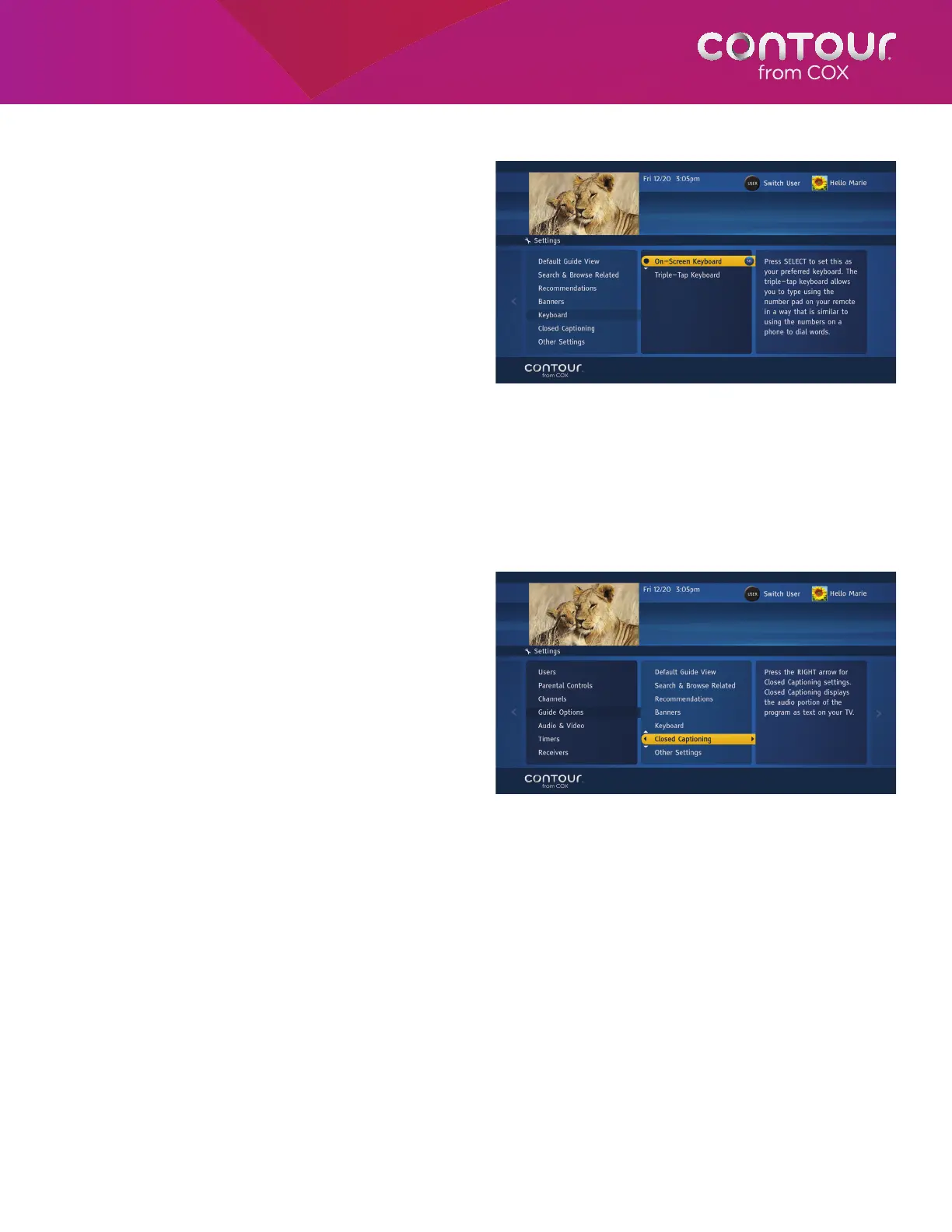
Switch Keyboards
You can switch between the Remote Control
keyboard and the On-Screen keyboard for entering
terms into Universal Search. The Remote Control
keyboard looks like the triple-tap keyboard found on
most cell phones and uses the number keys (0-9) to
enter letters. The On-Screen keyboard offers single
letter choices that you select with the arrow keys.
To switch Keyboards, begin at the Guide Options
Menu:
1. Use the UP or DOWN arrow to highlight
Keyboard. Press the RIGHT arrow or SELECT
button to move to keyboard options, which
will appear in the center card.
2. Use the UP or DOWN arrow to highlight
your choice. You can choose between the On-Screen keyboard and the Remote Control keyboard. Press SELECT.
3. Press the LEFT arrow to return to the Guide Options Menu or press EXIT to return to live television.
Add Closed Captioning
The Contour Program Guide lets you adjust Closed
Captioning settings. You can select Analog or
Digital Service as well as the style, size and color
of the text and background for the Digital Service.
This setting is specific to each receiver.
To open the Closed Captioning Menu, begin at the
Guide Options Menu:
1. Use the UP or DOWN arrow to highlight
Closed Captioning.
2. Press the RIGHT arrow or SELECT button to
launch the Closed Captioning Menu. It will
appear in the card on the left.
To switch between the on-screen and remote
control keyboards, use the Keyboard setting.
Closed Captioning displays the audio portion of the
program as text on the screen.



 To Next Page