114
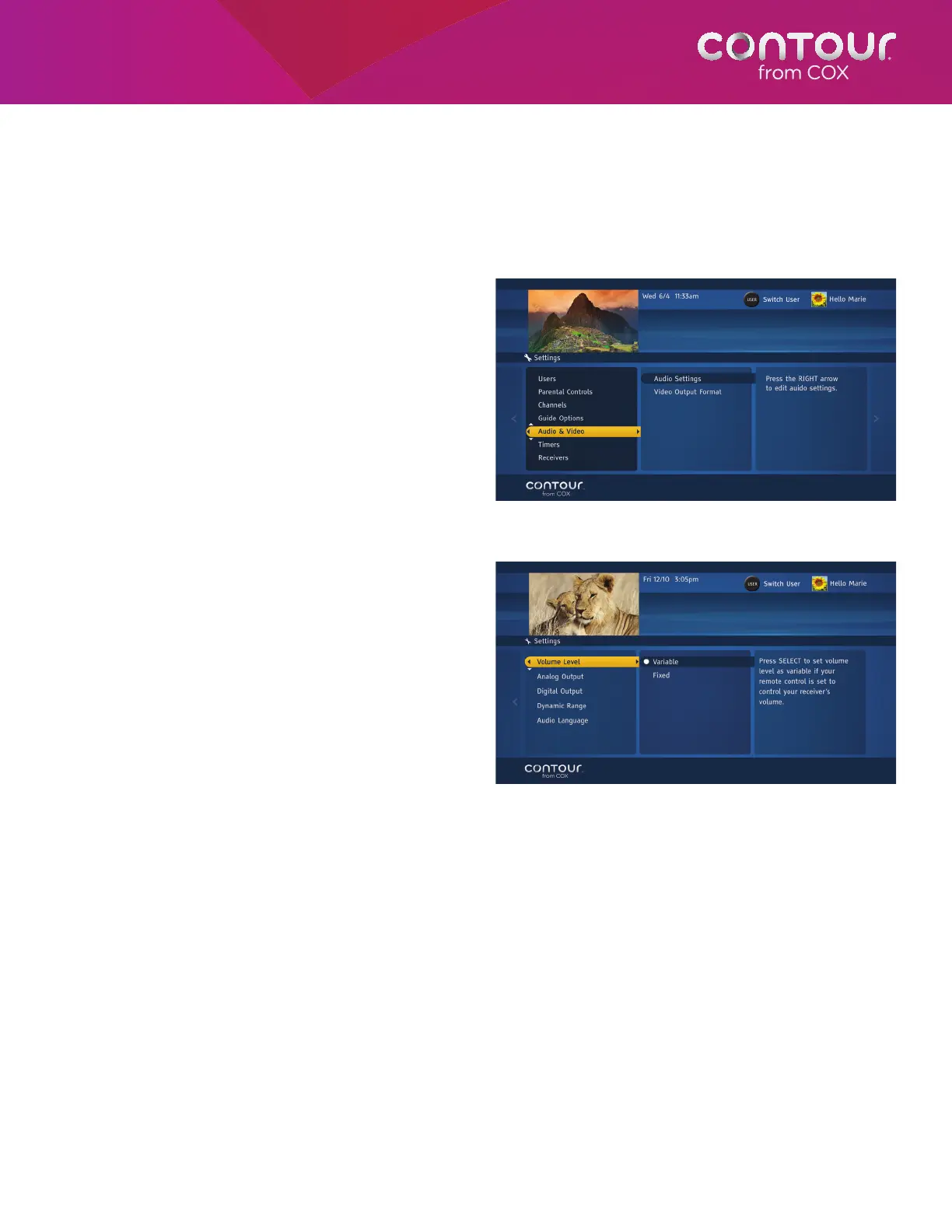
Set Volume Level
If you use your remote control to adjust receiver volume, set Volume Level to Variable. If you control volume on your
television through a stereo or surround-sound receiver, then set this control to Fixed.
This setting is specific to each receiver (set top box).
To do this, begin at the Settings Menu:
1. Use the DOWN arrow to highlight Audio
& Video. Press the RIGHT arrow or SELECT
button to highlight Audio Settings in the
center card.
2. Press the RIGHT arrow or SELECT button to
confirm Audio Settings. This will open the
Audio Settings Menu, which will appear in
the left card.
3. Press RIGHT arrow or SELECT button to
change the Volume Level options.
4. Press LEFT arrow to return to the Audio
Settings Menu or press EXIT to return to
live television.
Set Analog Output
This option lets you adjust the audio output
delivered to your television while watching analog
television. You have three choices:
• Mono: Mono sound reproduction is
single channel. Mono sound has been
replaced by stereo sound in most
entertainment programs.
• Stereo: Stereo uses two or more
independent audio channels. Most
television programs today are available
in stereo.
• Surround: Surround-sound
encompasses a range of techniques
for enriching sound quality via additional speakers. Select this option if you have surround-sound system or
if your television has surround-sound speakers built-in.
This setting is specific to each receiver.
To adjust these settings, begin at the Audio Settings Menu:
1. Use the UP or DOWN arrow to select Analog Output.
2. Press the RIGHT arrow or SELECT button to move the highlight bar to the Analog Output options in the center
card.
3. Use the UP and DOWN arrow to make the appropriate choice. Press SELECT.
4. Press the LEFT arrow to return to the Audio Settings Menu or press EXIT to return to live television.
Use the UP or DOWN arrow to highlight Audio & Video in the
card on the left. Press SELECT to open the Audio & Video Menu.
Press SELECT to change the Volume Level and
shift the focus to the options in the center card.



 To Next Page