12
Adjusting Output Channels
When playing back multichannel programs, you may want to set the output channel levels to suit your sitting position
relative to the speakers. This is to obtain the desired (balanced) output required for multichannel playback from all
speakers.
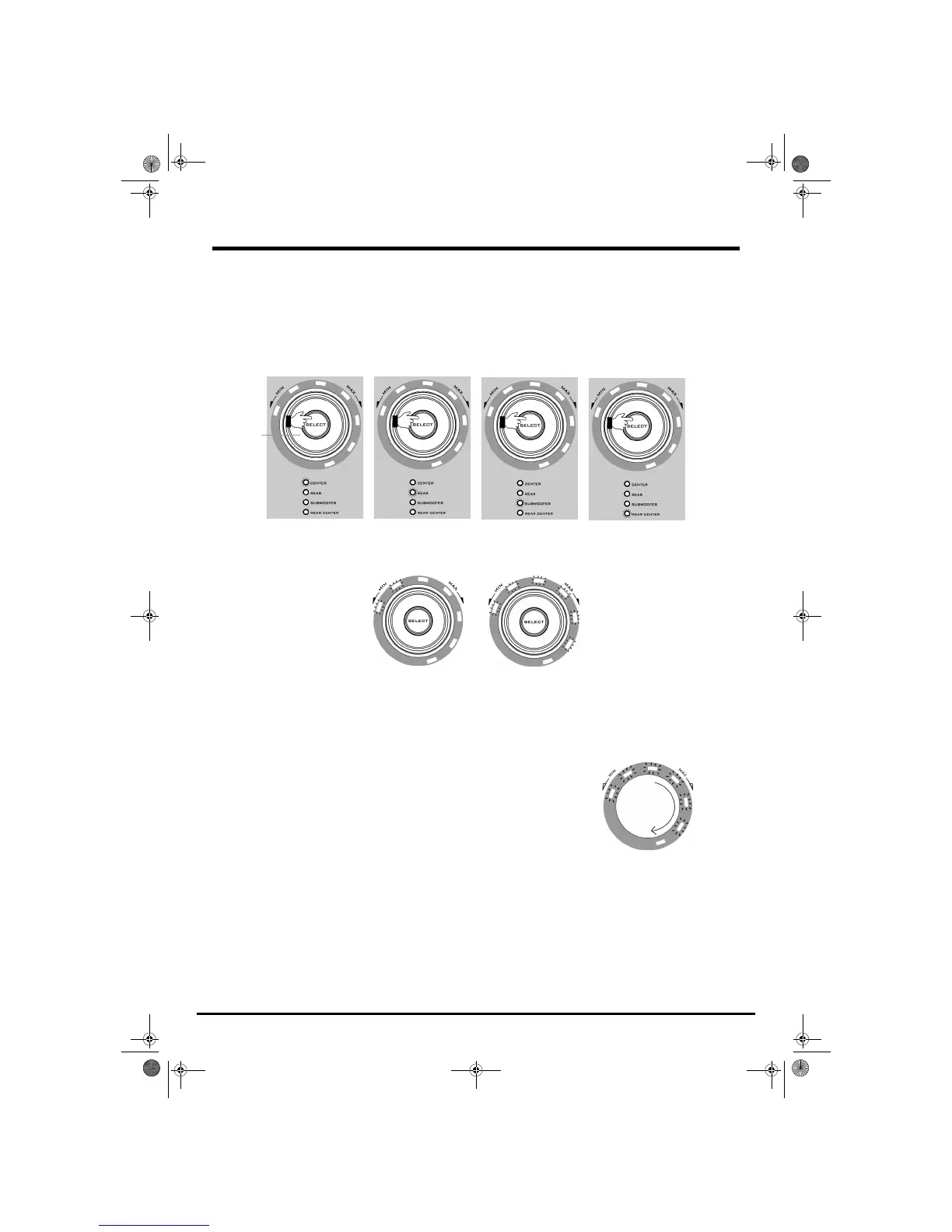
Adjusting volume
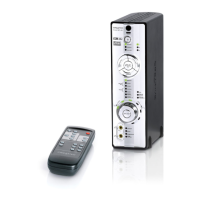
1 Press the SELECT button on your decoder, or press the Output Channel buttons on the remote control, until the LED of the
channel you want lights up. Master volume is selected when none of the LEDs are lit.
2 Turn the Volume knob on your decoder, or press the VOL +/- buttons on the remote control, to adjust the volume. The
Volume LEDs on your decoder display the volume levels. The more lit LEDs there are, the higher the volume.
If the volume setting of any channel remains unchanged for 2–3 seconds, the Volume knob reverts to its role as the master
volume control.
Adjusting speaker balance using the TEST button
1 Press the TEST button on the remote control to generate a test noise.
2 The test noise starts playing from the reference channel (Front Left), and then
alternates clockwise to Center, Front Right, Rear Right, Rear Center, Rear Left and
Subwoofer. This test sound cycle will repeat three times, but you can stop it at any
point by pressing the TEST button again.
Note:When the SPEAKER CONFIGURATION switch is set to 5.1, the test noise will not be played
on Rear Center.
3 While the test sound is playing, all Output LEDs on your decoder’s front panel will
blink and only the volume controls will be enabled.
4 While the test sound is playing, use the Volume knob on the decoder or the VOL +/- buttons on the remote control to adjust
the volume level for each speaker.
Note:You can also activate the test noise if you want to check that your speakers are working, properly connected and placed in the correct
position.
Volume
knob
Low volume High volume
Repeats
3 times
Front
Left
Rear
Right
Subwoofer
Center
Front
Right
Rear
Left
Rear
Center
Gimo1.book Page 12 Thursday, October 9, 2003 11:18 AM


 To Next Page