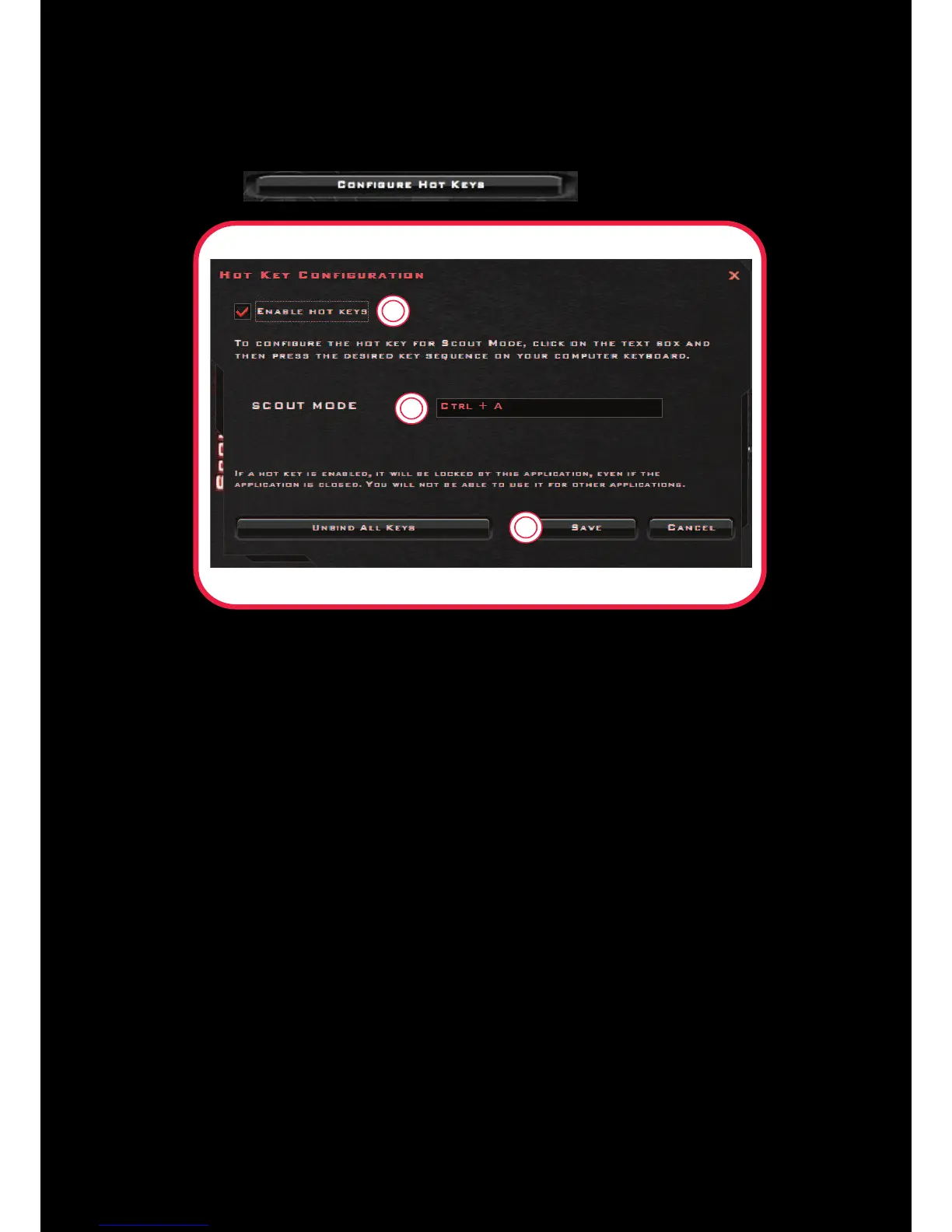
Configuring Hot Keys
You can assign short-cut keys to activate Scout Mode easily during a game.
To configure, click in the Scout Mode page.
1. Select the checkbox to Enable Hot Keys.
2. Click on the field box and then press the desired key sequence on your computer keyboard.
You may use the Alt and Shift keys followed by another key (alphanumeric keys only).
E.g.:
To set Ctrl + A as your desired hot key, press A.
To set Ctrl + Shift + A as your desired hot keys, press and hold Ctrl, then press Shift and
A together.
3. Once the Hot Key has been registered, click Save to accept the setting.
To unbind all registered keys and start over again, click Unbind All Keys.
Note:
l The Hot Key cannot function with just a key input without the use of the Alt, Ctrl and Shift keys.
l When Scout Mode is activated, other audio settings may be disabled or unlocked.
l If a hot key is enabled, you will not be able to use it for other applications.








 To Next Page