Setting Up Your Audio Device
Connecting to a Computer
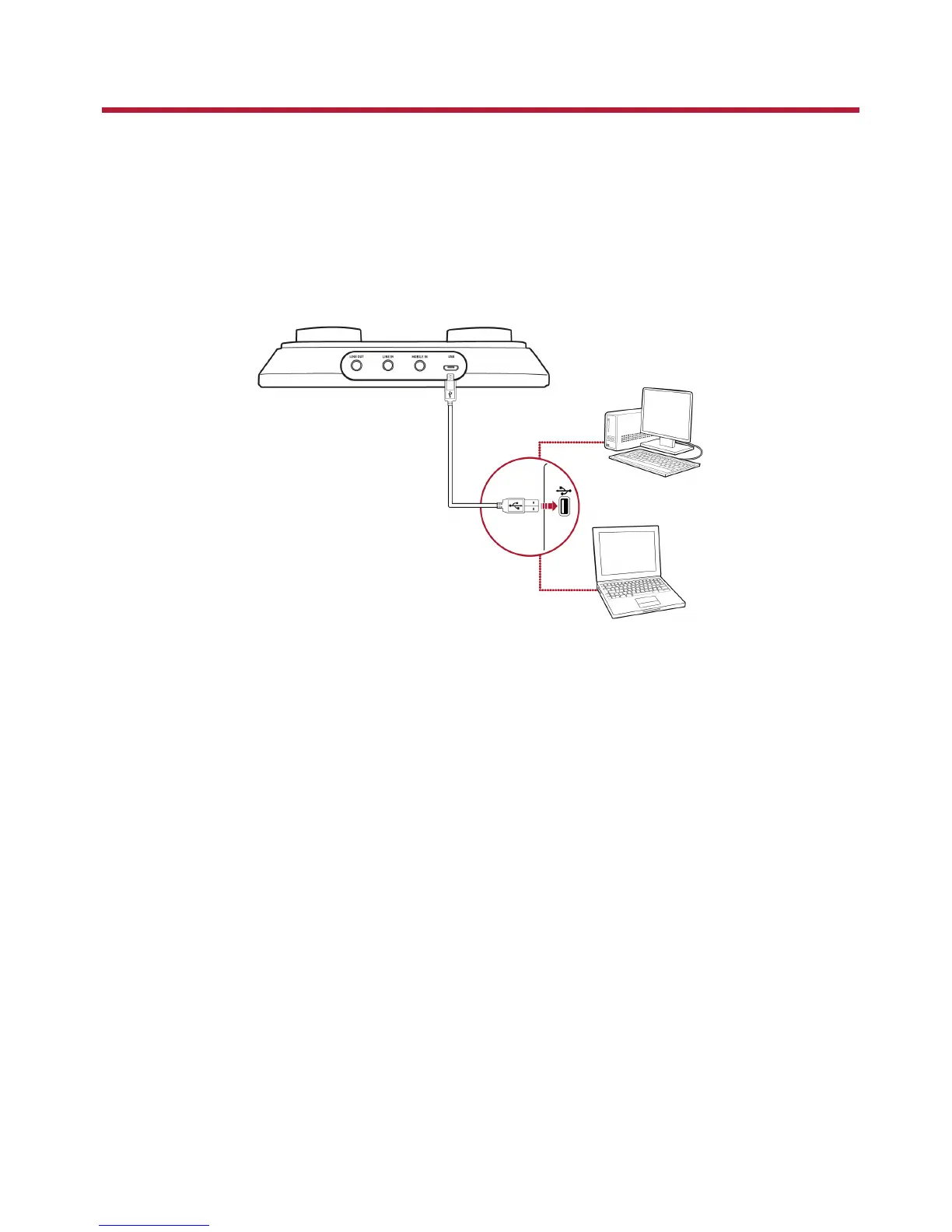
Connect your USB audio device to a computer using the Micro-USB to USB cable provided. The power
indicator will light up in red once the device is properly connected.
Plug in your headphones or speakers to the device and experience the power of Sound Blaster with all
your audio and music played from your computer.
Setting the default audio device
For Windows:
After the Sound Blaster R3/A6U Control Panel is installed, Sound Blaster R3/A6U will be automatically
set as the default audio device. Alternatively, you can set the desired default audio device from the
Windows Sound Control Panel.
For Mac:
1. Go to System Preferences and click Sound.
2. Select Sound Blaster R3/A6U in both the Output and Input tabs.
Setting Up Your Audio Device - 5 -


 To Next Page