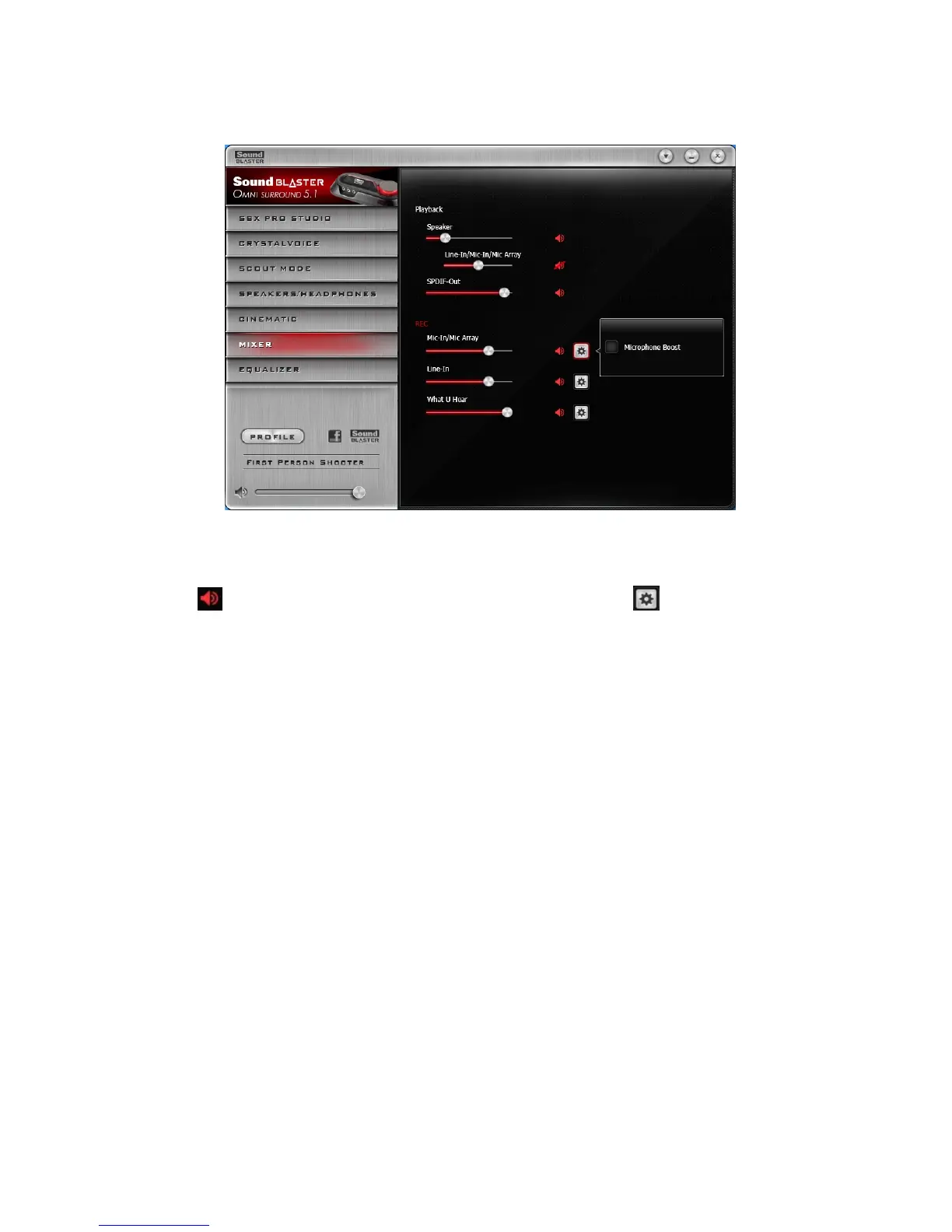
Mixer Settings
1. Volume sliders
Adjust the playback and recording volume for your various inputs and outputs.
2. Mixer Settings
Click the icon to mute/unmute the input/output. You can click the icon to adjust the settings
for your input/output.
3. To listen to the audio from the source connected to the Line-In or Mic-In jack, or the Internal
Microphone Array:
For Windows systems,
Go to the Mixer page of the Sound Blaster Omni Control Panel and unmute the Line-In/Mic-
in/Mic Array from Playback option.
Note: For Internal Mic Array, ensure that there's no external microphone connected.
For Macsystems,
1)Go to System Preferences and click Sound.
2)Click the Input tab and select Line-In or Mic-in/Mic Array as the default recording device.
3) Go to the Mixer page of the Sound Blaster Omni Control Panel and unmute the Line-In or Mic-
in/Mic Array from both REC and Playback options.
Note:
- For the audio source playback, ensure that your Sound Blaster Omni Control Panel is running.
- For Internal Mic Array, ensure that there's no external microphone connected.





 To Next Page