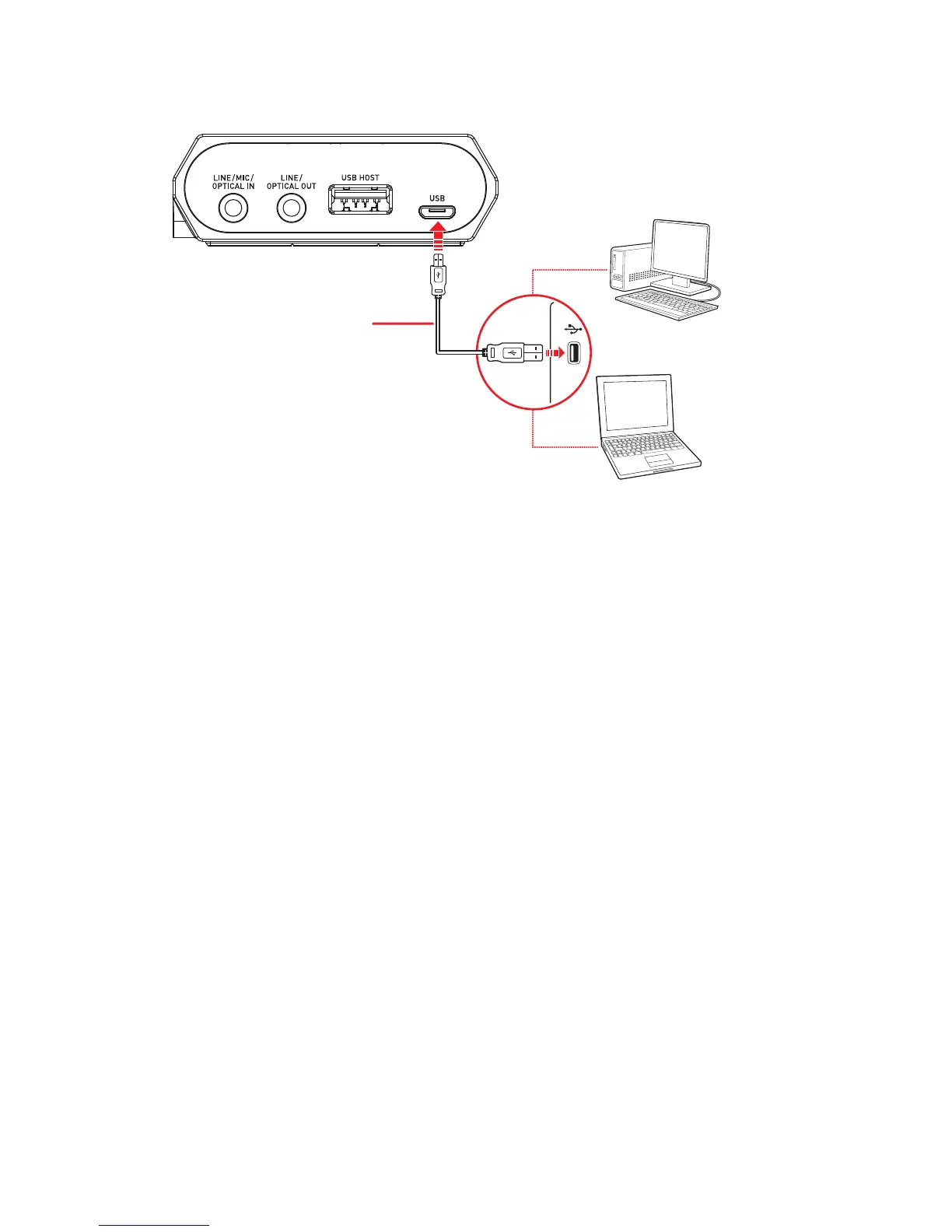
(a) Micro-USB cable
(b) Desktop
(c) Laptop
Note:
Connecting the Sound Blaster E5 to a USB hub is not recommended.
Setting the Sound Blaster E5 as the default audio device
For Windows
1. Go to Control Panel and click Sound.
2. Click the Playback tab, select Sound Blaster E5, then click the Set Default button.
3. Click the Recording tab, select the required Sound Blaster E5 recording device, then click the
SetDefault button.
For Mac
1. Go to System Preferences and click Sound.
2. Click the Output tab, then select Sound Blaster E5.
3. Click the Input tab, then select the required Sound Blaster E5 recording device.
Sound Blaster E5 – Setting Up Your Audio Device 10



 To Next Page