1-6 Installing WebCam Go
Installing Software
1. Switch on the computer.
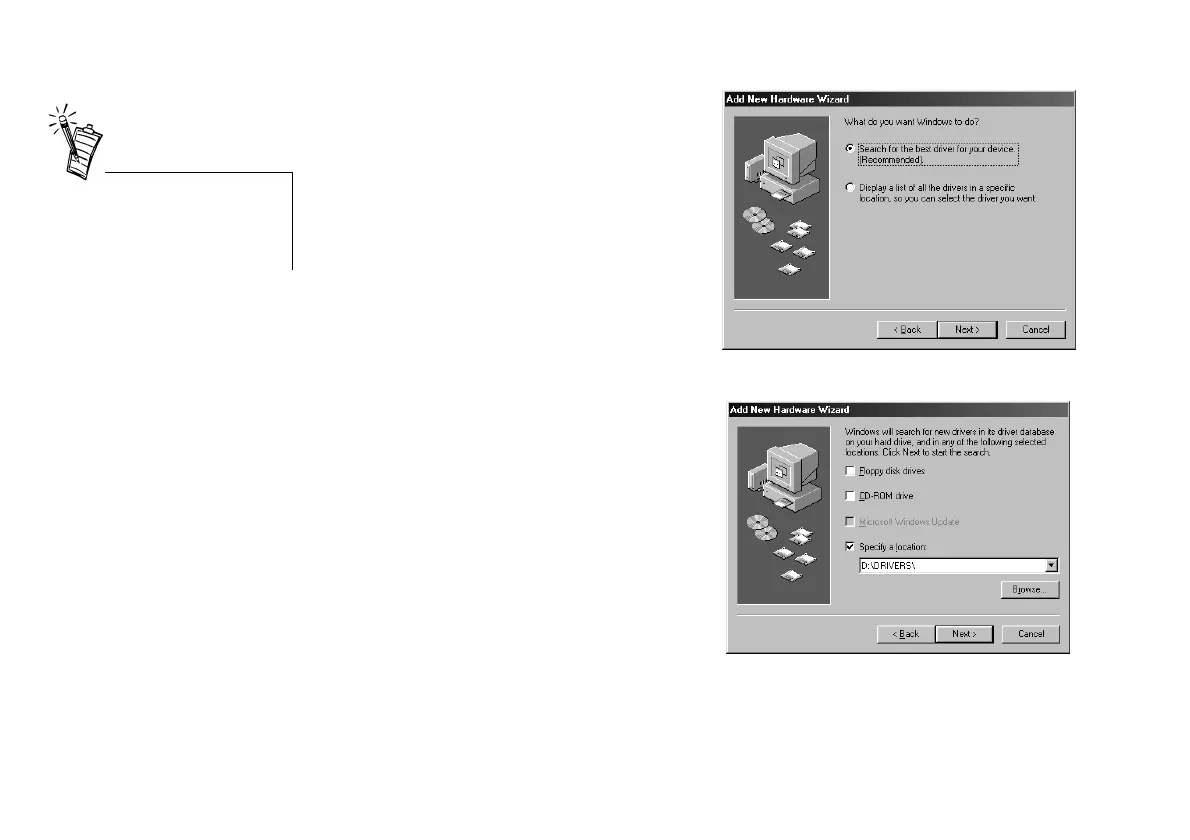
2. When the
Add New Hardware Wizard
dialog box appears, click the
Next
button.
The dialog box similar to Figure 1-5
appears.
3. Click the
Search for the best driver for
your device (Recommended)
option and
then click the
Next
button.
The dialog box similar to Figure 1-6
appears.
4. Insert the WebCam Go CD into your
CD-ROM drive.
Note:
If the setup program runs
automatically, exit from the program.
5. Select the
Specify a location
check box and
type
D:\DRIVERS
(where D: represents
your CD-ROM drive) in the box provided.
Some of the steps in the
installation process may not
occur in the same sequence as
described here.
Figure 1-5: The Add New Hardware Wizard dialog box.
Figure 1-6: Specifying a location.





 To Next Page