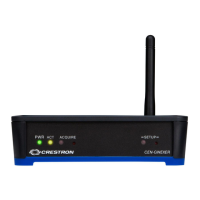
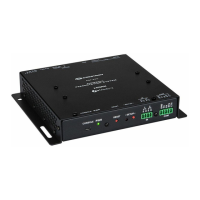
High Powered RF Gateway Crestron CEN-HPRFGW
Program Checks
Actions that can be performed on the CEN-HPRFGW vary depending on
whether it is connected via Cresnet or Ethernet.
Cresnet
Connections
For Cresnet connections, using Crestron Toolbox, display the network
device tree (Tools | Network Device Tree) to show all network devices
connected to the control system. Right-click on the CEN-HPRFGW to
display actions that can be performed on the CEN-HPRFGW.
Ethernet
Connections
For Ethernet connections, display the “System Info window (click the
icon) and select the Functions menu to display actions that can be
performed on the CEN-HPRFGW.
Be sure to use the Crestron Toolbox to create the CEN-HPRFGW IP
table.
1. Select Functions | IP Table Setup.
2. Add, modify or delete entries in the IP table. The CEN-HPRFGW
can have only one IP table entry.
3. A defined IP table can be saved to a file or sent to the device.
Edit the control system’s IP table to include an entry for the
CEN-HPRFGW. The entry should list the CEN-HPRFGW’s IP ID
(specified on the CEN-HPRFGW’s IP table) and the internal gateway IP
address 127.0.0.1.
22 • High Powered Gateway: CEN-HPRFGW Operations & Installation Guide – DOC. 6587B


 To Next Page
 Loading...