Cricut DesignStudio™ • www.cricut.com 13
Welding
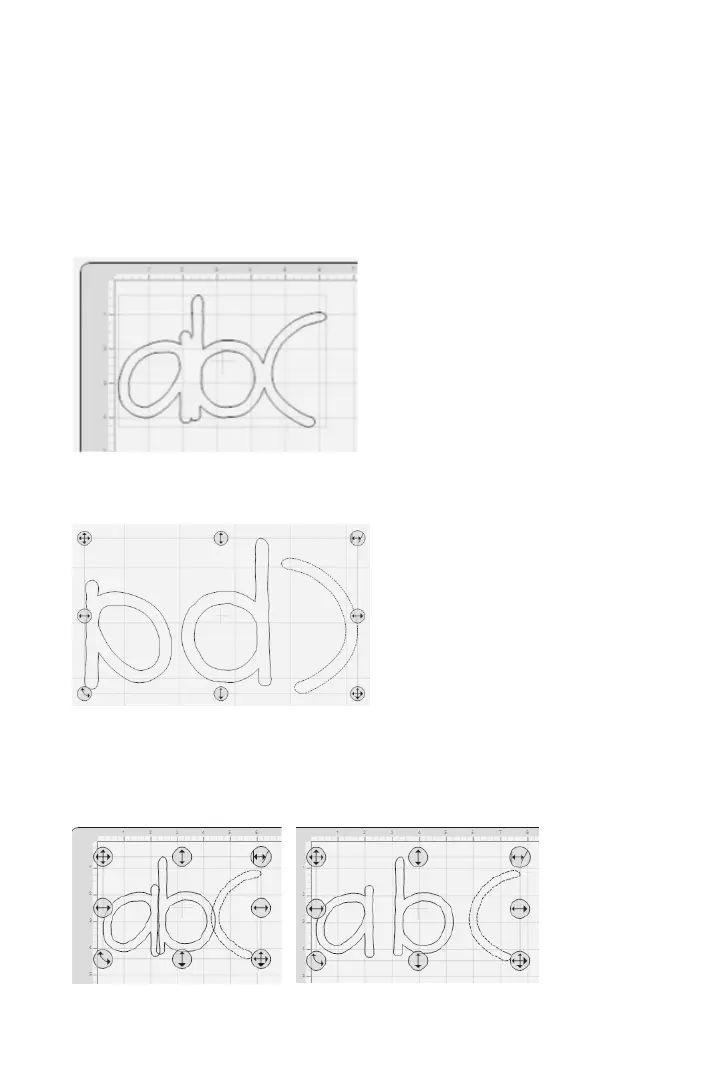
This powerful option allows for the seamless combination of unassociated images into
welded groups. Welding causes multiple images, which have been moved close enough
together to overlap, to become one image. It does this by joining images together wher-
ever an overlap occurs. With this tool, individual letters can easily be welded into words
and phrases. Check the Welding box when choosing images you want to weld.
There are two ways to position images for welding. You can use kerning and nudging to
bring images together within a selection (typing a word, then nudging each letter closer
together in that word) or you can use the selection handles to drag and drop separate
image groups together (putting two or three separate words next to each other).
Tip: When welding multiple images, apply a negative kerning number (see Kerning below)
to bring your selected images close enough to overlap.
Flip Shapes
Check the Flip Shapes box to face each image or selection in the opposite direction, effectively
reversing image orientation.
Kerning
This option alters the space between characters as they are placed on the mat. A negative
number shrinks the margin while a positive number enlarges it.
Tip: Kerning can also help you t a few extra characters on the mat when working at a small
character size.












 To Next Page