24 Cricut DesignStudio™ • www.cricut.com
The Features menu lists all the creative features available in the current cartridge set and
changes according to which cartridge set you have selected. It also allows you to select
the creative feature of your choice. This option is identical to using the creative feature
keys on the virtual keypad overlay.
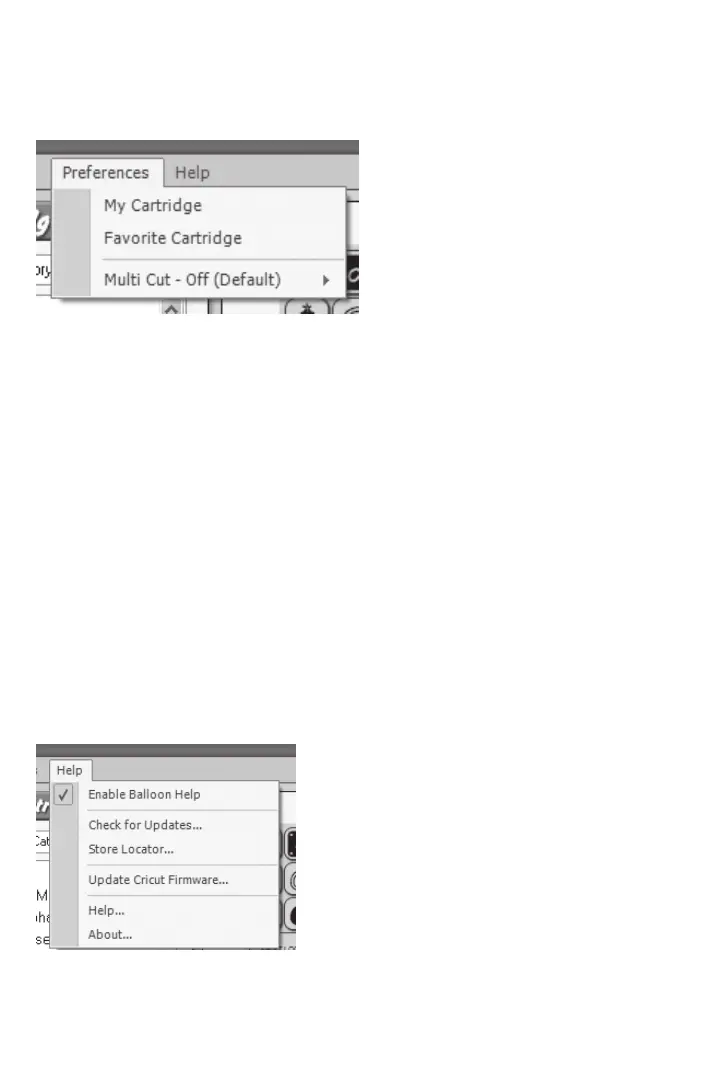
Preferences Menu
The Preferences menu options are as follows:
My Cartridge
Use My Cartridge to ag (or mark) the sets you currently own. To do so, select (double-
click) a cartridge set you own from the Cricut Cartridge Library list. Once selected, choose
the My Cartridge option in the Preferences menu. Doing this adds the agged content to
your My Cartridges list in the Cricut Cartridge Library.
Favorite Cartridge
Use Favorite Cartridge to ag (or mark) the sets you currently love. These aren’t your
kids, so go ahead and pick your favorites. To do so, select (double-click) a cartridge set
you adore (or maybe just merely admire) from the Cartridge Library list. Once selected,
choose the Favorite Cartridge option in the Preferences menu. Doing this adds the
agged content to your Favorites list in the Cricut Cartridge Library.
Multi Cut
Use Multi Cut to set the amount of times you want the Cricut machine to re-cut the same
cut over again in the same spot. This is useful for cutting through materials thicker than pa-
per. You can direct the Cricut machine to re-cut the same image in the same place up to
4 times.
Tip: If you’re cutting a material thicker than paper, remember to also increase blade
depth and blade pressure for better results.
Help Menu
The Help menu options are as follows:












 To Next Page